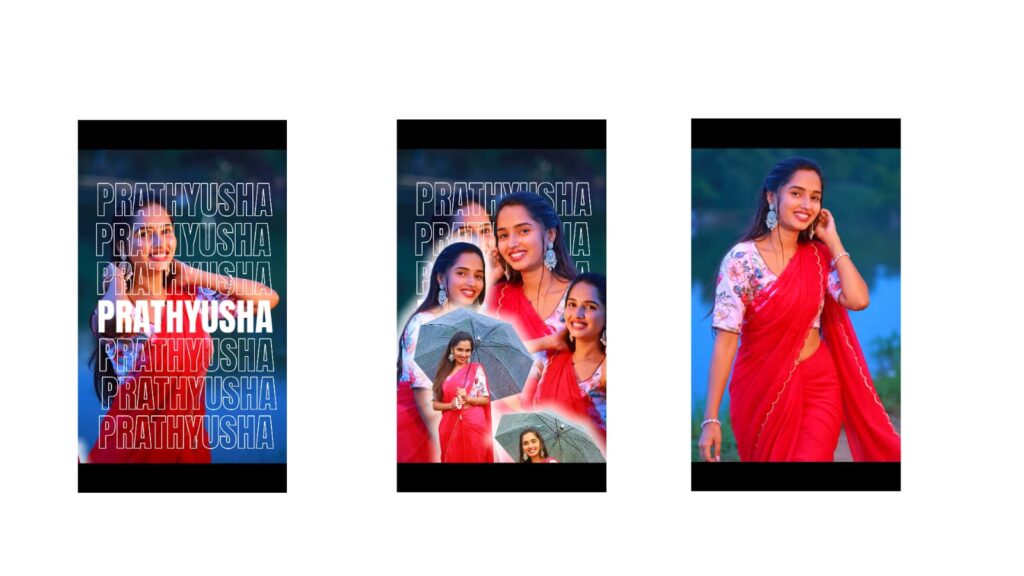
We are going to do video editing in this lyrical style, which looks very amazing. First, watch the lyrical preview, and in this, I will give you two songs. It will look very amazing, so you can try whichever song you like. I will also tell you how to do it. Since this will be very helpful for you, watch the video from the beginning to the end. If you like it, just give it a like. I don’t expect anything more than that. To make this kind of lyrical video, you 100% need the Alight Motion app, so I have provided the Telegram channel link below. You can try it from there, it’s very easy. Just search and download it, okay? Now, I will tell you a few things to make it easy for you, and then you can create it. Whenever you are making a video, especially a lyrical video, if there is a highlight, one is the background and another is the font for the lyrics. The font is very important. To give a good look… sorry, sorry… to give a good look to the lyrical video, the right font is essential. For fonts, you can visit a website called dafont. In that website, you can find fonts based on your preferred category. Okay, there are many types of categories available. So you can try according to that. I cannot specify one particular category because every single category has many amazing fonts. So choose a font you like, okay? Along with it, download another matching font as a pair, okay? And the fonts used in this video… I will provide them as well, so you don’t need to worry about it, okay?
Now, first I will show you the videos I have made, and then I will tell you how to make them simply. I will explain it for your understanding. Okay, first I will give you a lyrical project. I have provided this in the description. In this, I changed the font, which I will show you. You can also use other fonts; this font… doesn’t look that great. I will show you another font that looks super stylish. Okay, there is this font, and in place of that… I put a different font, okay? It looks like this. If you don’t like it, you can use a bold font type, and it will look even better. Why am I telling you this? Because it will look like a typography style. Earlier, I made another lyrical video in the exact same style. I made a few basic changes to that and tried this one. Because I posted that video on Instagram, many people asked me to explain the lyrics in that video. I have explained it in many videos, and I also covered it in the full Alight Motion tutorial. Still, I will tell you how to make these kinds of videos, so you don’t need to worry, okay? Check this out. If possible, you can also use the project file. Now, I will tell you a few things to make this video. Let’s go back. I will tell you how to make those videos first, okay? First, let’s go back. If you want that project, take it. Here, I am taking a new project. If you don’t have the Alight Motion app, it is available on my Telegram and WhatsApp channels, check it out. Okay, it will be easy to find, you can check
Now, let’s select a 16:9 aspect ratio. First, choose a black background color. Go to audio—since I have processed the audio separately, I will add the audio here. Because now we are adding a song of choice, even if you have a video clip, let’s assume you have this video clip. It is loading a bit, just a minute… select that video, click on the three-dot option, and select ‘Extract Audio’ to separate the audio. You can try it that way too. Okay, after that, first let’s create a background. For the background, click the plus icon below, select a shape, and zoom in with your fingers as much as you need, or you can zoom in by going to ‘Move and Transform’. Now, extend this till the end. After that, go to ‘Color and Light’ and select the ‘Gradient Color’ option here, look. Go into it, and first set a color of your choice. Here, I will add a darker color type to give it a nice look. What I mean is, as an example, I am doing everything inside Alight Motion without bringing anything from outside, like external backgrounds. I am showing you how to do this inside Alight Motion.
If you want a specific background of your choice, you can use Pinterest, or search on Google. Pinterest is much better, check it out. Now, first listen to the lyrics. The main point of the lyrics… is to place a beat mark right where it starts. And for the next line, listen to the song to find where the beat starts… and where it ends, and place a beat mark there. Clicking on the timer adds a beat mark. According to this, we need to make the lyrical video. Now, how to do it? First, listen to the song, and after listening, copy the relevant lyrics… from here. I am showing you this as an example. Copy it, go to text, and add the text. And… for this, you can use a handwriting font or a bold font. As an example, I am choosing a handwriting font, and… setting it to white. Then duplicate it, and for the other text, change its font to a slightly bolder type, like this. Look, just like a couple pairs up beautifully, adjust them opposite to each other. Or you can keep this bold and make the other one… handwritten, this also looks good. If you add a photo behind this, it will look even better. Now, as an example, I will add an image that fits this. I added this image, aligned it with the beat marks, and zoomed in a bit. Okay, it’s… set perfectly.
Now, if you want to animate this, I will tell you a simple way. I left this starting portion blank, right? For this, take a shape, move this shape here, go to its Z-value, make it zero, and adjust it like this. Then go to ‘Blending’, go to ‘Mask’, and apply the mask. This effect will appear like this. You can place your text in the middle. Now, we… need to start from here, so add a camera at the starting point. Cut it here, and keep the second camera up to this point, okay? Now, if you want to animate this, you can move it from bottom to top, or from top to bottom, like this. To… give it a good depth, go to ‘Move and Transform’ and increase the Z-value like this. Now look, look, it’s in slow motion, and it looks very nice.
Now, from here, sorry, to transition from this lyric line to the next lyric line, it’s simple. Now, I have… explained one line to you. If you want to do the same for the next line, we just need to copy that lyrical camera layer and paste it here. Paste it, change the text, change the photo, and for the animation—instead of using the exact same animation, move it from the side instead of the bottom… like this. You can change every single element because each has its own style, and… you can modify them accordingly, that’s it. If you have any other doubts, leave a comment. I explained it briefly because I think you can understand it. If possible, I will provide the project file in the description, check it out.
Full Project
XML file
download
Song link ..



