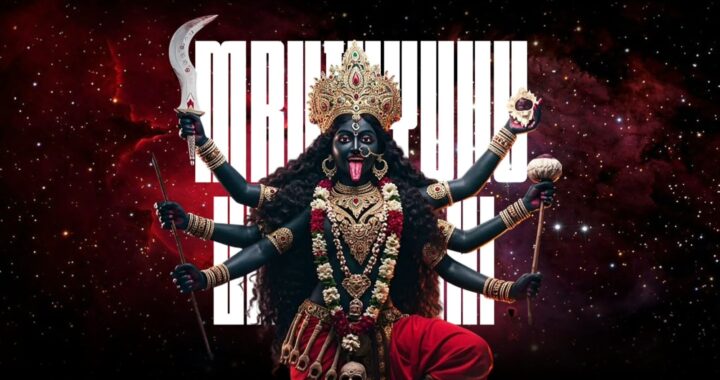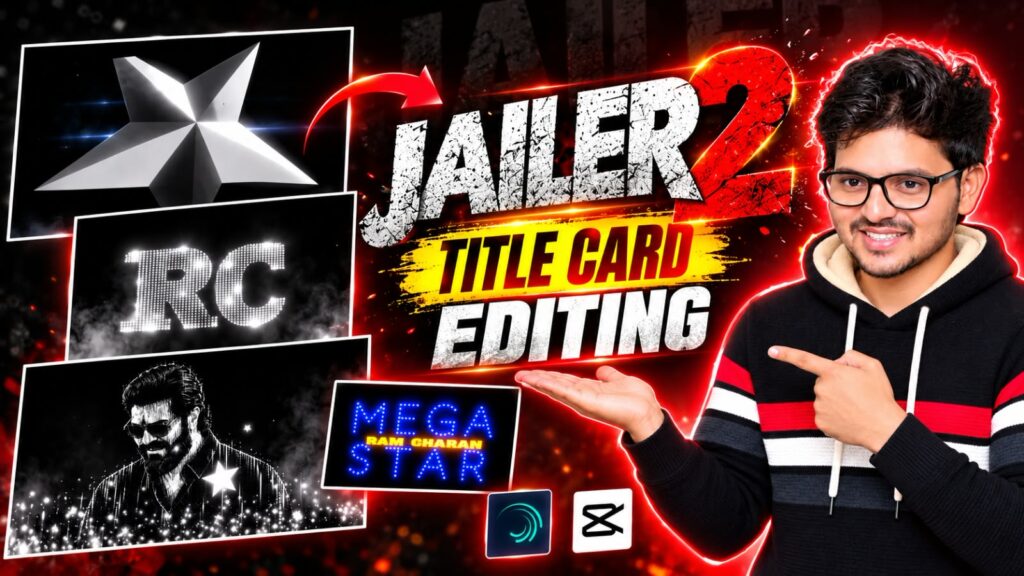
Lyrical video editing has completely transformed the world of short-form social media content, with platforms like Instagram Reels, YouTube Shorts, and TikTok featuring creative edits that combine photographs, music, cinematic transitions, and animated typography. Among the most popular styles is the 3D Move Lyrical Effect, which creates an immersive visual experience by adding depth, camera movements, and dynamic text animations to ordinary images and video clips. Previously, achieving professional three-dimensional parallax effects required advanced desktop software such as Adobe After Effects, but mobile applications like Alight Motion now make it possible to create impressive motion graphics directly on a smartphone. To begin, prepare high-resolution portrait photographs, suitable background images, attractive fonts, particle overlays, and your preferred soundtrack. Open Alight Motion, create a new project with a 9:16 aspect ratio, select a resolution of 1080p Full HD, and choose either 30 FPS or 60 FPS depending on your desired animation smoothness.
Import your soundtrack and carefully listen to identify the beat drops, vocal transitions, and important musical moments that will determine the timing of your visual effects. Next, import your primary photograph and enlarge it slightly beyond the edges of the canvas to prevent empty spaces from appearing during camera movements. To create a more realistic three-dimensional appearance, arrange your background, subject, and overlay elements on separate layers and adjust their positions and depth wherever supported by the application. You can use Alight Motion’s camera and transformation features to create cinematic movements, including horizontal sweeps, vertical pans, and smooth zoom-in effects. Add keyframes at different points on the timeline to define the beginning and ending positions of each movement, then use easing curves or the Graph Editor where available to make the animations appear smoother and more natural. Once the camera movement is ready, focus on creating attractive lyrical typography. Add the opening song lyrics using a bold, stylish font that complements the background, and apply a subtle drop shadow to improve readability.
Experiment with text animations that make individual characters or words appear through scaling, rotation, fading, and sliding movements. Synchronize each lyric with the corresponding vocal line so that the text appears at the right moment and disappears before the next phrase begins. To save time when editing longer songs, duplicate completed text layers and replace their wording while preserving the existing font, effects, and animation settings wherever
possible. For additional visual impact, incorporate suitable light leaks, floating particles, glow effects, and carefully controlled color adjustments. You can also apply motion blur where supported to make faster transitions feel more cinematic. However, avoid adding too many effects at once, as excessive visual elements can reduce readability and make the edit appear cluttered. Before exporting, review the complete video to check the synchronization between lyrics, music, and camera movements. Finally, open the export settings and select 1080p resolution, an appropriate frame rate, and a high-quality video setting.
H.264 is a widely compatible export format when available. Save the finished video to your device and review it before uploading it to Instagram Reels, YouTube Shorts, or other social media platforms. By combining well-prepared assets, carefully timed keyframes, creative typography, smooth camera movements, and balanced visual effects, you can create professional-looking 3D lyrical videos using Alight Motion on your smartphone. With regular practice and experimentation, you can develop your own editing style and produce visually engaging content that stands out on social media.