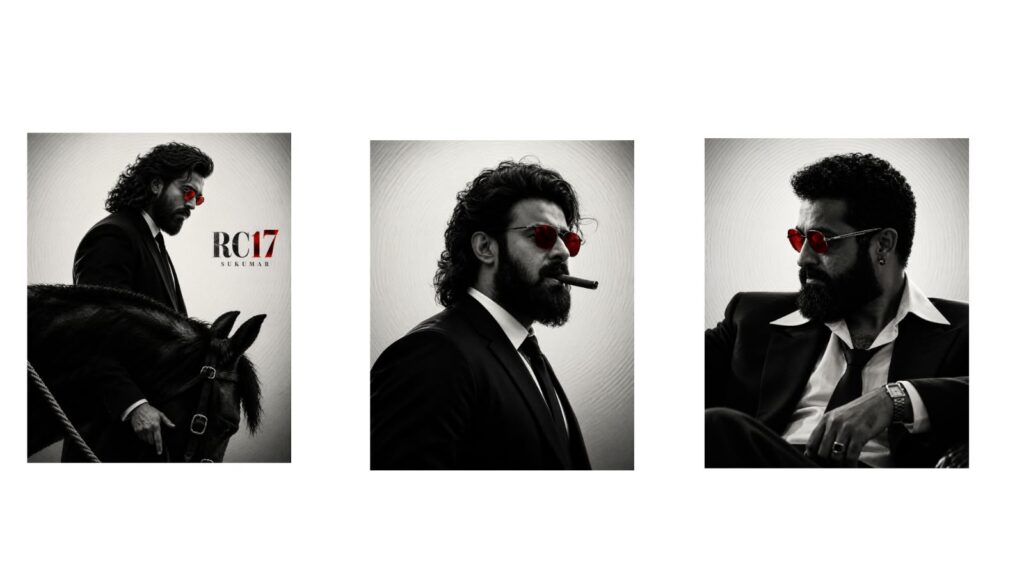
First, look at this video. We are going to create a video like this now, and it will be very amazing. Every top hero has a title card like this that looks incredible; it is even playing on the screen next to it and getting a next-level response. Watch this video editing tutorial from the beginning to the end because it is very simple. If you just follow the steps I tell you, that will be enough, and afterwards, you can do it with your own ideas as you like. We are going to do all of this in the Alight Motion app, so if you don’t have it, it is available on my Telegram channel which is linked in the description. I have also posted this video on Instagram for you to check out. I did another special video for Ram Charan Anna’s 19 years of movies that I posted on Twitter, and if possible, I will post it on Instagram tonight too.
To start editing, open the Alight Motion app and select a 16:9 ratio. Choose whose title animation you want to make, and add a good video clip at the beginning—it can be an actor or even your own. Keep that video clip for only two seconds and cut the extra part. Come to the beat mark, turn off any existing music, and add a starting dialogue if you want. Now go to the share icon at the top, select “Current Frame as PNG”, and export it to save a photo. We will need this exact photo for the end of the title card. Next, open ChatGPT, start a new chat, and upload the photo. Enter “create background” because we need to remove the person and only keep the background. We will handle the person separately, so just wait about 20 seconds for it to generate. Download that generated background.
After that, click on the text option in ChatGPT, go to “Edit Message”, remove the text, and type this very important prompt: “This image more better quality body inner glow shadow inner orange”. I am using orange because it sets really well for this specific photo. Then add “and shadow background transparent and same size”. Wait another 20 to 30 seconds, and your photo will be ready and converted into a PNG with a beautiful inner shadow and glow effect. Download this photo as well. I will put this prompt in the YouTube description for you.
Now come back to Alight Motion, click the plus icon at the end, go to “Object and Element”, and add a Null layer. Extend the Null layer up to 6 seconds. Click the plus icon again to add the background generated from ChatGPT and extend it to the end of the Null layer. Select the photo, click the option next to the delete button, and select the Null layer to link it. Go into “Move & Transform”, select the ‘Z’ axis, and increase it to 10%. Go to Media, add the generated PNG photo, extend it to the end, and link it to the Null layer as well. Click the plus icon, take a shape, and select “Fill Composition Area” from the three dots to fit it completely. Increase its size slightly in “Move & Transform”, then go to “Color & Fill” and choose the Gradient option. Place the black color at the top, select white for the other side, change it to orange to match the ChatGPT glow, and lower the opacity a bit. Move this shape layer below the photo and link it to the Null layer.
Next, click the plus icon, go to Media, and add the fire video clip from the description, which works beautifully with this orange theme. Bring it below the photo layer, go to Blending, choose Lighten, and select Screen. If the orange fire doesn’t match your photo, go to Effects, choose “Color & Light”, select “Hue”, and change it to green or any matching color. Link this fire layer to the Null as well. Select the main photo, go to “Move & Transform”, select ‘Z’, and set it to minus 300 or 400 so it stays perfectly in the front.
For the title text, click the plus icon, go to Text, type “SUPER STAR” at the starting, choose the font from my description link, extend it to the end, zoom it in, and rotate it. Go to Effects, Add Effect, “Color & Light”, and choose “Gradient Color”. Set Color 1 to white and Color 2 to orange. Go back to Effects, search for “Long Shadow”, add it, set the opacity to 71%, decrease the size a bit, and choose the shadow direction. Go to Effects, Add Effect, look under “Drawing & Edge” for “Edge Glow”, and add it with standard settings to get a glowing look. Then add the “Smooth Bevel” effect from the same menu and reduce the radius to 10%. Select this text layer, duplicate it, move it down, change the text to “MAHESH BABU” using small letters, and set its ‘Z’ value in “Move & Transform” to 700.
To animate the text, go to the start of the “SUPER STAR” text, add a keyframe in “Move & Transform”, move forward slightly, and add a second keyframe close to it. Go back to the first keyframe and drag the text completely off-screen to the side, then go to the end of the timeline and push it slightly forward for a continuous moving effect. Do the exact same keyframe process for the “MAHESH BABU” text, dragging the first keyframe to the opposite side and animating it outward at the end. Make sure to link both text layers to the Null layer so everything stays perfectly synced.
To add the final camera movement, select the Null layer, go to “Move & Transform”, add a keyframe at the start, and zoom it in significantly at the final keyframe at the end. Go to rotation, add keyframes, and add a slight spin. If the background shows black edges during this rotation, select the background layer, go to Effects, and add the “Tiles” effect. Then select the gradient shape layer and increase its ‘Z’ value by 34% to make it fit perfectly. Finally, select the main photo layer, go to Effects, look under Blur, and add “Motion Blur” to give the shake a super smooth look. You can add a nice mass background song and a starting dialogue to complete it. The full project file, song, font, and PNGs are available in the description and Telegram channel. The raw project file won’t include everything if the MB size is too big, but if you have an Alight Motion subscription membership, it will import smoothly regardless of size. Check everything out, leave a comment if you have questions, save your final video, and Jai Hind!



