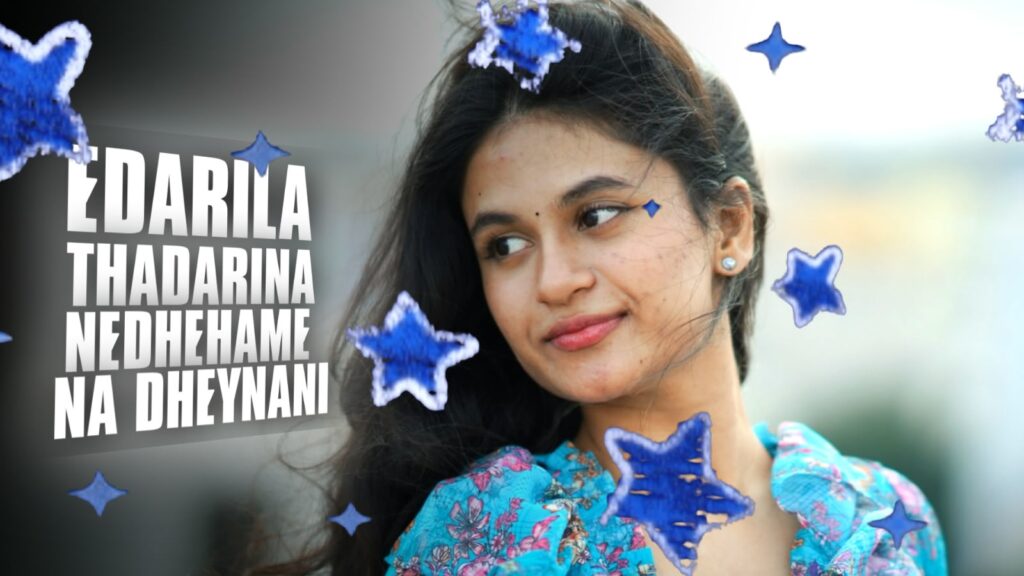
First, watch this editing; it looks very amazing. This is a video made by taking four photos of our followers. There is a song named “Anjana Anjana” from Paradise. It contains a lyrical part like “Edarila” or something similar. I tried editing from that part, and it turned out really well. Especially since it features our follower’s photo, I created it with an inner feeling that it should be done very simply. Therefore, if you also want to make a video for someone, try it with this style; it will look amazing. And there is a bit of 3D depth in this, which feels very good. I actually got this idea after watching a video on Instagram. Since our followers suggested it, I planned to do the lyrics, colors, and animation in that same style. So, it was completed quite simply for me. The editing, the song, and the 3D animation look very good.
I will also explain how I did it. If you have time and don’t have the patience, I will provide the project file too. But first, understand that this was made in Alight Motion. I will provide the Alight Motion link below from Telegram. Download your preferred version from there. Even if you face any issues, I have provided a video there, so check it out. Okay? Now, if we want to create this, I will explain a few things first. First of all, we must have the original photos. For example, consider this as an original photo, this is one photo, and there are about four or five photos, maybe even more. Okay? We need to separate the background and objects (meaning the persons) from these photos. If you want to place a woman’s photo, you need the background and the person (the object) separated. I have done that here, see. These are the PNGs, as you can see, and these are their corresponding backgrounds. You can automatically remove the background using the PhotoRoom app. You just upload normal photos and remove the background.
If you don’t have an idea on how to create a background, every mobile has a built-in option. Since mine is a Samsung phone, it has a default editing option. For example, you select a photo, click on the pencil icon, and you will find the edit option. By clicking on it, I simply erase the object. This feature is available on my phone, but I cannot guarantee it will be on yours. However, I will give you a solution anyway. Look at this photo; the background gets removed automatically. You can remove anything you want in this. If you want it exactly like that, open ChatGPT. I’ll explain:
open ChatGPT and upload your photo. I already mentioned this in yesterday’s video, though I’m not sure how many of you remember. Upload the photo and type “only create background” or “first create this image background”. It will automatically remove the person and give you the background. Alternatively, if you ask it to only remove the object, it will remove the object and provide the background. You should generate the background this way because the quality turns out amazing. So as much as possible, if you ask it to “create this image background,” you will get a better quality, identical background, and the quality will be much better, so do it this way. Okay?
After that, we will start the editing process. If you want the template, I will provide it below; you can check it out and use it. Okay? First, the photo has been generated, and I will show you the photo I mentioned earlier. Look here, the color grading is very different. If you want to try it, go ahead. First, let’s add the song. I am adding the video itself first. You extract the video and add the audio separately. Because if you have the video, you can click on these three dots and select “Extract Audio” to separate the audio. Now, if we want to add lyrics to this, listen to the song first. Listen to it and mark the beats according to how the words flow. To add a beat mark, just click on the timer, and a beat mark will be placed like this. Now, let’s first add the background. Add the relevant background, extend it up to this beat mark, and zoom in with your fingers like this. After zooming, go to Move & Transform and increase the Z-value like this. Then, come back to the starting point.
Let’s add the subject as well. We have the subject with the background removed, right? Add this subject and zoom it in up to here. It looks very good so far. For the lyrics, I directly went to Google and searched the song name to get them. I used the song “Anjana Anjana” here. It will automatically give you the lyrics separately. You can simply copy the lyrics from there. The lyrics are right here. Sorry, an ad is popping up, but no problem. Next, go into the text option, and I will take the first line of the lyrics. I used two types of fonts in this video, and I will provide them below for you to check out. I am adding the top font now. I am converting it entirely from lowercase to uppercase letters and applying a color that I like. Since this color syncs well, I am choosing it. Then, I go to Border & Shadow, add a border, add a shadow, and give it a bit of texture. Make a border circle and move it downwards. Duplicate this, start the next lyric line here, and attach the remaining lyrics to give it a better feel. For this line, I will use a handwriting font. If both fonts look identical, it won’t have that unique look. You can choose any color you like. For example, I’ll set this color which syncs nicely and looks good. I will adjust its Z-value in Move & Transform like this and change it to white. It looks good so far
Now that the lyrics are added, I will apply a small animation to it. You can easily handle the rest automatically. Go to the starting point, open the Object & Element section, and add a camera. Extend the camera track up to the beat mark, turn on the camera, go to Move & Transform, and add a keyframe at the start to position it on this side. Then add another keyframe to position it on the other side, and come here. Now look at this, it looks superb! As you can see, this animation turns out great. Similarly, you can adjust the movement depending on whether you want it at the top or the bottom. You can copy it from here, paste it, go to Color & Fill for the backgrounds, and then go to Color & Fill for the PNGs. This way, you can easily replace every single element one by one to customize it to your liking. You can make changes very easily, and it is very simple. That’s all. If you have any doubts, leave a comment. The project file and fonts are available below, so check them out. If you face any import issues, I have provided a video in the description below, so please check it out.



