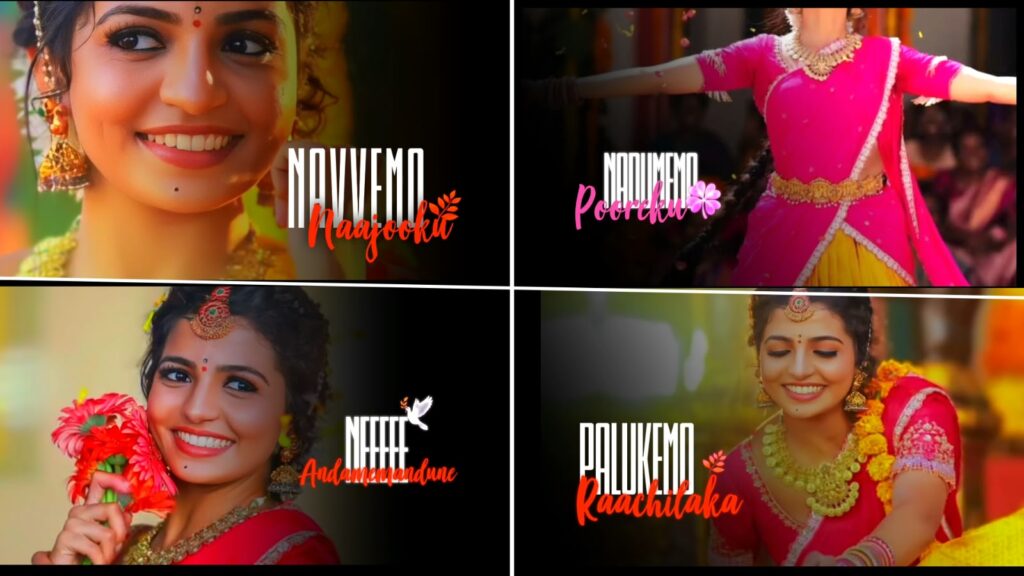
This trending editing style remains highly popular no matter how many times it is done. Take a look at the edit; it looks amazing. The song used here is especially trending right now. If you like it, please leave a hit on the like button and show some support. The lyrics go, “I thought I lost, Raghumari Sugumari, my heart is a garden of flowers…” Now that you have watched the video, please let me know how you felt about it in the comment section. This edit primarily features smooth camera movements with nothing overly complex, making the final result look exceptionally beautiful. If you are thinking about trying this out, you should absolutely go for it. I am recommending it because it genuinely looks great. Additionally, I kindly request everyone who watches this to please leave a like. Your likes provide vital support to the channel, and that is all I ask for. I hope you will support me with a like.
The best part about this project is that you do not need to generate any special prompts. If you want to keep it simple, you only need to gather a few photos to get started. I have provided the necessary font links in the description below. Don’t worry if you only have three or four photos; that is perfectly fine. I believe I used a total of five photos for this edit, so it requires very minimal assets. Creating this is incredibly simple. I will try to explain how the camera movements work as well. Since we have already created a video using this song previously, this version will have a few differences, though some elements will naturally remain the same
To begin, open the Alight Motion app. If you do not have the app, I will upload it to my Telegram channel for you to check out. I will also provide the project files below if possible. If you face any issues while importing the project, please watch the dedicated troubleshooting video linked in the description. First, let us turn on the camera. I placed an “Eye Photo” right at the beginning. The reason for using this specific photo is that while I could have used a movie title or something similar, I felt an eye close-up would deliver a much better visual feel.
I am also planning to add another element here. For demonstration purposes, I opened Pinterest and searched for a “Rose PNG” to give you a clear idea of what works. I picked a suitable image and am converting it into a PNG format using an app. If you need this exact image, I can provide it for you. You can easily download this PNG from the description, or you can search for a rose on Pinterest yourself to find many variations. I chose this one because it looks great. If you want the exact transparent file, let me know in the comments or grab it directly from the description links.
To make the opening look even better, I am going to position this photo here. Let me adjust it for a moment as it is causing a slight issue. I will bring it down below this shape layer. Now, look at that—it looks very nice. There are a few other photos included here that you can replace with your own images if you wish. I will show you exactly how to replace them. Let me duplicate this layer quickly because I need to save this configuration for another project. Now, select this specific photo, go into the “Color and Fill” settings, and you can swap it out for any image you prefer. A close-up shot or any type of photo will work perfectly fine here. Once you change it, the image will map correctly to the composition.
Next, I am scrolling down because the text layer is not standing out clearly against the background. I am going to select the text and modify its color. Make sure to choose a color that gives a premium and readable feel to the viewer. Even if it takes a little extra time to adjust, it is completely worth it because our lyrics need to be highlighted prominently. To achieve that, you should choose a contrasting color. Placing black text directly on a black background ruins the visual appeal. Therefore, take your time to decide which color works best on a dark background versus a light background. Make any other necessary adjustments to your project. If you have any questions or doubts, please drop a comment. If you enjoyed this tutorial, please hit the like button to show your support. Jai Hind!
Would you like help finding the font download links or the Alight Motion project file from the video’s description?



