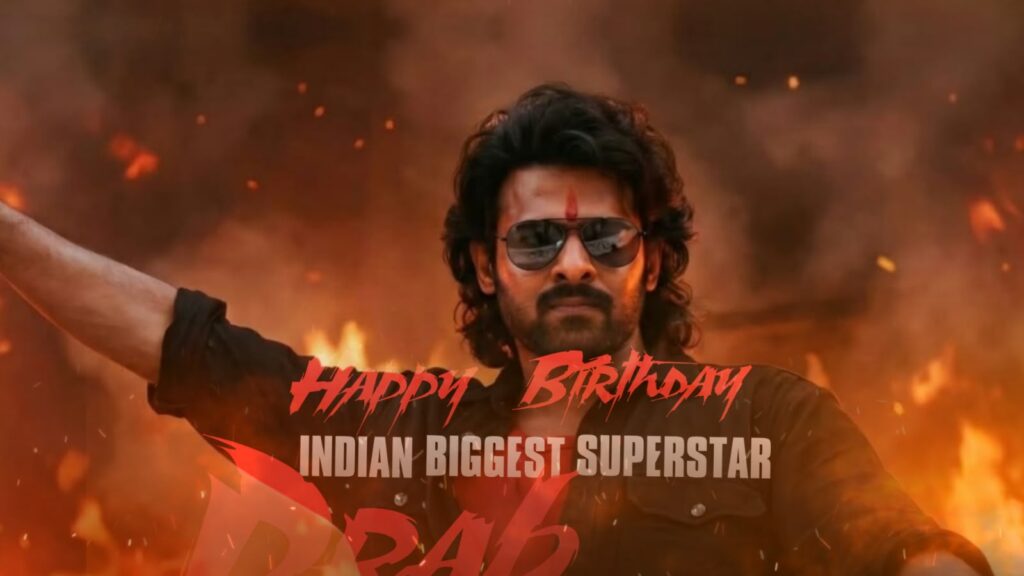
The editing I did is solely because the song is currently trending, but it turns out quite good and you will like it. Please give it a like and show some support. Look, first, you have watched the video, right? How did you feel about it? Please comment. I only let you listen to a little bit, but that feel is very good. I will also post this on Telegram and WhatsApp, so you can check and use it if you want.
However, this editing takes a lot of time. You might think it looks very simple, but it actually takes a significant amount of time. If you watch this video, you will be able to do it easily, there is no doubt about that. So, watch the entire video. I created three or four versions of this, but finally, I stopped at this version. I will show you and clear your doubts. First, the version I made was this one, which looks normal. Since I didn’t like it, I made another version. This version is also okay, the starting version feels a bit new. And the third version is this one, which is entirely black in color. As I mentioned, I made a few changes—not complete changes, but some modifications—but finally, I settled on the one shown to you in the demo.
First of all, I have provided the font below this video. It is extremely important, so download the font and add it to Alight Motion. If you don’t know how, I will explain it now, so you don’t need to worry about it. Okay. First, I will give you the project file itself. Before the project file, there is a prompt provided below. I included that prompt for ChatGPT, and I will explain why. Copy the prompt and open ChatGPT. Once you are in, instead of going into the file section, go to the photo section, select a recent photo or any photo you have, add it, and then paste the prompt I provided. Send it, and it will generate a photo for you in the exact same size. Sometimes the size might vary, but that’s no problem. First, generate as many photos as you need, which will be much better. If you have an idea to do it in that specific style, you can generate this kind of photo because it will be useful in our editing, and since we need it, let’s see how the photo turns out and check the output to see if it fits well.
Wait for 10 to 20 seconds. Sometimes the photo generation happens very quickly, and sometimes it takes quite a while. You may or may not believe it, but I generate over 100 photos every day using ChatGPT because I handle editing for different clients and have a lot going on, which causes some issues for me. Even so, since the arrival of ChatGPT—or rather, since AI came along—it has been very helpful, and I am also using Gemini a lot. Look, the photo has turned out amazing. Sometimes basic elements in the photos change, so try again if needed. Things like the face cut might vary, but with a little adjustment, it will be perfectly set, so you don’t need to worry about that at all, no doubt.
After that, let’s open the editing application. Since the font is very important, I have provided it below, so check it out. Now, remove the background for a few photos as well. I use the PhotoRoom app to remove backgrounds. If you want the PhotoRoom app, I have posted it on Telegram, and the Alight Motion app is also available on Telegram. A new version came out recently, so check it out. I have uploaded Alight Motion, and it helps a lot—it is extremely useful. If you face any import issues, there is an option within Alight Motion. Just go back, and you will find the import option right there, which makes it very easy. Try it once, I won’t say too much about the app. After that, you can automatically change the photos and other elements one by one, then export it. Take a look, this is a very large project with 120 layers, so please check it with a bit of patience. After that, save it.



