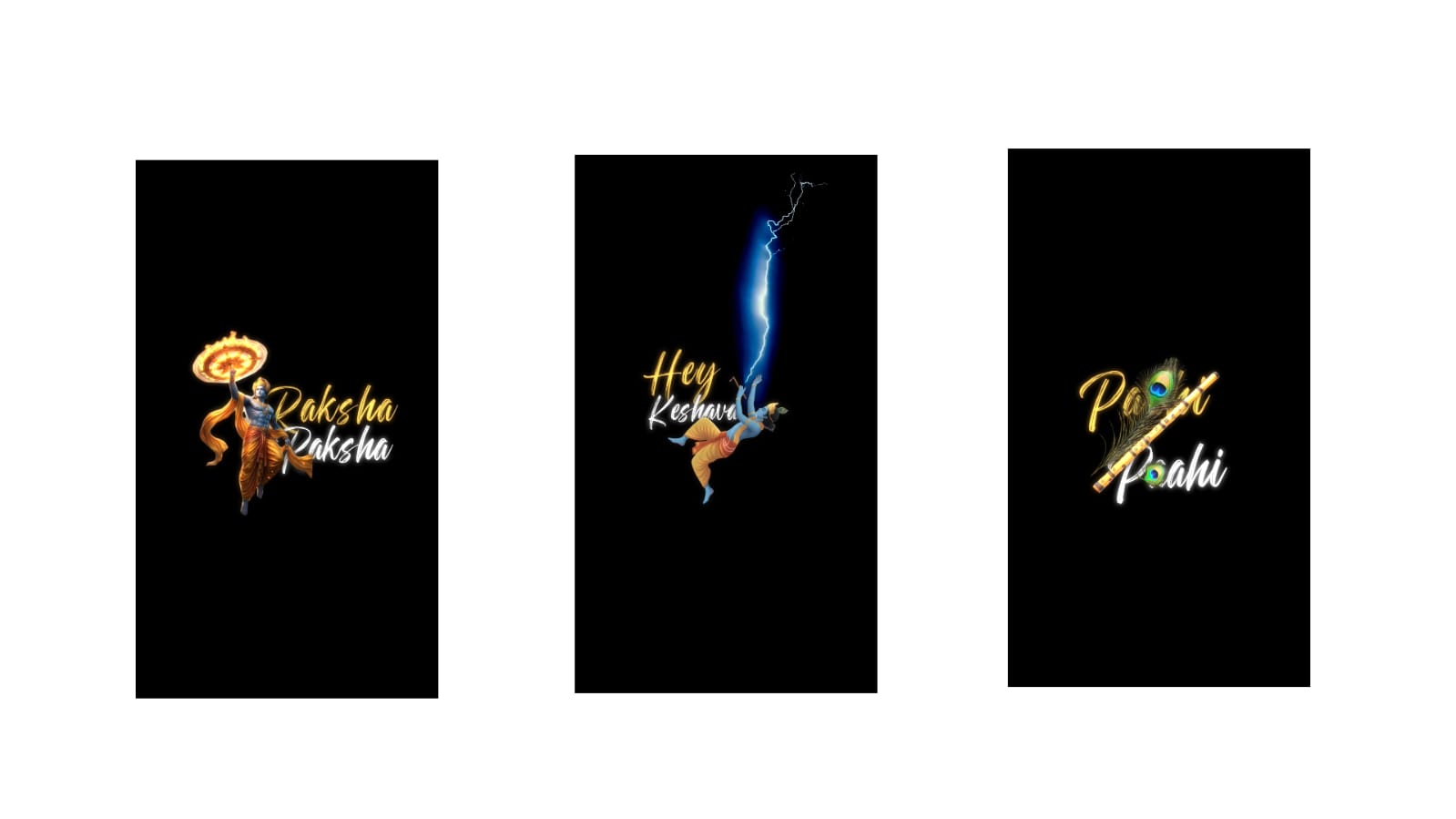
Friends, today we are going to learn how to edit a video for the song “Singari Sinnadana,” which is currently trending a lot on Instagram. This song is from the movie ‘Duet’. I really liked this animation style, so I am going to explain exactly how I created it.
Now that you have watched the preview, please comment below and let me know how you liked it. I hope you guys support me a little; I don’t expect more than that, but watching the video until the end will be a huge help. I will teach you this video editing from the very beginning. If you want the full project files, I will provide the link in the description so you can check it out.
To start editing this video, we primarily need three things:
1. Materials: This includes stock images, photos, or background overlay videos.
2. Song: The song will be added automatically, and you can easily copy the lyrical text from Google.
3 . Alight Motion App: This is the most crucial part. If you don’t have Alight Motion, you can install it from our Telegram channel.
You will also need a few PNG elements. You can download these directly from Google. I will share a trick that I personally follow which is highly useful. If you search for flower PNGs on Google, you can find many, but I will provide a specific website link in the description. On this website, you can download 4K overlay videos and stock footage. If you download images from Pinterest that are not in PNG format, you can use the PhotoRoom app to easily separate the background and create a PNG. I have already added the links for these apps on Telegram, where you can easily search for PhotoRoom or Alight Motion.
The Editing Steps:
- Ratio Selection: Let’s look at the trending ratio for this video. Open the app, click the plus (+) icon, and go to the pencil icon. First, disable or hide the link option in the center. This ensures your aspect ratio doesn’t shift unexpectedly. Set the dimensions to 1080 x 1280, or clear it and set it to 400. Choose a frame rate of 60fps and click ‘Create Project’.
- Adding the Song & Background: Once the project is created, the main step is to add your song. After adding the song, create a background instead of downloading one. You can make custom manual backgrounds directly inside Alight Motion using a simple trick. Take a shape layer and zoom in to fill the screen. Next, play the song and mark your beat points to make the editing process incredibly simple. Go to the color panel and select an orange color for the shape. To give it a cooler look, go to effects, select ‘Drawing & Edge’, and add the ‘Halftone Dots’ effect. You can adjust the strength and amount to make the dots larger or smaller until your background image is ready.
- Lyrics Creation: Go to Google, search for the song lyrics in Telugu, and copy them. We will add the text word by word. First, take the word “Singari”. I will link this specific font in the description for you to download. Position the text slightly to one side and tilt it a bit. Choose a dark color that suits your aesthetic. Clip this text layer exactly at the first beat mark. Next, duplicate or extend it to the next beat and change the text to the next word, “Sinnadana”. Keep the lyrical phrasing short as it looks much better. Apply a ‘Fade Animation’ to the text layers using keyframes.
- Overlay Video & PNGs: Go to the media section and add an overlay video (which can be downloaded from the site mentioned earlier). Go to ‘Blending & Opacity’, select ‘Darken’, and set it to ‘Multiply’ to blend the effect. Now, select a PNG image (like a flower or character model) and place it in the frame. Go to ‘Move & Transform’, add a keyframe at the start, move forward slightly, and add another keyframe while pulling the image downward. This creates a smooth slide-in animation from the bottom.
- Duplicating Layers: Select these five created layers, copy them, and paste them at the next beat mark. Trim any extra parts that overlap. Now, simply replace the text with the next lyrics. Go to ‘Color & Fill’ on the photo layer and replace it with a different image. You can change the background color as well to maintain visual variety and continue this process throughout the song.
You can also enable the camera feature and add camera keyframe animations if you want, but it isn’t strictly necessary. If you need any of these PNGs or project files, they are readily available via the links in the description. Once you complete the editing, export and save your video.
Full Project
XML file
Song link



