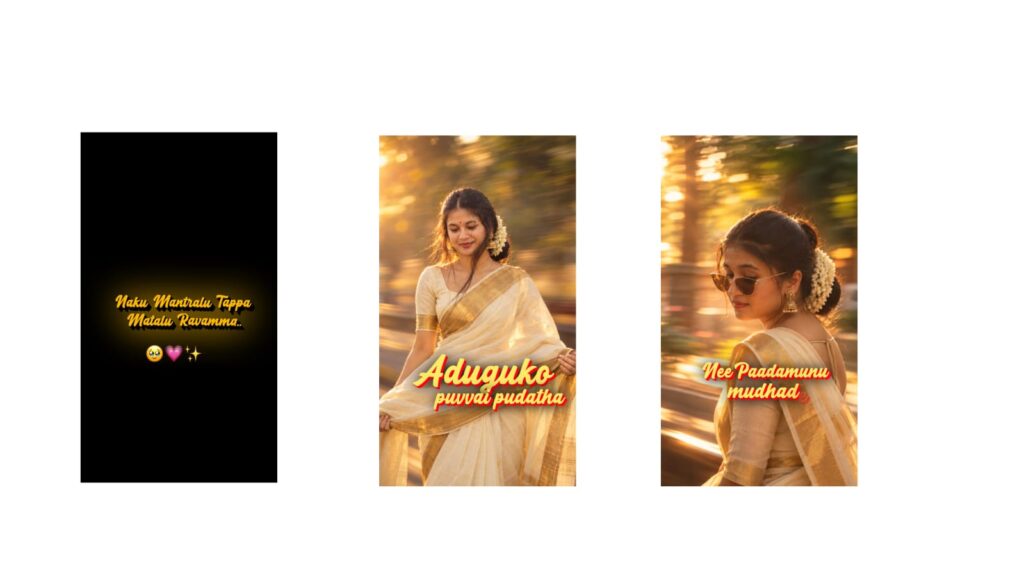
Creators are rapidly growing their Instagram pages by making this type of typographic Reel. The best part is that people who used to avoid content creation because they were camera-shy or didn’t know how to edit are now growing their pages in just one month by making these types of Reels. Before starting the video, let me show you some pages that grew their Instagram presence in a very short time. Take a look at this page; it only has four posts but has gained over 1,000 subscribers. Its first video has over 100,000 views. If you think that is just luck, look at this other page; it gained over 12,000 followers with only 28 posts—meaning just one month of posting. This page is only 12 days old and has already gained 400 subscribers. I know what you must be thinking: “What kind of content are they making?” In this video, I will explain in detail how to write the script, do the voiceover, and edit the video. Make sure to watch until the end.
First, we will learn how to generate the script. We will generate it using ChatGPT. I will share the exact prompt on my Telegram channel so you can easily copy it from there. Once we run the prompt, ChatGPT will start generating the script for us. It will write a 7-day content script for us. Simply copy it from there, go back, and open the notepad app on your mobile phone. Tap on the plus option and paste the script generated by ChatGPT.
Now we already have 7 days of content. Next, we need to generate the voiceover. For that, I have opened CapCut and added a random image just to record the voiceover. Tap on the record option visible here and record your voiceover. I am explaining this because most beginners don’t know how to record or enhance their voice. Once the voiceover is recorded, export the file from the top button. After exporting, open any browser and search for “video to MP3 converter.” Tap on the first website that appears. Choose the file, go to photos and videos, and add the video we just exported from CapCut. Tap on the convert option. This will convert our video into an MP3 file. Then, tap the download button to save it. After that, return to the browser and type “Adobe Podcast.” Click on the first website. Once the website opens, tap on the “Enhance Speech” option. Choose your file and add the converted MP3 file into it. After a brief processing period, your voice will be enhanced. Go ahead and download it.
Now, open any editing application; I will be using Alight Motion. Choose your theme colors. My theme colors will be white and red. I will add a background and change its color to white. I have already added the voiceover track here. Let me extend the background layer completely. Next, we need to edit the text according to the voiceover.
Let me show you an example. Create a text layer and type out your text. Adjust the font settings to your liking. Change the text color to red to match the theme. After adjusting the position of the text, go to “Blending & Opacity” and set it to 0%. Add a keyframe. Move forward slightly, add another keyframe, and change the opacity to 100%. Go between the two keyframes and apply this graph preset. This creates a clean fade-in animation. Now, duplicate this layer. Go to “Move & Transform” and use your finger to drag it to the right side. Drag the duplicate layer a little forward on the timeline, open the text settings, and edit the wording. Follow this process to edit all your text layers according to the voiceover. When a full line of the voiceover finishes playing, you can change the background color if you want. To do this, trim all the text layers from the right side simultaneously. Slice the background layer down the middle. Select the cut background segment and change its color. I will change it to red to fit the theme. Duplicate the previous text layer again and place it over the new background section on the right side. This time, change the text color to white because the background is red. Make sure the text layer sits above the background. Edit the text phrasing accordingly, and continue adding all your text layers this way. Without much effort, your video is completely ready.
Stop making videos about absolutely everything. First, decide what your niche is. Audiences follow creators who focus on a single, clear topic. Think about what topic feels easiest for you to talk about—like editing, fashion, fitness, or daily lifestyle. Make content on what you are an expert in. Tomorrow, I will show you how to find daily content ideas. Start posting these types of videos on your Instagram page immediately. day



