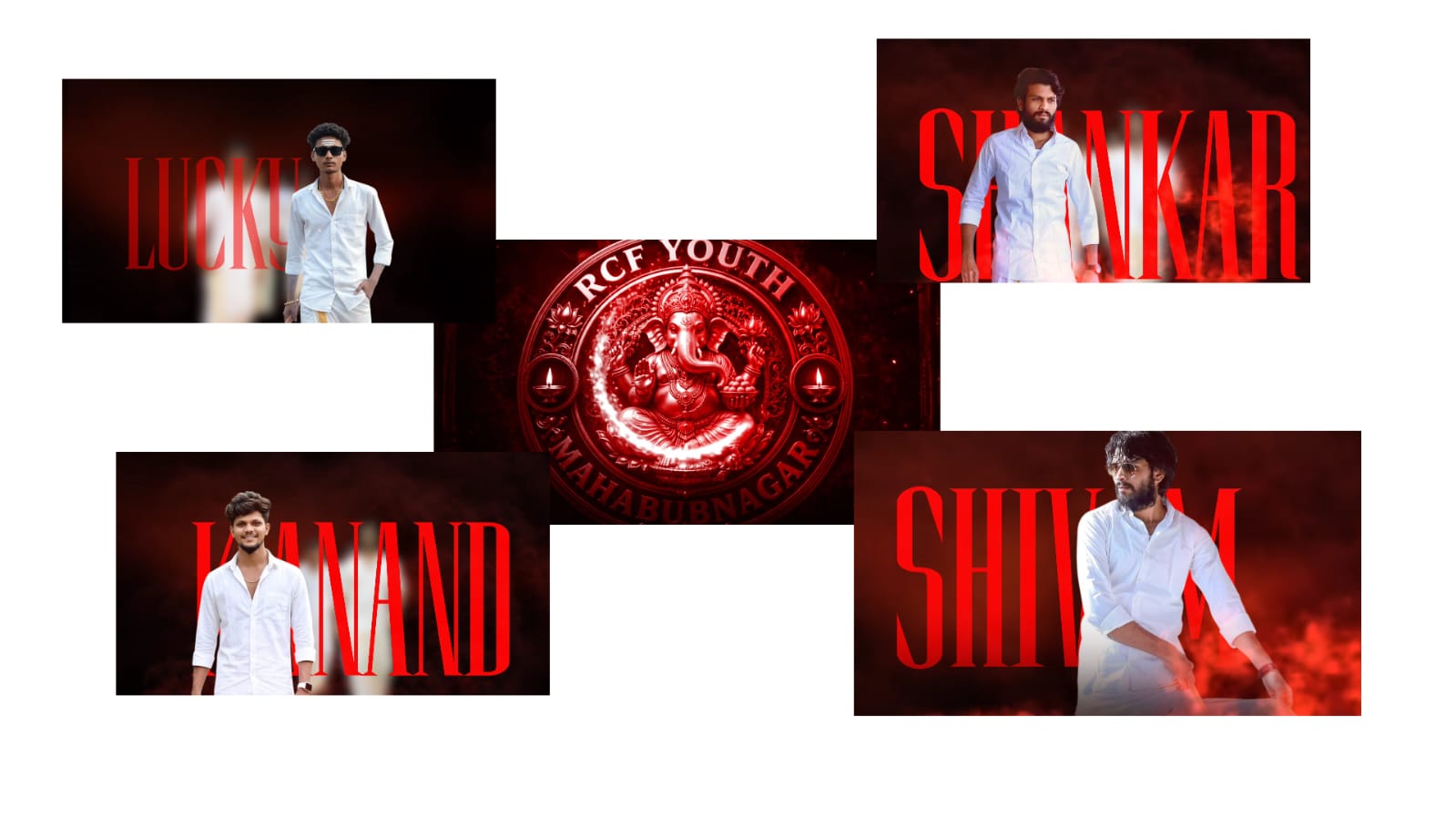
Smartphones have made photography easier than ever. Modern phones can capture detailed photographs in different lighting conditions, but capturing a good picture is only the first step. Simple editing can improve composition, lighting, colors, and overall appearance. With the right techniques, users can turn ordinary smartphone photographs into polished images without needing a computer or complicated software.
Choose the Right Photo Before Editing
The editing process should begin by selecting the best original photograph. If several pictures were captured at the same time, compare them carefully and choose the one with the clearest subject, best expression, and most balanced composition.
Avoid selecting a photograph simply because it is the brightest. Check whether the subject is sharp and whether important details are visible. A well-focused image provides much more flexibility during editing.
It is also useful to keep the original photograph untouched. Save a separate edited version so that you can return to the original whenever necessary.
Improve the Composition With Cropping
Cropping is one of the easiest ways to improve a photograph. Smartphone cameras often capture more of the scene than you actually need. Removing unnecessary areas can make the main subject more noticeable.
Try placing the subject slightly away from the center when appropriate. This can create a more balanced composition and leave useful space around the subject.
Different platforms also use different image dimensions. A photograph intended for a social media story may require a vertical crop, while a landscape post may work better with a wider composition. Choose the crop based on where the image will be displayed.
Correct Exposure and Lighting
Lighting has a major influence on image quality. A photograph that is slightly dark can often be improved by increasing exposure or brightness. However, increasing brightness too much can make the image look washed out.
Use highlights and shadows to control different areas of the photograph. Lowering highlights can restore details in bright skies and white objects. Increasing shadows can reveal information in darker areas.
Contrast can then be adjusted to give the image more depth. Make small changes rather than moving every slider to its maximum value.
Make Colors Look Natural
Color editing can dramatically change the mood of a photograph. Before adding creative effects, correct the basic color balance.
If the image looks unusually yellow or orange, reduce the warmth. If it looks too blue, move the temperature toward a warmer setting. These adjustments can be particularly helpful for indoor photographs taken under artificial lighting.
Saturation should also be used carefully. Increasing it slightly can make colors more attractive, but excessive saturation can produce unrealistic skin tones and overly bright backgrounds.
For a more subtle result, use vibrance when available. It can enhance weaker colors while generally maintaining a more balanced appearance.
Enhance Portrait Photographs
Portraits are among the most frequently edited smartphone photographs. Small adjustments can improve the overall appearance while preserving natural details.
Start with exposure and white balance. Then make minor corrections to skin tone and distracting blemishes. Avoid applying extreme smoothing because natural skin texture contributes to a realistic appearance.
The eyes can be enhanced slightly by improving brightness and sharpness. Teeth whitening should also remain subtle. The goal should be to make the person look refreshed rather than completely different.
Background blur can be useful when the original background is distracting. If your editing application provides a depth or blur tool, apply it gradually around the subject.
Remove Unwanted Objects
Unwanted objects can easily distract viewers. A small person in the background, electrical wire, dust mark, signboard, or random object may reduce the visual quality of an otherwise excellent photograph.
Many mobile editing applications now include object-removal and healing tools. Use these tools on small distractions first. After removing an object, zoom out and check the surrounding area to ensure that the background still looks natural.
When editing complex backgrounds, multiple small corrections may produce a better result than trying to remove everything with one large selection.
Use Presets and Filters Wisely
Filters can provide a quick way to create a particular mood. They are useful for maintaining a consistent style across multiple photographs.
However, applying a filter at full strength can make images look repetitive or unnatural. Reduce the filter intensity and then adjust exposure, contrast, and colors separately.
For example, a warm filter may work well for sunset photographs but could make an indoor portrait appear too orange. Always consider the original lighting before choosing a filter.
Sharpen the Image Carefully
Sharpening can make details appear clearer, especially after resizing or cropping. It can be useful for photographs containing buildings, products, landscapes, and other detailed subjects.
Too much sharpening, however, can create harsh edges and visible noise. Use a small amount and inspect the image at its normal viewing size before exporting.
Noise reduction can also help photographs captured in low light. Apply it carefully because excessive noise reduction may remove fine details and make the photograph look soft.
Export the Photograph Correctly
After finishing the edit, choose the appropriate export quality. For social media and messaging applications, a high-quality JPEG is usually convenient. If transparency is required, PNG may be more appropriate.
Avoid repeatedly saving and resaving the same JPEG file because repeated compression can reduce image quality. Keep a high-quality original and export a separate copy for sharing.
Conclusion
Mobile photo editing does not require complicated techniques. A strong workflow begins with selecting a good photograph and then correcting composition, lighting, colors, contrast, and distracting objects. Portraits should remain natural, while filters and creative effects should be used to complement the photograph.
With consistent practice, smartphone users can develop their own editing style and produce attractive images directly from their phones. The most effective edits are often the ones that improve the photograph without making the editing itself obvious.
Full Project (template)
XML file
Song link



