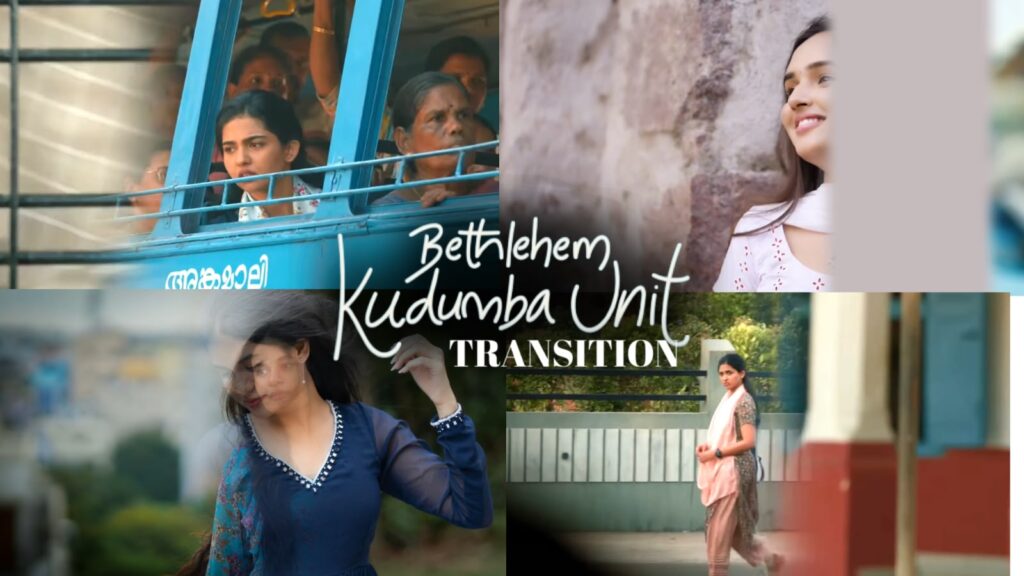
Look at this typography lyrical video, it is next level. That vibe is really good, I did all of this. After seeing the demo video, I felt that my hard work paid off. I felt very happy. First, I will show you the demo. I will show it to you with the song if possible. And you can see here, if you want the demo with the song, I will post it on Telegram and WhatsApp as well. You can check it out, the animation is really good. First, let me tell you a few things. I made this video inspired by another video.
Early in the morning, while I was scrolling through reels on Instagram, I came across a video. I will put that video up, okay? You can tell by looking at it that it was made in After Effects, it looks amazing. If we recreate that same video in Alight Motion, it will have a next-level feel, which is why I made this video. It turned out great and looks identical. That animation, that depth, that blur—like the focus blur—everything is very well done. If you want to try it, you can make this kind of typography lyrical video. Believe it or not, it took me over three hours to make this. But later I realized something.
I noticed a few mistakes, otherwise, it wouldn’t have taken three hours. Later I got a different idea, and it could have been finished in one or two hours. Since the idea came later, it took a bit more time. I will explain everything in detail. If you are planning to make this, watch this video till the end. I will share a few tips that will be very useful to you, okay? You can also easily try this with any song you like, okay? First, let me show you a breakdown of the demo I made.
First, I will tell you how many layers are there. We are going to make this video in the Alight Motion app, so if you don’t have it, I will share it on Telegram and WhatsApp channels. I will post it on Telegram, please check. Now I have opened the Alight Motion project file, and I will provide the link below. You can open and use that project file if you can. If you face any import issues, I have provided a video titled ‘Import Problem’ in the highlights. Watch it, and your doubts will be cleared. First of all, I have added 72 layers in this project.
In this, click on this box, I used a camera tool here, but in the original video, they used a null object. I also planned to use a null object at the start for this video. But while using the null object, I faced some minor basic problems. So I deleted the null object and used the camera tool right from the start. With a null object, you have to link every single layer to it in Alight Motion. It’s not like that with the camera tool; we can automatically add layers and adjust their depth values accordingly, okay? I think I used two or three cameras here. Okay, first, look at the demo, this is basically how it looks. If you want to place someone else’s photo here, you can do that too, it’s not a big deal.
But what’s important here is that I will give you an idea and an overview of how I did this, then you will automatically understand it, okay? If you want to import this project and see it for yourself, go ahead. If you want me to show a small part, I will, okay? The thing is, whenever you do typography, no matter how much anyone explains or does, your own creativity must be there 100%. Meaning your unique thought process should guide you. Now, I did my animation in my own style. If your idea is a bit different, you should customize it to your liking. There is no rule that you have to replicate exactly what I did; treat it as your own concept
As I mentioned at the beginning, I was inspired by another video to create this one. So that video looks like that, and my video looks like this. Based on this, you can try it out. Doing the 3D work and depth settings will definitely take some time, 100%. And the shape layers, shape lines, and drawings look really good. Even the drawing was done inside Alight Motion; I didn’t import anything from outside. I did everything manually, so it will look completely fresh. If you want to try it, you can use the project file. If you want a detailed tutorial on this typography lyrical video, comment “lyrical” in the comment section. Definitely, if this video gets a good reach and a lot of likes, if this video gets enough likes, I will upload the tutorial immediately, okay? If it gets good likes today, I will upload it tomorrow, no doubt about it. So I hope you all like the video, that’s all. Look, I have used a lot of fonts in this project, so download the fonts. Download and add them; they are matching fonts, so you can easily add and use them. After that, save your progress. Make sure to replace every photo with a PNG format.



