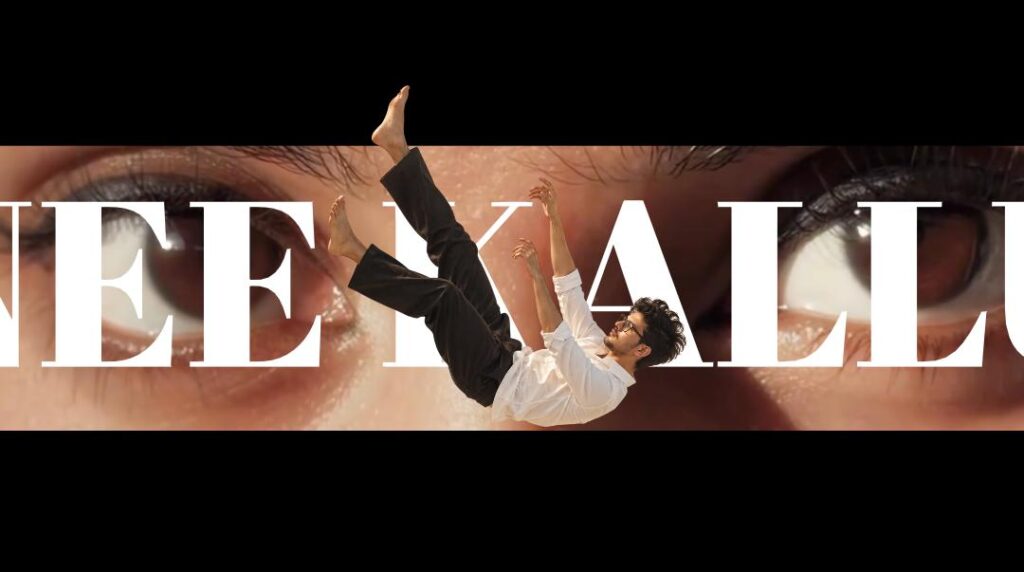
The video on the top is the original video, and the one on the bottom is the video we created. There is a song called “One Name” from the movie Jailer 2, right? Many people asked me to try editing on that song. The animation in this is very good; it felt amazing. You might not feel that same vibe here, so I will post this video on Telegram as well as Instagram. You can go there and check it out. It will definitely give you a next-level feel, I can assure you that. Okay, first, to make this, I will explain a few things, and then you can do it. Okay, if you want me to do a full tutorial, I can do that too. However, what I have done for you here is a short breakdown. If possible, I will also provide the project file; it will be below, so check it out. But you need to know a few things. We did this entirely in Alight Motion, so it’s a mobile app. If you don’t have the Alight Motion app, the Telegram link is below, you can try it from there. If possible, use Alight Motion; it will be very helpful to you. Okay, if you face any problem opening the link, what you can do is open that link in the Chrome browser, copy it, and then open it through WhatsApp. It will open, or else I have provided an import problem video, you can check that out.
Okay, now first I will tell you how many layers are there in this. Okay, there are a total of 100 layers in this. This one layer is extra and is useless, okay. There will be 100 layers in it. I deleted a few more extra layers because I felt it was a waste of a part. Okay, look, it will be like this. In this, if you are thinking of generating photos, don’t do it—well, if you want to generate photos, go ahead, I don’t have any problem. And if you place normal photos, it will look even more super. Generate normal photos like sitting on a chair or walking, something like that. I will show you what I generated; I mean, I will show you what I did. As you saw in my demo, if you type in Telugu, your photos will be generated in that same type, okay. I have made a total of 100 layers. Now, as I told you before, if you just do this starting portion, the rest will come automatically. Because the effect this one has will be applied to the other parts too. After applying it, if you make small changes in them, it will be enough, okay? I will tell you about that. Okay, I will also tell you how I did it easily, don’t worry. Okay, first look here, it will appear like this to you, okay. Making this, look, it is very simple. Now I will tell you how I did it. Okay, if you want the project file, it will be below, check it out. First, I am taking a new project, 9:16—sorry, 16:9, and here first I am going into audio and adding audio. Or you can also add audio from a video; I mean, you can extract it. And I am renaming it. After adding it, listen to the song. After listening to the song, set a beat mark up to 2 seconds. Because where that lyrical starts and where it goes—now as an example, from here to here, see, if you add it like this, what happens is, if you click on the beat mark timing, the beat mark will be placed, and editing becomes even simpler. Okay, now press the plus icon below and take a shape like this. Zoom in on this shape as much as you want. I dragged it up to here, but now we can even put any color we like.
But I am putting one color in particular; I am putting the exact same color type. Since it is a bit like that, you can also put a color you like. This looks good, I have put this. And the plus icon below, now let’s add the star effect. The star will be visible in it, right? I added this to it. I added the star and am zooming in like this. After zooming in, I am placing it up to here. After placing it, I am also putting the exact same color for the star color. After putting it, let’s duplicate this. After duplicating it, first hide whatever background shape we added, right? Put a black color for the top color as well. Reduce its size a bit like this. Then our star will be created like this. Now, long-press these two stars like this, select them, and there is an option next to delete, right? Select that—sorry, if you select that, a star will be created for us. After that, now remove the hide. Okay, after removing the hide, I will make it a bit darker. Now look, it looks good. If we make it even a bit darker, it will look even better; check it according to your preference, okay. Now let’s duplicate this exact same star. Let’s zoom in a bit like this, and after zooming in, let’s duplicate it again. Let’s zoom in a bit again, okay. Let’s duplicate it again; zoom in like this five or six times. Here, since I kept that star border a bit large, it appears like this. You look and keep it accordingly, okay. It looks good. Now select all these groups at once, and do we have this option here? If you select
this, it will become a group. We can zoom in and place this anywhere. Now on top of this, we can put the lyrics—I mean, whichever song you want, put that song’s lyrics. And for its font, I have put the font in the description too, check it out. The font will be exactly like this. Put that same font, place it like this, and for its color, I am putting this exact color. After putting its matching color, now let’s add an image on top of it. It can be anything; add this image and place it here. And now you can use a camera for all of these, or you can use a null object. Go into the plus icon below, then into null, then into object elements, and add a null. I am keeping it up to here. Now add the background and link it to the null. Select it and link it to the null above. Link each and every one of these to the null; I will tell you, okay. Do link it to the null. After linking the null, select the background, go into move and transform, and make its Z-value around 50. Move it back a bit, and after that, move this star back a bit as well. And after that, leave this text exactly as it is, no problem. And move this photo forward a bit, in minus, like this. Okay, now it looks good, it feels nice. And go into the plus icon below, into media, and I have added an image. There will be a halftone effect; it is very useful for the video, I mean, it is very
useful, so you can download the halftone effect you like from the Pinterest app. If you search for “halftone,” you will get many varieties; I downloaded this one. I added it and am zooming in. Go into effects, go into add effect, and search here—sorry, add chroma key. Add chroma key and select pure white color. It will be removed for us, and the halftone will be set. If possible, increase it a bit like this. And let’s add an effect to this. Select it, go into move and transform here, and there will be one called random; add that. Reduce the “too much” size a bit, and link this too; link it to the null. Now look at our animation, we can move it wherever we want. We can move the animation wherever we want. Now add a keyframe at the starting, add another keyframe again, and I am zooming in.
Zoom in and drag it like this. And I will move it to this side and place the lyrics, and I will also move it to that side, place the lyrics, and zoom in like this, okay. Now it has been created in a lyrical type for us. You can make movements for this. Now long-press all of these at once, select them, and copy them; paste them here. Now you can change the lyrical photos animation, and you can continue it like this. This is very simple; try it if you can. And if you like it, do give it a like and support a bit. Jai Hind.



