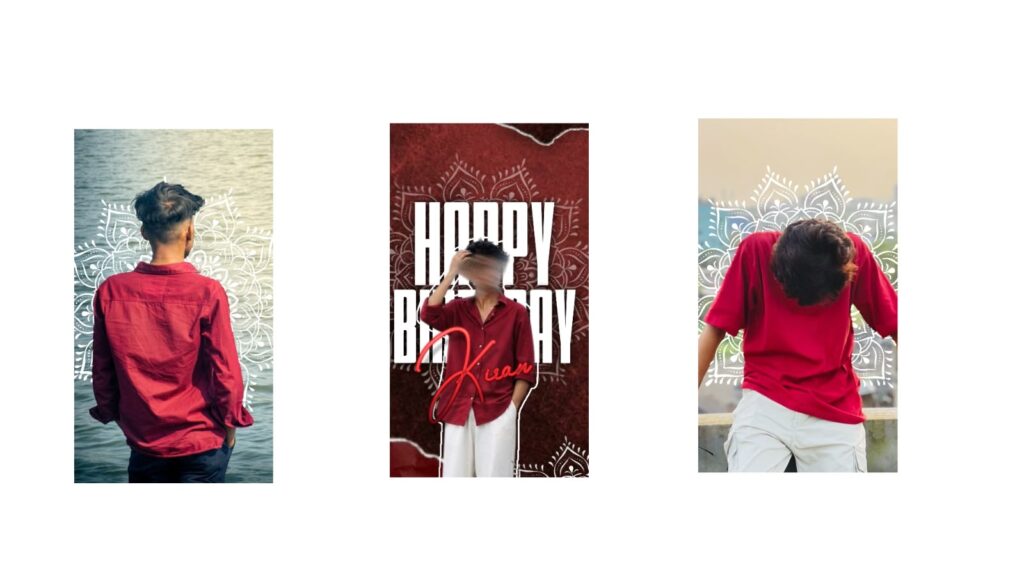
I really liked this edit. I will show you a
Now, what we need first is that I generated some photos. By generating, I mean I added a bit of a glowing effect to them. I used ChatGPT for this, and I will show you how I did it. First, look at those white photos. Take a look at these photos, they are very amazing. I even made them using my own photos. Based on that, if you want to generate photos, you can generate them too. I will show you an example just to give you an idea. Open ChatGPT. After opening it, add a photo that you like. I am going into the files here. As an example, I have this photo. I added this photo, and I will give you a prompt. I have given it under this video, so please check it. Paste that prompt here. There will be something like “upload image shot alone”, so you can remove that or keep it, no problem. However, try to convert your normal photo—meaning whatever photo you have—into a glow type. Now, as an example, this is a normal photo of mine. Whatever photo it is, the adjustments will come out correctly in this. Everything will set perfectly, and you don’t need to do anything. Whether it is a woman’s photo or a man’s photo, try it based on that. That lighting and effect will look very good.
Look, the first photo is created. See how much difference there is compared to the original photo. You can try this for your photo as well, and it will even change the background. Since we want this kind of photo, generate one like that. Now, what we need is the project file in Alight Motion. I will provide the file, or if you want me to explain it, I will explain it. Even if you don’t have the Alight Motion app, the app I am using right now will be posted on my Telegram and WhatsApp channels. You can try it from there, so please join. It will be very useful for you.
Okay, now I am opening the project. Making this is also very simple. I added a camera and did everything based on keyframes. I am clicking on this box and turning on the camera. After turning it on, a name like “DC” will appear at the start. Keep it continuing like that, and then our animation will follow. I am talking about the animation for the photo we added, first the main photo, then the woman’s photo, then the main photo, then the woman’s photo. The animation will be perfect and look very good.
Now, what’s in this is the photo. If we want to change this photo, go into “Color & Fill”. From here, you can place either your generated photo or a normal photo. Now I have added a photo. After adding it, I will adjust it correctly so it sets well. From here, you can make adjustments depending on how many photos are in the project.
I will tell you one thing at the end, and it will be very, very useful for you. I will explain why. First, take a look at these videos. Now it is like this. I will tell you a new trick for this, which will be very helpful. First, I am duplicating this project. I’ll go back and duplicate it. Now I am deleting all that “DC” stuff because it is not that necessary now. I am putting this “DC” in the center. Leaving it like that, I will now delete all these photos as well. I am keeping only one photo—only this photo.
Okay, I will place this photo here, and I will put another similar photo next to it. I will go into “Blending”, then go into “Darken”, and select “Multiply”. You can also place it like this, meaning I am thinking of placing a matching photo. Just a minute, it didn’t set properly, so I will look for another photo. Just a minute, now we have this photo. If we want to place it, we can, but it feels like it didn’t set properly. Try to place any photo you like opposite to it. We have this photo, so I will mirror it and multiply it. Okay, nice. Now I am extending this until the end.
Okay, now for the lyrics, we can place this lyrical layer on top like this. We can move all the text and all the photos until the end like this. You can do this entire process easily, just as explained, to make the animation perfect. If you want to try with just a single photo, try it this way; otherwise, try it the other way. If you have any other doubts, please comment.



