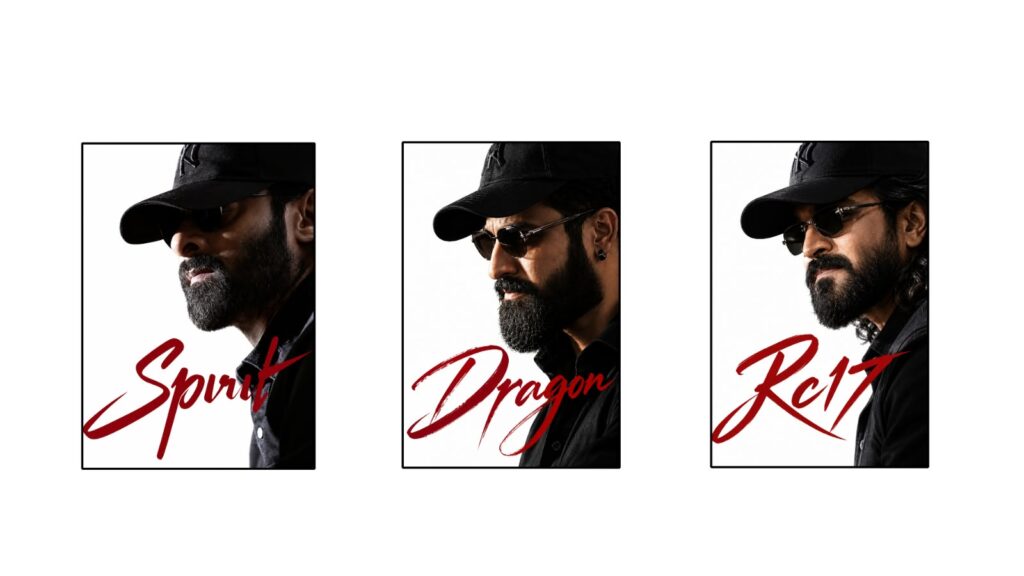
These days, AI videos like this are very trending. Let’s try it simply, without much difficulty, so you can easily understand it. Just follow what I say, and that will be enough. First, if you like this video, please give it a like and subscribe. What you need to do is use three prompts. If you want to add a video clip at the starting portion, you can take a video clip—no problem at all. If you want to try the video completely with just photos, I will explain that too. First, let me explain a few things to you.
For example, I opened ChatGPT and uploaded a person’s photo. After adding the photo, I gave it a prompt. When I gave that prompt, it generated a photo that looks like the person is taking a selfie. Wait a moment, it is loading. Okay, look, it generated this photo. Even if you have your normal photo like this, it is no problem. After generating this photo, I gave another prompt below it, and it gave me a photo in the same place but with a change in the position. While the first one was a selfie pose, the second one is a standing pose. I took these two prompts and the two photos.
The third prompt is for creating the video. To create the video, you have many options. You can use Gemini AI, or there is a website called Luma (Luma Dream Machine/Flo) that you can use. I didn’t use Gemini here; I used an app called Flo. You can find this Flo app on the Play Store, so please install it. After installing, log in. Here you will need some credits. If you log in with a new email id, you will easily get 50 credits. With 50 credits, you can easily finish your entire video, and you can definitely make about three videos. Since we only need two videos, please use a new email. You don’t even need to spend money, so just follow this.
After that, go to the option that says “New.” Go inside. Once you are there, the first thing you need to do is change the settings. Wait a moment, it is loading. Now we have an option called “Image.” Go into Image and select “Video,” then set the aspect ratio to 9:16 and the duration to 10 seconds. After that, click on the plus icon below in the media, select “Image,” and upload your picture. If you plan to use a video clip for the starting portion, you will need a screenshot.
Let me show you an example using Alight Motion so you get an idea. For instance, if we are editing a video and adding a video clip, and we want a specific portion to transition into a photo, we need a screenshot of that exact frame. Go to the share icon at the top in Alight Motion, and you will see an option called “Current Frame as PNG.” Save it. You can follow this plan if you want to add a video clip in the starting portion.
However, I am not using any video clips; I am planning to use the AI-generated photos instead. First, I am taking the selfie photo, and second, I am taking the standing photo. I have added both photos, and it is loading now, so please wait a moment. Alright, both photos are added. After that, I mentioned the prompts earlier, right? You can find Prompt 1, Prompt 2, and Prompt 3 in the description box below without any confusion. First, enter the video prompt and send it. It will generate a beautiful video for you, and I will show you that video too. It starts with the selfie photo and then transitions like this. One video clip will be done.
I am not generating it right now because my credits are exhausted, but you can try it. After that, select “New” again. You already generated the first video, now for the second video, follow the same steps. Click the plus icon below, go to images, and add only the standing image this time. Then go to the image option and apply the same settings I mentioned before: select video, set it to 16:9 or 9:16, and 10 seconds. It is loading, so let’s wait a moment. Once it is loaded, paste the same prompt again. In this video, the AI girl will automatically appear in the video.
You can check it; I will add the girl’s video here as well so you can see it. This is the girl’s video. First, there will be the boy’s video (the selfie video), and then the next video will automatically include the girl. Use the exact same prompt both times. After that, I will add matching music to it. I am taking a song from the movie Nuvvu Leka Nenu Lenu and matching it perfectly. It looks really good when it matches well. You can try it with any music you like and add it accordingly. That’s it! If you want to make it slow motion, you can easily do it here. As you can see, you can easily adjust it to slow motion however you like. After that, you can export it. You can try the same process in CapCut too. I am cutting out the extra part <div class=”ai-prompt-box”><div class=”prompt-label”>✨ IMAGE PROMPT</div><div class=”prompt-content” id=”promptText”>Prompt Prompt A Uploaded image Create an ultra-realistic, cinematic close-up portrait of a rugged, masculine man wearing a black baseball cap with a subtle embroidered logo, sleek black aviator sunglasses, and a black collared shirt. He has a thick, well-groomed black beard, realistic skin texture, and a serious, confident expression. His head is slightly tilted downward, facing toward the left side of the frame, creating a mysterious and powerful personality.Composition: Vertical 2:3 poster format, extreme close-up side profile, with the subject occupying the right two-thirds of the frame. The left side features clean, bright white negative space. The cap slightly shadows the eyes, while the nose, lips, beard, and cheekbones are sharply detailed.Lighting: Dramatic high-contrast studio lighting, soft bright light from the upper left, deep shadows beneath the cap and along the jawline, realistic highlights on the skin, sunglasses, and beard. Pure white background with a subtle cinematic editorial finish.Typography: Add the word “Rc17” in large, bold, flowing deep-red handwritten brush-script lettering across the lower third of the image. Use expressive calligraphic strokes, elegant curves, and long sweeping flourishes. The lettering should overlap slightly with the black shirt while remaining highly legible.Style and quality:
Photorealistic photography, luxury fashion campaign, masculine editorial poster, dark monochromatic wardrobe, rich blacks, natural skin pores, highly detailed facial hair, realistic fabric texture, sharp focus, professional studio photography, dramatic tonal contrast, 8K detail, polished commercial finish.Negative prompt: cartoon, anime, illustration, CGI appearance, plastic skin, excessive retouching, blurry face, distorted anatomy, extra facial features, malformed sunglasses, poorly rendered beard, oversaturated colors, cluttered background, unwanted text, misspelled typography, watermark, of the music here and then exporting it by going to the share icon. If you have any doubts, please comment below this video. Alternatively, you can try it in Gemini AI as Gemini also gives three free video generations per day, so give it a try. Jai Hind!



