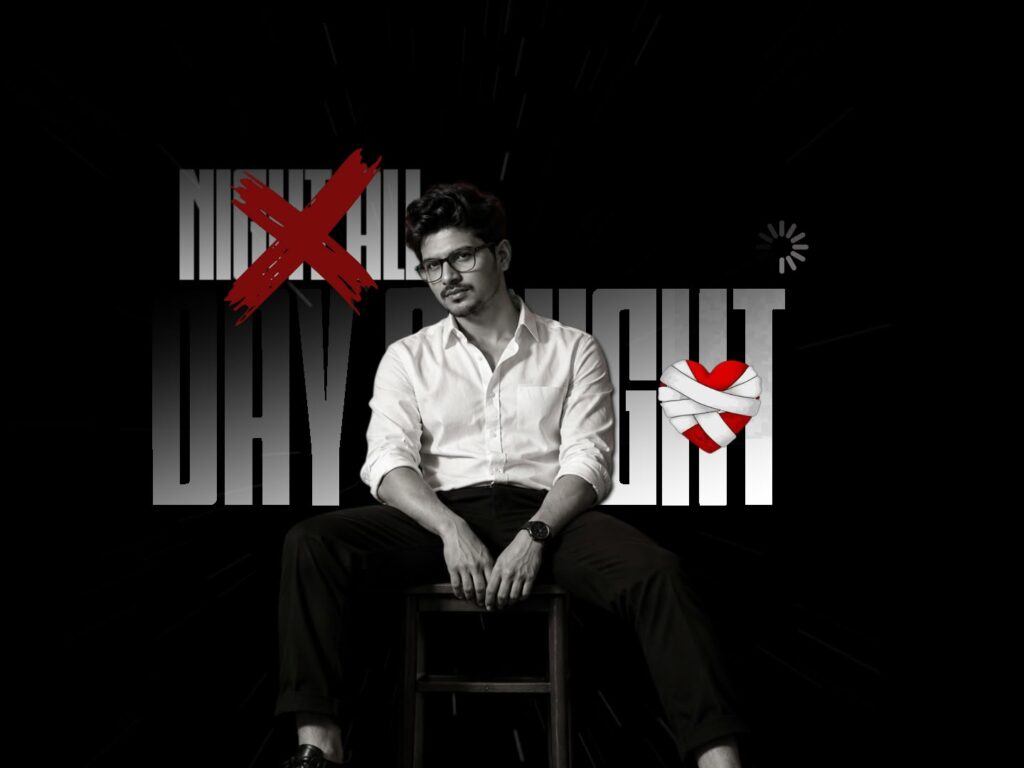
The “Mallepoola Pallaki” song has been trending significantly on Instagram. After creating a 3D version of it, the editing went to the next level. Many people have been asking how to achieve this look. You can make this edit using a normal photo, or you can use a photo featuring an Ayyappa Swamy devotional mala, which looks even better. The final editing looks wonderful, so make sure to watch carefully from the very beginning to the end as I will guide you through the process step-by-step. As you may know, the song is highly popular right now, especially with the recent release of actor Ravi Teja’s movie, which pushed its trendiness even further. Let’s try this edit because it turns out genuinely beautiful.
I have already shown a preview on the screen. Before diving into the project, let me explain a few things. You can use the project file provided, but if you understand the basic idea and logic behind it, everything else will automatically make sense to you without needing further explanation. To give you an example of how this starts, I opened ChatGPT and entered a prompt to generate a specific image. This generated photo is very important for our project. For this demonstration, I re-uploaded that generated image and typed a prompt in Telugu, asking it to create an image of a boy carrying the Ayyappa Swamy palanquin on his shoulder. While you can use English for prompts, typing in Telugu works perfectly fine too, as many major creators use ChatGPT this way. Don’t feel hesitant about using your native language; even adding a voiceover in Telugu yields great results.
The generated photo looks good, but for this specific theme, a night-time setting would look much more impactful. You should also try adding a crowd or public gathering in the background to match your creative vision. To remove backgrounds from your photos easily, I highly recommend using the PhotoRoom app. Once you understand the workflow, making this cinematic lyrical video on your own becomes very easy.
Crucially, I have provided the necessary links in the description. I included links for two distinct fonts, and downloading them is absolutely essential to achieve the right polished look for your video editing. Make sure not to forget to apply these fonts. All the provided backgrounds are set up perfectly. If you want to customize it, you can simply tap the plus icon, remove the background of your own photo, and easily swap it into the project template. While I used the same photo throughout my demonstration, I recommend choosing different photos that match the progression of the scene.
If you run into any issues or have questions, please leave a comment. The project files are available in the description. If you would like to see the full, unedited tutorial—which runs about 31 minutes long—let me know in the comments and I can share an unlisted link with you. Once you complete your adjustments, you can go ahead and save the final project.



