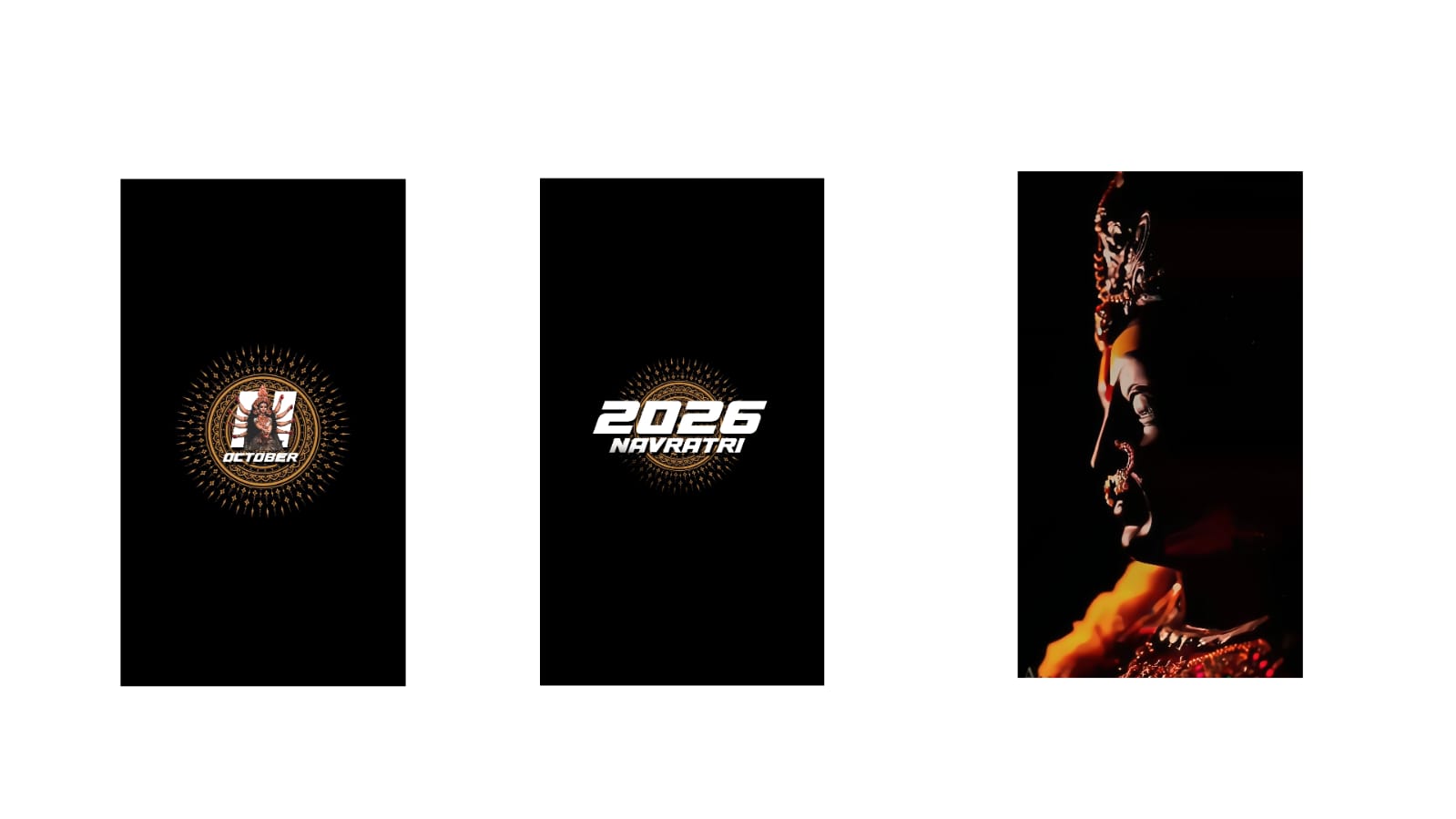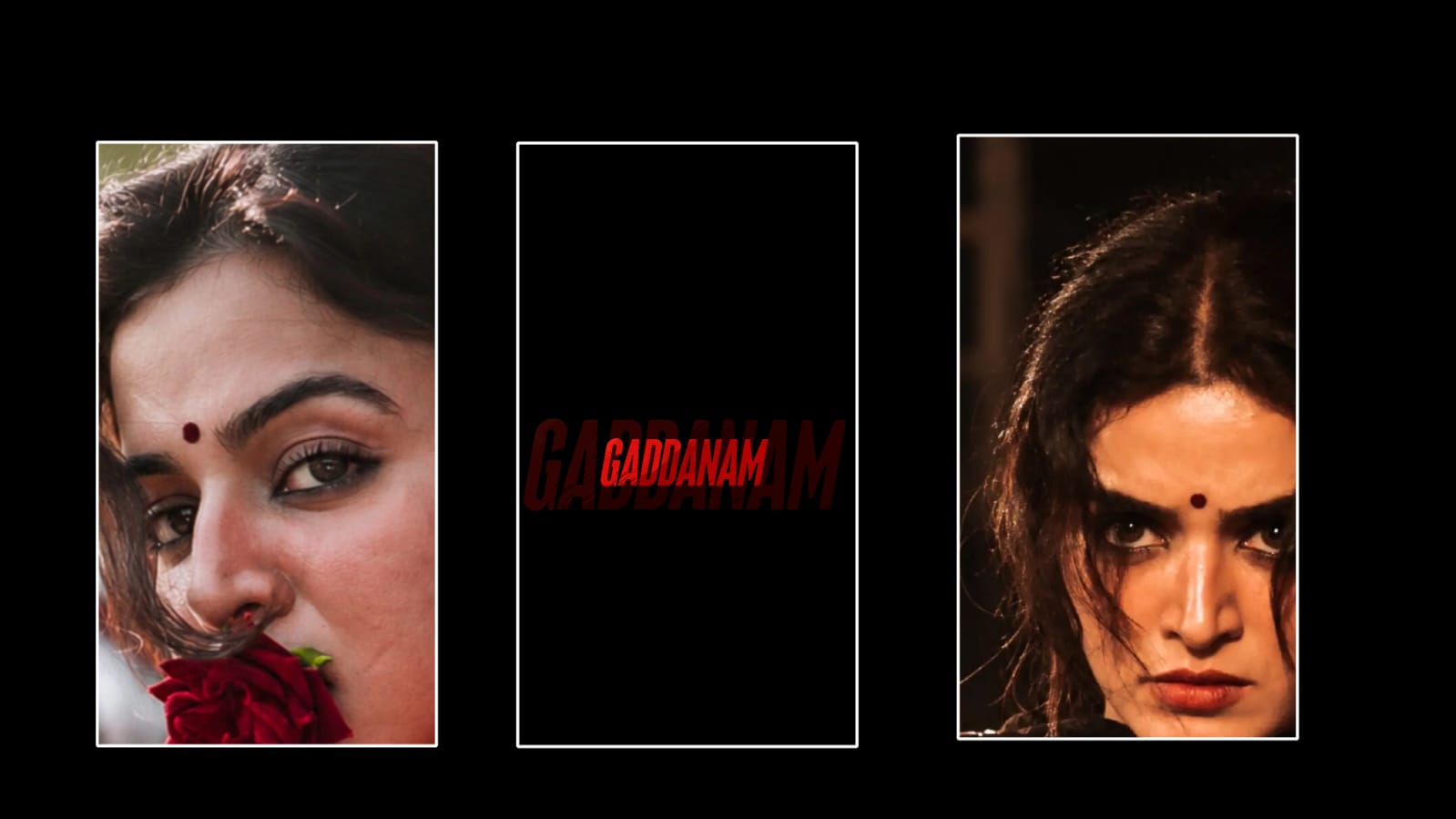
The tutorial begins with a preview of the trending, movie-style split-text effect. The creator asks viewers to support the channel and leave comments if they want guides for other specific title cards. To start the editing process, the creator opens Google on a mobile device to access Gemini AI. They copy a template prompt from the video description that reads "A create this title same name SHIVA". They demonstrate customizing this by removing “SHIVA” and typing “MAHESH” in capital letters. Once the prompt is sent, Gemini generates a stylized 3D logo design, which the creator saves to their device.
Background Removal and Asset Splitting
Next, the creator opens a mobile application called Background Eraser, which can be downloaded from the Play Store. After importing the newly generated AI logo image, they select the Auto Color feature and place the selection cursor over the black background areas to instantly wipe them away, leaving the text transparent. To prepare the logo for the split animation, the creator divides the name based on its length. Since “MAHESH” has six letters, they split it evenly into three-letter halves. Using the manual erase tool, they wipe away the right side (“ESH”), leaving only “MAH”, and save it as a transparent PNG asset. They then undo the action, erase the left side (“MAH”) to isolate “ESH”, and save that as a second asset. Finally, they save a full, un-split version of the text logo as a third separate file.
Alight Motion Project Setup and Asset Replacement
The creator moves into the Alight Motion app, opening the pre-configured project link provided in the video description. To make the workspace cleaner and easier to manage, they temporarily hide four background video layers and turn on the project’s Camera view mode. They select the default placeholder text layers and navigate to the Color & Fill menu to swap them out with the custom “MAH” and “ESH” PNG halves. The creator notes a helpful troubleshooting tip: if a layer fails to swap automatically, you can manually import the new image asset, copy it, delete it, select the destination layer, click the arrow next to the paste icon, and paste strictly the color properties to force the replacement.
Final Composition and Video Export
To wrap up the edit, the creator unhides the background video layers so they display correctly behind the text. Moving toward the end of the editing timeline, they locate the final full-title layer and replace it with the complete, un-split “MAHESH” asset. With all elements in place, they toggle the camera view back on to play through the sequence. After verifying that the title splits apart smoothly and syncs perfectly with the visual effects, the creator exports and saves the completed video to their phone gallery.