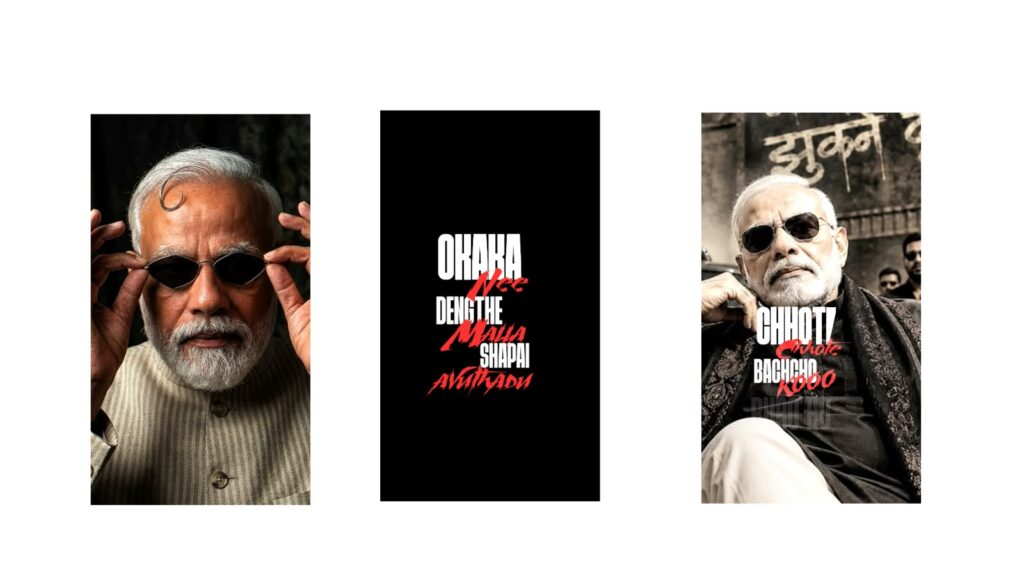
First, look at these videos. We are going to make a motion lyrical video like this. It looks amazing, and you should definitely try it. This has been trending a lot recently and looks great. I will explain everything from the beginning to the end, and I will also share a few tips to make it easy for you, which will be very helpful. You will get to learn something new. Watch these three sample videos carefully; they look amazing.
First, to create this, we need the Alight Motion app. I will provide the project file of the video I created below. Also, if you face any problem while importing, I have shared a video link on Instagram and will provide it below as well, so please check it out. Now, as I mentioned, we need the Alight Motion app to make this kind of video. I have shared the Ultra Motion app on Telegram, but Alight Motion works too. Try to use Ultra Motion as much as possible because it helps a lot, allowing you to import the project file directly. You can import files in this one too, or you can use a clone app.
Now, I have opened the Alight Motion app. Tap the plus icon at the bottom and select a 4:5 aspect ratio. After selecting the ratio, you need to notice one important thing: the font and the background. It doesn’t matter if you keep the background white; it’s completely fine. But the one I showed in the demo has a dark red color, slightly resembling a chocolate shade. Since we are making that style of lyrical video, I am using this color, but using white is perfectly fine too. I am selecting the plus icon at the bottom and choosing a shape. I will zoom in on this shape entirely according to my needs.
First, we need to add the song. If you have the audio track, add it directly. Otherwise, select the video, tap the three dots at the top, and select the extract audio option. Then delete the video layer so the audio remains separate. Now, extend this layer until the end. The choice of color is completely up to you. I will open the color options, go to this specific setting, and choose the color I like. I am picking a dark red color. This looks good, let’s make it a bit darker. Okay, that’s too dark. This looks better.
Now, the most important element here is the font. The font matters a lot, so let me share a good trick for finding them. Finding fonts directly on sites like DaFont can be tedious. Instead, open the Pinterest app and search for “font”. You will find many font styles there. For example, if you look at this text style, you will get an idea of what kind of font you need. You will see logos and various designs. You can also search for “font style” to find countless reference images. Download the image and look it up on Google to find the font you like. When you browse there, you will keep finding multiple fonts listed with their names. For instance, this font looks great. Such fonts are essential for lyrical videos, so note down the name. Just take the name you see there and search for it on Google. I hope you get the idea. Don’t worry, I will provide the font used in this video below, but you can follow this trick for other projects. I often gather font names from Pinterest because searching directly on Google can be difficult, making Pinterest very helpful.
Now, whatever song or dialogue you are using for the video, look up the lyrics. I am searching on Google for the lyrics of the song “Boom” from the movie Jailer. It’s a Tamil version but written in English text. The lyrics start exactly from the word “Boom”. I will take just two lines to keep it brief, as these two lines are enough to make you understand the process. Go to the text option via the plus icon and add the word “BOOM”. I am typing it entirely in capital letters. Go to the font style at the top (which defaults to Roboto Regular) and change it to your added font. Now, select the font and zoom in like this. Try to keep a color that syncs well with the background. If you use the same color as the background, it won’t stand out. So, I am setting it to white, which looks good. To give it a nice touch, add a shadow effect. Increase the shadow and lower the opacity slightly, or you can keep it high. Adjust it so it’s a bit dark, but not too dark or overly white. Look, it looks really nice.
Now that we have added the background, we can also add a photo on top of it. Before that, go to the elements menu at the bottom and add a Null object. Drag the Null layer all the way to the end of the timeline. Next, select the text layer, tap the option next to the delete icon at the top, and link it to the Null object. Link the background layer to the Null object as well. Make sure there is a slight depth separation between the two layers to avoid visual glitches. Select the background, go to Move & Transform, and set the Z-value back a bit—around 4.00 to place it behind the text. Now both layers will move together. It might not be clearly visible yet, but both layers are moving in sync. You can also use a background photo.
Let’s go to the media menu via the plus icon and add a photo. I will add a photo of myself, drag it to the end of the timeline, select it, and link it to the Null object using the same option at the top. I want to make this photo black and white, so I will go to Effects, choose Add Effect, and select Saturation/Vibrance. Lower the saturation completely. Then, go to Border & Shadow, enable the shadow, offset it slightly, and lower the opacity. This looks great.
Now, we can add the animation. Pay close attention here, as these steps are very helpful. Select the Null object, go to Move & Transform, and add a keyframe at the very beginning. Move down the timeline a bit and add a second keyframe. Go back to the first keyframe and zoom in like this. Then, go to the rotation settings and add a slight rotation keyframe at the start. Now look, it animates smoothly. After this initial movement, it needs to zoom in again further down the timeline. The movement must be continuous and should not freeze abruptly. Whatever the animation style, if the motion stops completely, the video loses its premium look, so ensure continuous motion. Following this, you can overlay the next line of lyrics right on top, or place it adjacent to it. Look at this lyric placement; it looks good. I will slide this text to the side. Since the background layer got cut off on the side, go to the scale option for the background and zoom in to cover the frame. Now it fits perfectly. Look at the transition; the first lyric comes in and moves out to the side. Here, we can add another photo and text..
I added another photo, but it’s not visible yet. No problem, go to the layer linking option, link it to the Null object, open Move & Transform, and bring the Z-value into the negative range so it stands out. Adjusting it this way makes the placement clear. Extend this layer from the start. Now you can see the photo appears here with active movement. So, make sure to add the Null object. Our long-time followers already know this technique, but it might feel a bit confusing for new viewers.
Next, I will duplicate the existing text layer, shift it to the side, and position it here. Replace the duplicated text with the next line of lyrics. Adding a border and shadow to this text will make it look even better, so add it carefully to keep it natural. Look at it now. I will increase the Z-value even more to make the movement look more dynamic. I’ll duplicate this text again, go to Move & Transform, increase the Z-value to bring it to the front, and use my fingers to scale down its size. Then, replace this text with the next line of lyrics. You can add various PNG graphics or elements next to it. I previously added elements like character cutouts. I will change the color of this text to a different shade. Since it already has a border and shadow, go to Effects, select Add Effect, and look under the formatting options. Select the Smooth Bevel effect and apply it to give the text a polished look.
Now review the sequence: here is the first lyric, followed by the second lyric, and the third one appears here. To maintain a dynamic flow, you should add a zoom-in motion or pan it to the left side. This enhances the final appearance. Now it transitions smoothly like this. If you want the next photo to appear from the top, you can position it upwards, or pan it from the left or right. I will place it at the top and duplicate the lyric layer, then scroll that text layer upward. Change its color to white, clear the text, and type the next lyric segment. You can split the lyrics into small segments of two words each. Duplicate it once more and apply zoom-in or zoom-out effects to the text. Let me play the timeline to show you how the first three seconds look. This part looks good, and so do the subsequent sections. However, the background shadow is showing at the top edge, so go back to the scale settings and zoom in slightly to mask it. Sliding this lyric layer slightly forward creates a much smoother pacing.
You can continue building the video using this exact method, adding text and PNG graphics side-by-side. Just remember to link every new element to the Null object before editing. Adjusting the Z-values creates a beautiful depth-of-field effect. If you find this workflow confusing, check out the pre-made project file I provided, which will give you a clear understanding. If you have any further doubts, leave a comment. If you want an in-depth understanding of the app, I have already uploaded a comprehensive 4-hour Alight Motion tutorial video on my channel, so please check it out. Jai Hind.



