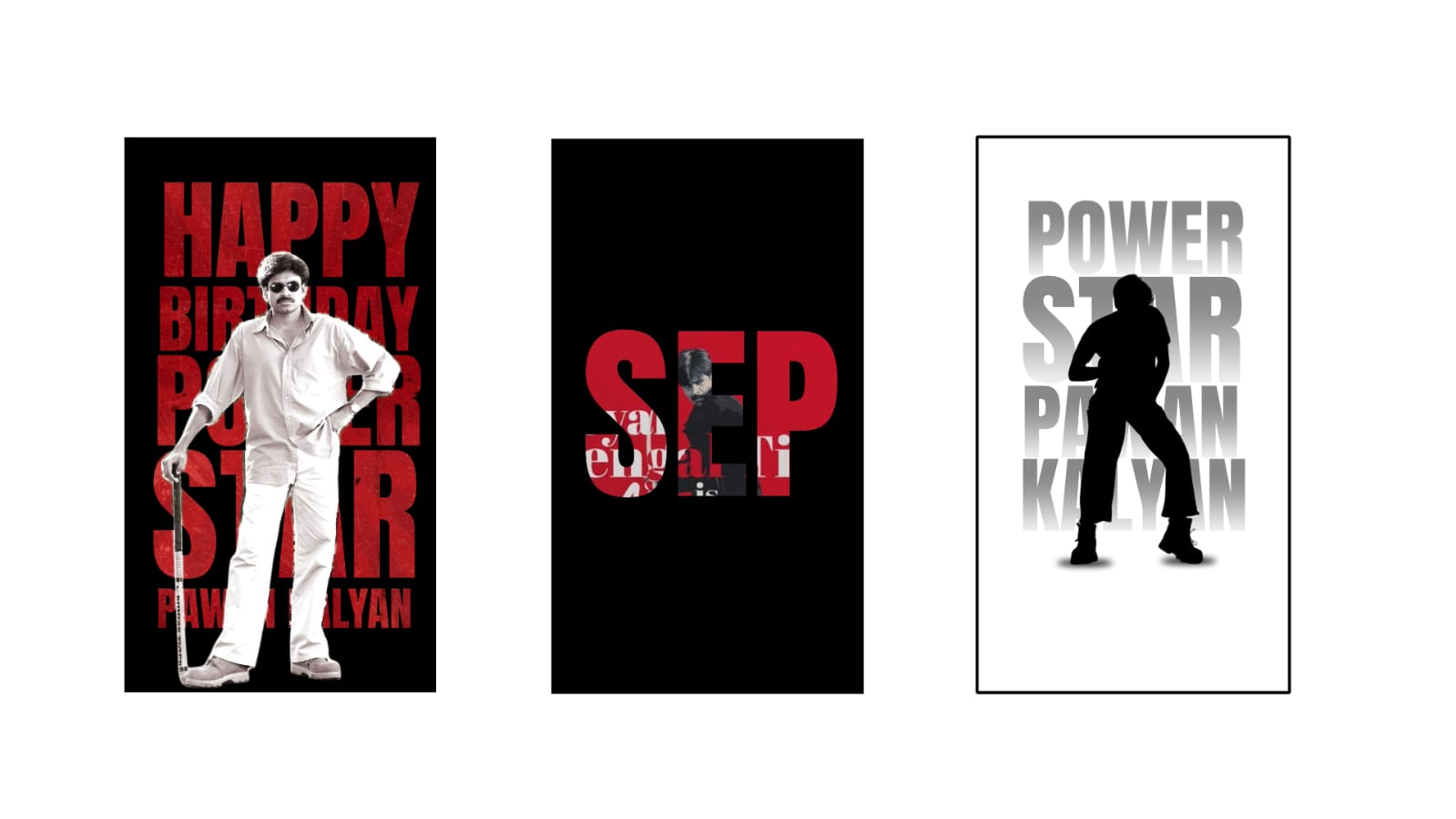
Check out this trending editing; it looks very special and looks really good. The editing, that song, and that effect look very attractive. I made this video completely based on camera key animation. If possible, I will make a full tutorial on this, or else I will try to provide the project file. If you can, watch until the end because the editing is good. Take a look here, it looks great. Okay, I will try to explain the breakdown to you. Watch the video, and I will also tell you a few things that will be very useful to you. Okay, first, the Alight Motion app is available on Telegram and WhatsApp. In the Alight Motion app, there is a problem with the new version—it exports only in 720p. So use an older version, or else use After Motion (meaning the Ultra Motion app), which is available on Telegram. Check it out if you have an import problem. Okay, if you have an import problem, I provided a video below that I made recently; watch that video, okay? Now, I will give you an idea of the project I am giving you by showing a bit of the breakdown and how I made it. First, understand the breakdown, then I will tell you how to do it. I will explain it very simply. I am clicking on this box and turning on the camera. Although I used six camera layers in total, this layer is actually just one; because I cut it in the middle, it appears as six layers, okay? Now, in the beginning, I put this song name as an example. After that, we have the lyrical part. In the background, I put an eye photo inside a mask. If you don’t like it, you can also hide it; it’s not that necessary, but I put it because it needs to look attractive. It looks good, right? It looks super when visible, okay. Along with that,
there is a legal rotation movement in between; that’s all. I will show you how to do it, and you will understand. I will tell you, it will be very useful to you, okay? I will explain up to 10 seconds, and after that, you will do it automatically, or else use the project file, the XML project, okay? First, let’s create a new project, so take a 9:16 ratio or any ratio you like and open it. Okay, under the new project, go to the plus sign and add the song here. Okay, we have added the song, it came out well. And now, I always change the name of the video, so I am changing the name now, okay. Now, click the plus sign. First, what we need is a
background photo. Whichever background photo you add is okay, but if you want it to look attractive, try to put a good background. I mean, check your photo color and try to put a color that contrasts a bit with your photo. Now, I will show you, you will get an idea. For example, I downloaded some backgrounds from the Pinterest app. I will add a photo onto that background. This photo is good, it’s a bit like a bike theme. The bike will get covered, that’s not a big deal, okay. The bike will get covered. I am extending this until the end. Now, let’s select this photo and blur it a bit. Not too much, just a little. Go to effects, click add effect, and search for “Tiles” in the search bar, okay? Look here, add it with standard settings. Open it and turn on mirror. After turning it on, bring this Gaussian blur down. After bringing it down, instead of leaving the photo as it is, go to move and transform, select XYZ, and move it up with your finger. Set it to around 2000, and along with that, let’s zoom in like this and keep it this much. Nice, it looks good. Nice, okay. Now, click the plus sign, go to media, and now you can add someone’s photo, or if you want to put the eye photo first, you can do that too. I am placing the eye photo until the end, going to blending, going to lightening, and making it screen. It looks good, but to make it look even better, you need to increase the blur, then it gives a better look. Is it visible? It’s super. If you want to place the eye photo, go ahead, but just placing it is not enough; you should also increase its Z-value as you like. First, I am hiding it, the eye is not needed now. And now, for our photo, we need to use a PNG. I will tell you how to make that PNG too, wait for a moment, okay? First, I am searching for the PNG, just a minute. Okay, this photo. I am extending it until the end. Now, to make this photo a PNG, the PhotoRoom app will be very useful to you. The PhotoRoom app is available on the Play Store, check it out, or else there is an Adobe background remover site on Google, check it. Now, I am not zooming it or doing anything to it; I am leaving it as it is. Click the plus sign below, go to media, and I will add a PNG. It’s a bit like a flower PNG. Add it, go to effects, click add effect, add Gaussian blur, and zoom in. Zoom in like this and place it here, keep it this much.
Nice, look at that. Is it good? Nice. Now it’s a bit covered because by adding that, what happens is you can increase its Z-value a little, it will look good. Now, if we do camera animation for this, it will be very good. I will tell you about that too. Now, click the plus sign below, go to media… sorry, add a camera here. After adding it, our lyrical part mainly starts from the 2nd second; until then, we only have music, so what we will do now is turn on the camera. Turn on the
camera and zoom in like this, zoom in this much. Come to this beat mark, add a keyframe, and come here again and zoom in so everything is visible. Now look, first, it’s like this. Now let’s rotate it a bit. Add a keyframe here at the start and rotate it like this, it will rotate slowly. Now, on top of this, you can add music or any music player according to it, and look and set the Z-value a bit higher. You can also add text on top like this according to your preference. Now look, it rotates like this. You can also add text on top. Now, our photo has appeared here; let’s zoom it in a bit, this much is enough. Okay, okay, right, it looks good. Now, you have to decide whether you want to put this lyrical part in this place, or in this place, or in this place, according to your project, okay? Now, it’s like this, and we need to make it a bit slow motion—meaning move it a little and do it like this. Look, now it’s like this, as you can see, like this. Now, if we want to add text on top of this, I went to Google and copied the lyrics from where they were available, okay? Copy and… okay, it got rotated. I am keeping it this much, and I will change its font, okay. Duplicate it, and from here, another text… similarly, key animation. Key animation is very important, and colors are also very important, so it’s enough if you decide how you want to use them, okay? Look here, based on this, it came at the end. Now look, in the beginning, it comes like this, then this lyric, and after that, we can place another lyric here. We can copy and paste the same lyric here and move it to this side. From here, we can change the lyrics we want in a different way, you will get an idea. Rather than me telling you, you will get an idea.
The movement of this lyric, whether to the left side or right side, however you plan to do it… if possible, you can also rotate it. Now it’s like this; do it like this and rotate it a bit like this, okay? You can rotate it here, it’s here like this. Look, now according to your preference, however you are expecting it, it’s enough if you do the animation accordingly, or else I provided the project file, so check that. Many people are saying that I am not explaining properly until the end. Now, if I keep explaining like this, it will take at least half an hour or even more, so why waste that much of your time? That’s why I gave the project file for your understanding, and I also gave you an idea through this. I think you got the idea; if not, watch it again, that’s all. Jai!
Full Project
XML file
Song link