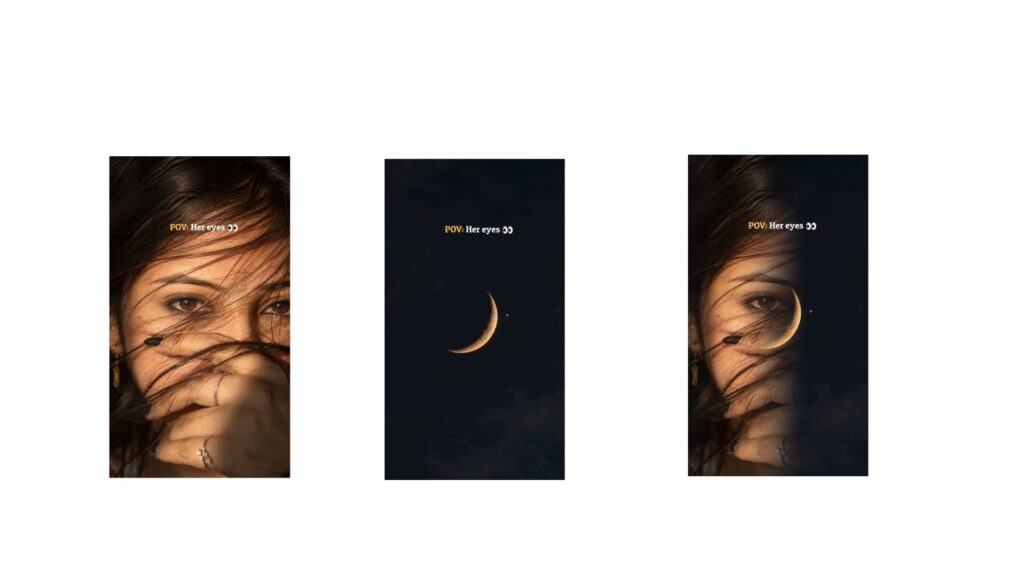
Well, the video you all have been waiting for is finally here. This is the video where you learn everything about null, where I will deep dive into how null works in Alight Motion and show you how you can make this trending parallel camera motion effect using null. In this video, I’m going to explain null in a super easy way, so even a person who doesn’t know how to edit can understand it properly.
Before we start, don’t forget to hype this video. With that said, let’s get started.
So before you start using null, you need to know what is null. Basically, null is a layer that has the power to change an object’s movement, scale, and rotation. Think of it like a magnet: null is a magnet and the other layers are metal. When you bring metal and a magnet together, the metal gets connected to the magnet. So because they are connected, if you move or rotate the magnet, the metal moves too. That’s basically how null works.
Now let’s understand null with practical examples. I’m in my Alight Motion project here. I have overlays that are currently disconnected from null. To connect them with null, go to object element and click on null. It is now added to your timeline. This is null one. You can add multiple null layers if you want. Now select your layers and connect them to null one like this. Do the same with the other layers. Once you’ve done that, go to move and transform and move the null layer. You’ll see all the connected objects move along with it because they are linked to null. Now you can add keyframes on the null layer and animate it however you want.
You can use null to make a lot of cool stuff. Editors use it to make AMV edits, documentary style 3D parallel animations, and faceless UI animations, etc. I hope you now understand the concept of null.
Now let’s make this parallel camera motion effect using null which is trending right now. Don’t worry, I’ll walk you through it step by step. I’ve created a new project and added three overlays. Before connecting them with null, we need to arrange their positions. Make sure you follow my steps carefully. If you remember from a previous video, there are two transform values used to move objects: the y-axis, which moves objects vertically, and the x-axis, which moves them horizontally. But there is another one I didn’t talk about in that video: the Z-axis. The Z-axis value changes when you zoom in or zoom out on an object. You might think, “Oh, so it just scaled the value.” But it’s not. When we talk about the Z-axis, we’re talking about depth and distance—how deep an object is or how far it is from the camera or from other objects. It’s a third dimension value, and we’re going to use it here.
As you can see, I have these PNG overlays, and if you look at their Z-axis values, they’re all at zero, meaning they’re all at the same camera distance. Now if I increase the Z-axis value of this PNG, it looks like it’s getting bigger, but no. What’s actually happening is it’s getting closer to the camera, and if I decrease the Z value, it moves farther from the camera. Think of it this way: our screen is the camera, and these are the objects inside camera footage. I hope you now understand how the Z-axis works.
So let’s arrange the positions. We’re going to set the first PNG to around 1300 distance from the camera, the second to around 300, and the last one to minus 400. Now it should look like this. After that, add a null layer to the timeline and connect all layers to it. Then go to the null’s move and transform settings and start scaling the Z-axis value into the negatives. Add a keyframe on the null layer, then add another one a few frames later and zoom out like this. Once that’s done, add another null layer to the timeline and connect the first null layer to it. Add a keyframe on null 2, then after a few frames, add a second keyframe and scale the Z value backward. Once the second PNG comes into view, adjust the X and Y values accordingly, and there you have your cool camera motion effect.
Now do the same thing again. Add a new null, connect it to the previous one, add two keyframes, and animate it. It should look like this. Now add the last null and complete the final animation. To make it more smooth, we’re going to apply some graphs, so copy my graphs. Once the graphs are applied, it should look like this.
Now how do you add those clouds? Simple. Add one cloud layer behind one of the PNGs and one above. Connect them both to null one and that’s it. You can play around with the Zed value of the clouds to enhance the parallax depth effect. Once you’ve placed all the clouds, we can also add some effects like turbulence displacement on it.
And for the final touch to create those particle dot effects, add a shape layer to the timeline and expand it. Set the shape’s camera distance value to somewhere between the first and second PNGs. Then add the copy background effect followed by a simple starfield effect. Now animate it by adding keyframes on the position. Whichever direction the camera moves, animate the starfield in the opposite direction.
That’s all there is to it. I think this is enough for you to understand how null works, and if you play around with it, you’ll get a much better feel for what’s possible—more than just watching my videos can give you. So experiment with null and see what you can create. I’ll see you in the next video soon. Peace.



