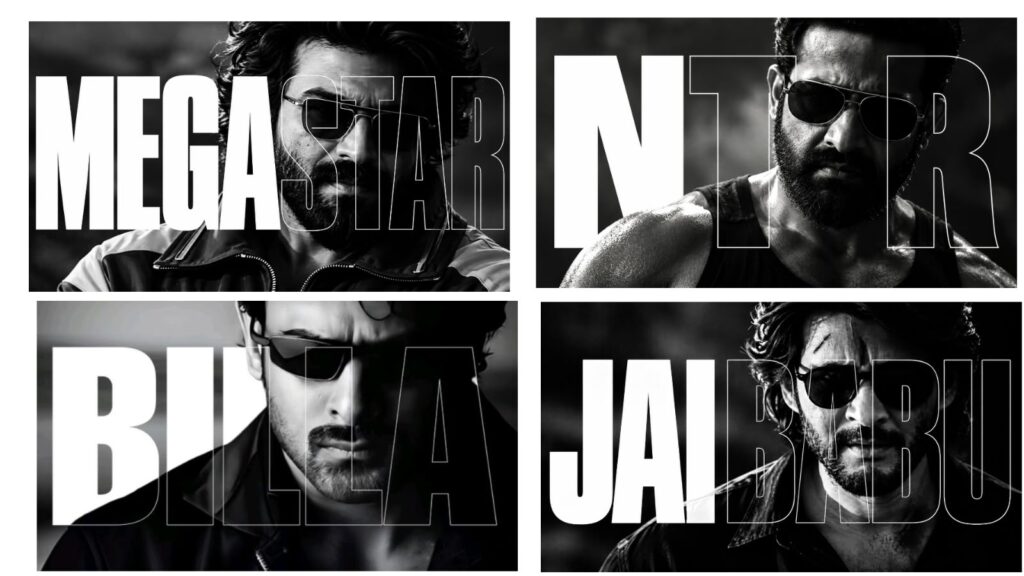
The creator welcomes viewers and introduces a tutorial on how to create a trendy lyrical status video using the InShot app. They request the audience to watch the full video without skipping and to give it a like to show support.
To start, you need to open the InShot app, go to the video section, and select a blank canvas. Choose the 9:16 aspect ratio (canvas size) and adjust the video duration using the pencil icon to match the length of your desired status video (the creator sets it for a white background).
Next, use the PIP (Picture-in-Picture) option to import a photo from your gallery. Use the cutout tool to completely erase its background. Navigate to filters, go to adjustments, set the saturation to -50, and change the lightness to 27 to turn the photo into a black and white image. Zoom in on the image and position it properly aligning with the red guidelines. Stretch this photo layer to the very end of the video duration.
Go to the mask tool, select the second mask option, and pull down the scale to create a smooth fade effect at the bottom of the photo. Move to the start of the video and add a keyframe. Align the photo perfectly along the red centerline and drag it to the right side. Move forward in the timeline, add another keyframe, and slide the photo to the left side while keeping it aligned with the red line. Repeat this process at regular intervals, alternating the photo movement between left and right to create a dynamic moving effect.
Return to the beginning of the video timeline and tap the PIP option again to import a second photo. Apply the cutout tool to remove its background, zoom in slightly, and stretch this layer to the end of the timeline. Open the mask tool, select the second option, and add a subtle fade effect to make this second photo blend smoothly into the background. Adjust the size and place it neatly wherever it looks best on the screen.
After completing the photo placement, use the PIP option once more to add a love symbol image/video layer. Head over to the blending settings, choose the Screen option, and position it perfectly near the head/face area of the subject. Stretch this element to the end of the video timeline and tap the checkmark
Now it is time to add the music and lyrics. Move to the start of the timeline, tap the Music tool, and select a track from “My Music”. Alternatively, you can use the “Extract audio from video” option to pull a song directly from a pre-saved video clip. Listen to the song closely, go back to the starting point, and tap the Text tool. Type the first lyric line, choose a white color, and enable the shadow feature. Pick your preferred font style and go to the Animation tab to apply an in/out text effect, setting the scale slider to maximum for a clean zoom animation.
Position the text at the bottom center of the screen and stretch the text box across the entire length of the video. As you listen along to the music, find the exact moment the first lyric line ends, tap on the text layer, and split it. Select the next split segment, tap Edit, and replace the text with the second lyric line. Continue this process by splitting the layer and updating the text for the third line and all subsequent lyrics until the song ends.
To add a final creative touch, tap PIP and import a particle effect overlay video (available via the creator’s description links). First, open the volume controls and mute it completely. Then, go to Blending, select Screen, and lower the opacity to 45% so the floating particles look subtle. Make sure the background layer ordering is correct so the particles stay behind the primary subjects. Once the editing is fully complete, tap the Save button at the top right to export the video to your gallery. The creator concludes by thanking the viewers and asking them to like and subscribe.



