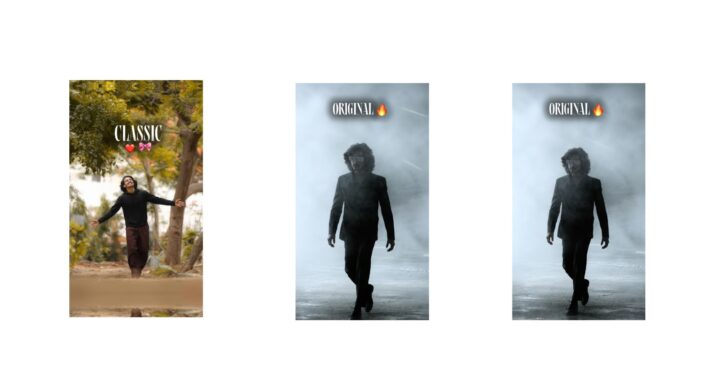
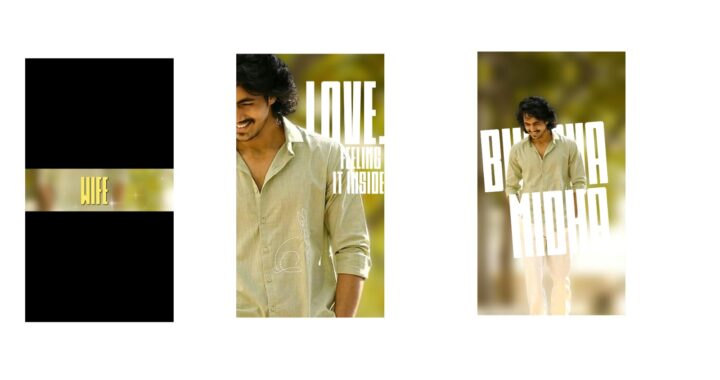
Okay, you have watched the video, right? Comment below to share how you felt about it. As I mentioned earlier, this is the second version—it features the “Veezha Veera” song. Since it is the Tamil version, the song sounds incredible. I have worked on this same song before, but those lines were different, and this one has different lines. The previous one was in Telugu, while this one is in Tamil. It has been highly trending lately, popping up whenever I open social media.
Now, to create this yourself, I won’t explain a long process. To make it easily, you need to have the Alight Motion app. If possible, use the Alight Motion app, or you can also use the Ultra Motion app. Let me show you—this is Alight Motion and this is Ultra Motion. Since Ultra Motion is a clone app, I have provided the link in the Telegram description below. You can try it out from there if you want. Sorry, my health isn’t doing very well, but no problem.
If possible, use Ultra Motion. To be honest, I did the editing in the Ultra Motion app first and later converted it back to Alight Motion. I will provide the link below for you, so don’t worry. As I said, download the app using the link provided in the Telegram description.
Now, before opening the project file I gave you, make sure to check the font link below. The font is very important, so download and add it. If you don’t know how, first click the plus icon at the bottom. The layout looks slightly different between versions of Ultra Motion, so keep an eye out. Select it, go to “View All”, and from here select “All” where you will find the “Import Fonts” option to add your font.
The process is a bit different inside Ultra Motion. Click the plus icon below, and you’ll see the options vary. Select “Text”, go to “Roboto Regular” at the top, and click “View All”. The options and the import button will be located at the top over here. See it right here? Select this option, choose “Import from Files”, locate your font file, and add it. After adding, click “Done” and make sure to hit the “Import” option to finish importing it. I hope that makes sense to you.
Now, I am opening the project I provided. If you import it this way, you won’t encounter any missing font errors. Let me explain a few things to make this easy for you. It will be instantly clear to regular editors, but if you are a beginner, here is how it works.
If you want to add a video clip at the beginning, you can absolutely do so. Watching the demo will give you a clear idea. I also added a video clip to give it a better, cleaner look. Let me add it now so you can see. Click the plus icon below, go to “Video”, and I will insert a brief video clip. For example, let’s pick a short clip of Prabhas. The clip is now added.
Once added, keep only the required portion and trim the extra part. Find the best frame, stop right at the red beat mark line, go to the share icon at the top, select “Current Frame as PNG”, and export it. Exporting will save that exact frame to your device. After saving, go all the way back and open ChatGPT. I have provided a small prompt for ChatGPT that will be useful for you. Otherwise, you can try it manually.
Open a new chat, add your saved photo, paste the prompt I provided below, and send it. It will generate a beautiful shadow photo effect for you, which I will show you in a moment. It works even if you prompt in Telugu, but try to keep the prompt in Telugu as much as possible. This shadow photo is highly recommended because it adds an excellent highlight and makes the editing look much cleaner.
Next, we need to remove the background of this same photo. As you can see, this photo has no background. You cannot remove backgrounds directly inside Alight Motion, so please use the PhotoRoom app. The PhotoRoom app link is available on Telegram, or you can download it directly from the Play Store. Alternatively, you can just use any existing PNG image. I am uploading this photo to remove its background now.
It might feel a bit difficult when you try it for the very first time because you have to download multiple files and apps, making the process seem lengthy. But don’t worry, you’ll get used to it quickly. From here, you can easily export and save it for your project.
Now go back to the timeline, long-press right next to the video clip, and drag it down like this. Bring it all the way down to where the placeholder photo is located. Select that photo, go to “Color & Fill”, and select the original photo you previously saved from Alight Motion to replace it.
Next, select the “Group” layer and click “Edit Group”. Go to “Color & Fill” inside the group and replace it with the shadow image you generated using ChatGPT. If you want a full, highly detailed tutorial on this, leave a comment and I will upload one. I am placing the background photo here and layering the cutout PNG right on top of it. It might look slightly confusing if it’s your first time seeing it, but anyone with basic editing knowledge will get the idea.
Once the PNG photo is in place, everything aligns perfectly. Now going back to the main timeline, you can see all the photos and the lyrics are completely synchronized and looking great. You should add around two clips in the middle sections as well. There is another placeholder slot here where you can add a clip right between these red beat marks. You can customize the process as you like.
When you reach the end of the timeline, you can choose to add either a stable photo or another video clip without any issues. Just look at the timing, make necessary adjustments, and add it.
As a final step after finishing all your modifications, you will notice that I have hidden the camera layers to avoid confusion. Unhide them by tapping on the eye icons like this. Now, to preview the full effect, click on the box icon and turn on the camera. Look at that—the camera gives it a dynamic shaking effect along with a seamless zoom animation that looks absolutely perfect. Once that’s done, you can safely save and export your video.
Reference Image 1
If you have any other doubts, drop a comment. Creating a comprehensive, step-by-step breakdown for these kinds of videos usually takes around 30 minutes. If you all request a full tutorial in the comments section, I will post a detailed video. If possible, I have already uploaded an introductory video explaining Alight Motion inside out. Go check that out on our channel. Jai Hind!
Reference Image 2