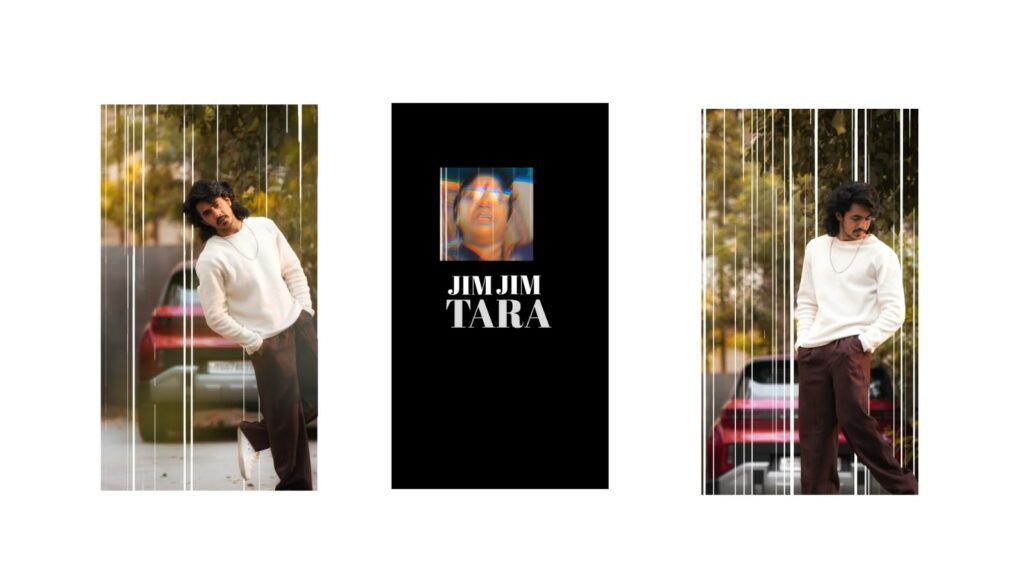
Take a look, it looks very amazing. There is a movie called Bethlehem Kudumba Unit or something similar; it is a Malayalam movie that is highly trending right now. I really liked its lyrical style, so I felt like trying it out and made this. I will give you an idea of how I created this, which will be very helpful for you. Watch the video from the beginning to the end. If you want the direct project file instead, you can take it too, no problem.
We are going to do all of this in the Alight Motion app. It can be Alight Motion, Ultra Motion, or After Motion—since it is essentially the same app, I will provide the link below if you want to install and try it out.
To start creating this, I will first show you what I did to give you an idea. Then, I will explain exactly how I made it. First, you need to generate some photos. As you saw in the demo video, I generated photos of that specific type containing my photo and a random girl. To generate such photos, you first need to open ChatGPT.
After opening ChatGPT, see here: I first added a reference image. After adding it, I typed a simple text saying, “This is a reference image.” Following that, I added my own photo. If you have a couple photo, you can add a couple photo. Then, I gave a short prompt exactly as it is. I will provide this prompt below if possible, so please check it.
I will give you the direct link to this page so that when you open it, you will arrive at this exact place. You can replace my photo with your photo or a couple photo. To replace it, go to the “Edit Message” option, remove my photo, and add two photos whether you are a woman or a man. Alternatively, adding just one photo will also work well. After that, a photo like this will be generated for us; look, it looks quite good.
Basically, you can make changes if you want, but if you need different poses in the same style—like hugging or standing a bit apart—you can try that. I made two or three variations. If you type “change pose” in the text below, you will get different types of poses, and you can continue with that. Remember this.
Next, I will show you the video I made first just to give you an idea so that you can understand it easily. Afterwards, I will explain how I did it. When I open the project I made, all the layers are visible. There are 33 layers, which is very few. There used to be more, but I removed about 8 layers because they weren’t essential, making some basic adjustments instead
First, let’s click on this box to turn on the camera. I will explain how I did this, so watch the video until the end. See, it will look like this.
Now, I will simply explain how to do it. First, we need the song. You can take any song you like. As an example, I searched for that song on Google and copied a small snippet of the lyrics—just the small part I needed. If you don’t have the patience for that, I will provide the project file, so check it out. If you face any issues while importing, I have also provided a video in the highlights, so check that too without any doubt.
Now, let’s open the Alight Motion app and select the 16:9 ratio. Set a black background and apply this ratio. Now, using the plus icon at the bottom, I will first add a video and extract the audio from it. I have the video with me, just a moment. Look, this is the original video. I will extract the audio from it and then remove the video. The video is removed now, and it looks good.
Now, place the beat marks. I will play it briefly for you. Placing beat marks in between like this helps give you an idea of how to easily animate the movement later. Watch the timing and click on it to place a red line representing the beat mark.
Now, go to the plus icon at the bottom, enter media, and let’s pick a background first. Many of you might wonder where to go for backgrounds; you can use the Pinterest app or download it from the Play Store. Here, I am selecting a photo of Prabhas Anna. You can search for whatever type of background you need here. I am taking a white texture image because it matches that style. Search a little bit here, find a good photo, and add or download it. I already have an image exactly like that, and since it looked good, I will use that background. It gives a better feel. After adding it, I am extending it up to 10 or 13 seconds. Go to “Move and Transform,” select the ‘Z’ option from the three choices, and set it around 2300 or 2400 while zooming in with your fingers so that it fits the screen nicely
.
After that, go to the plus icon at the bottom, enter media, and let’s add an image we like. First, add an image and leave its Z-value as it is, no problem. I will also extend this to around 7 or 13 seconds as an example. Now, both are set well. Next, go to the plus icon at the bottom, enter media, and add a flower image of the same type. If you want these flowers, I will provide them below, or they will be available in the project file, so check it out. Alternatively, if you search for “flowers PNG” on the Pinterest app, you will get many types of flowers to download.
Now, increase its Z-value slightly and place it on top like this. Extend it to match the length of the PNG photo. Duplicate it once more and place it on this side as well; it will look good. It is visible clearly and looks nice now. We also need to add lyrics in the middle, so go to the plus icon at the bottom, enter text, and paste the lyrics I copied. I am cutting it from here to take just the starting point. For the font, I am choosing a simple font available in Alight Motion and applying it. Keep the text for about 4 seconds and zoom in. Let’s give it a light pink color so that it looks good. It looks fine, but if you want it a bit darker, that’s no problem either. Nice.
This has been set up well so far. Now, go to the plus icon at the bottom, enter “Object/Element,” and add a camera. Turn the camera on from here as well. Now, go to “Move and Transform,” add a keyframe, and move it a little distance away. After that, move forward a bit more and zoom in like this. Look, it will appear like this. Come to this beat mark; the reason I asked you to place beat marks is that the position is correct now. Selecting this option will bring it exactly to the beat mark, and then we can zoom in towards this side or that side. After that, add another keyframe and zoom in further; this entire part will move.
Now, we can add another photo here. If you have another photo you like, add it and set its Z-value a bit higher so that there is a gap between the two. I am setting its Z-value to around 600. Now look, it is visible on the back side. See here, as soon as these lyrics disappear, the next lyrics will come automatically. If you want it to look even better, apply a fade animation. Add the “Fade In” and “Fade Out” options; it will look super. Look here, as soon as these lyrics go, the next lyrics are set. You can reduce its size slightly.
Another step is to add a nice flower on top of this as well. Add a flower and adjust its Z-value so that it aligns close to that photo. Keep it around 8 seconds. The second lyrics will also start here. Again, you need to slowly zoom this in as well. If you want to place lyrics on the back side of this too, copy these lyrics, come here, and paste them. Now, set its Z-value to around 1200, and you can change or add whatever lyrics you like from here. Two lyrics have started from here, and if you want extra, you can place lyrics below. From here, we can zoom in exactly the same way, add another photo or something we like, and set its Z-value to around 1300 or 1400. Look, this is also set now.
You just need to keep continuing like this; there is no other complex process to it. It depends on our thought process—how we plan to create it will automatically continue. If needed, take some small reference images or reference videos. Since I had that song, I found a very good reference. Similarly, when you are using a different song, take a small bit; don’t just think of it as copying, but rather feel that you are learning something new. So even making own content is fine. Creating own content means using your talent to figure out how to make the movements. I explained this as an example just to give you a small idea, and I hope you understood it. If you still face problems, I have given the project file below, and if there is an issue with importing, I have also provided a video in the highlights, so check it out. After doing all of this, export it from here in either 1080p or 4K. If you have any more doubts, leave a comment. Bye.
If you would like



