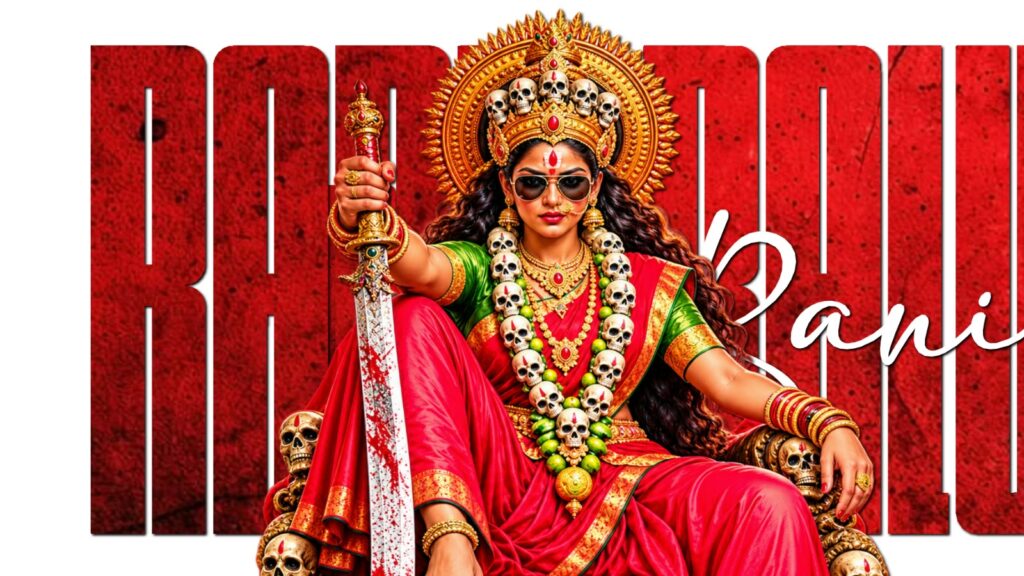
To begin your project, open the video editor, create a new project, and import your background image. Open the canvas settings, set your layout aspect ratio to 9:16 for a vertical format, adjust the total duration to match the planned length of your video, and use the built-in upscale tool if the image needs sharpening. Next, drag your playhead to the very beginning and import an audio track from your device or extract the sound directly from an existing video clip. Open the beat marker menu, play through the track, and place a marker at the start and at every point where a lyric line transitions.
To build the dynamic camera movement, select the background image layer and add a keyframe at the start of the timeline, sliding the photo toward one side until the boundary guide appears. Move the playhead to the next beat marker, drop a second keyframe, and slide the image completely over to the opposite edge. Open the keyframe easing graph between these two points to select a smooth curve, then repeat this process across subsequent beat markers by alternating panning directions or adding push-in zooms to create depth.
With the motion locked in, return to the start of the clip, open the text tool, and type the first word using a solid color and clean font with animations turned off. Trim the end of this text block so it cuts off exactly at the next beat marker. Duplicate this layer twice to add the second and third words beneath each other, styling the final word with a vibrant accent color, a script font, and a wipe-in animation timed to the vocal delivery.
To lock the text into the moving scene, select the first text block, open the motion tracking tool, center the tracking target over the subject in the background, and run the tracker. Repeat this setup for the remaining text layers so all words float and glide alongside the moving background. Finally, duplicate the stylized text group, slide it forward to align with the next set of beat markers, update the words for the new lyrics, and reposition the blocks while re-running the motion tracker. Repeat this process through the rest of the song, add an overlay effect via picture-in-picture for extra atmosphere, and export the finished high-definition video.



