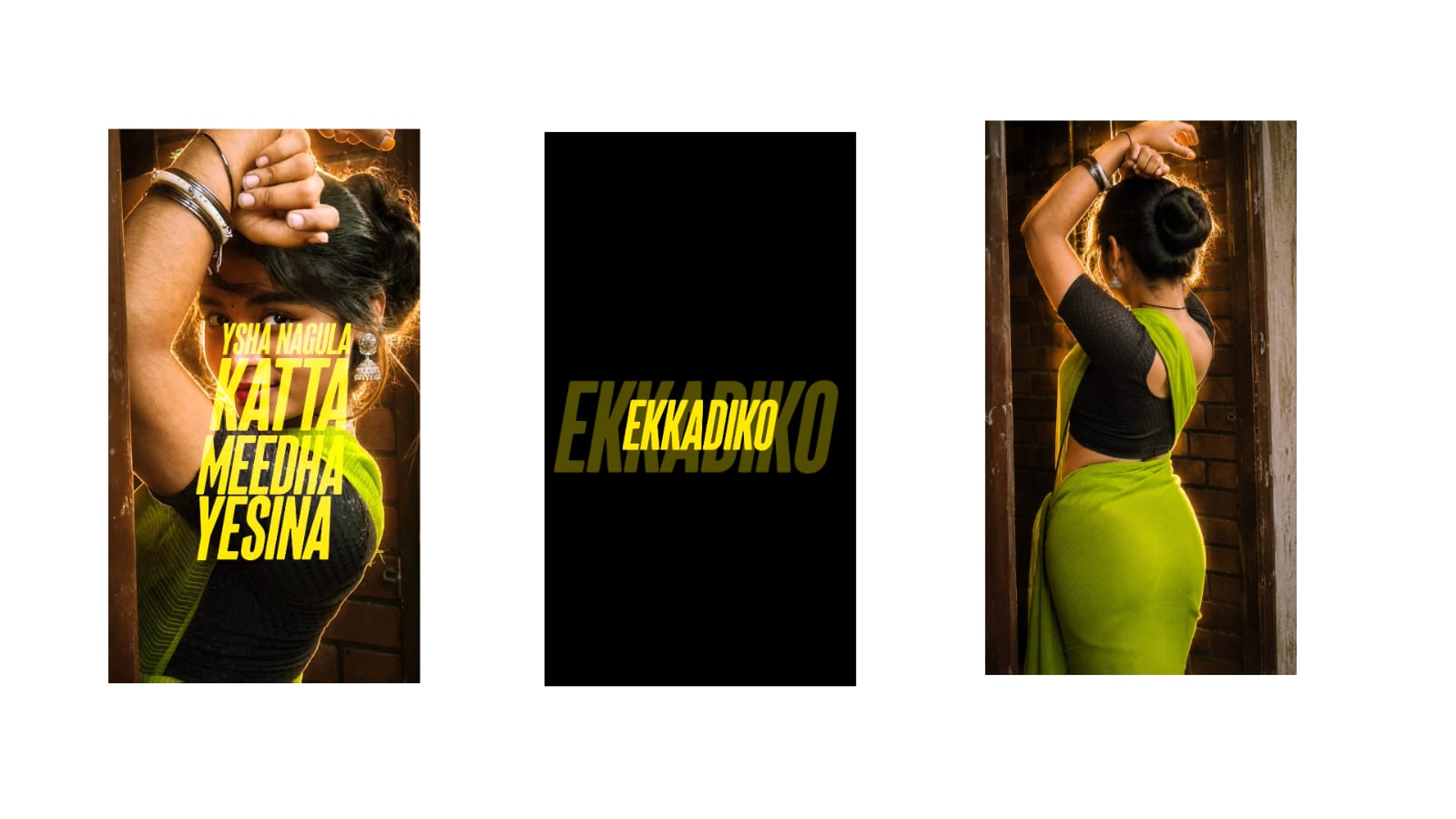
Take a look at this trending edit. It features a special eye effect and looks very good. The way the song fits the effect makes it look highly attractive.
I made this video using only camera keyframe animations. If possible, I will create a full tutorial for it. Otherwise, I will try to provide the project file. If you have time, please watch until the end, because the editing is excellent. Look at it here—it looks great!
I will try to give you a breakdown of how it’s done. Watch the video carefully, as I will explain a few things that will be very useful to you. First, if you do not have the Alight Motion app, you can find it on my Telegram and WhatsApp channels.
There is an issue with the newest version of the Alight Motion app where it only exports in 720p. Because of this, you should use an older version. Alternatively, you can use the Ultra Motion app, which is available on my Telegram—go check it out. If you face an import problem, I recently made a video addressing that. You can watch it below.
Now, let me give you a quick breakdown of the project to give you an idea of how I made it. Once you understand the breakdown, I will explain how you can do it yourself. I will keep it very simple.
Clicking on this box turns the camera on. I used a total of six camera layers, but it is actually just one single layer that I cut into segments. That is why it looks like six layers.
At the start, I put the song name as an example. After that, the lyrics appear. In the background, I placed an eye photo inside a mask. If you don’t like it, you can hide it, as it isn’t strictly necessary. However, I added it to make the edit look more attractive, and it looks superb. Along with that, there is a rotating movement on the lyrics throughout the video.
I will show you how to do this so you can get the hang of it. After that, you can finish it automatically on your own, or you can simply use the XML project file I provided.
First, let’s open a new project. Select a 9:16 aspect ratio, or any ratio you prefer, and open it. Go to the plus icon in the new project and add your song. The song is added perfectly. I always rename my video files, so I am changing the name here.
Next, click the plus icon to add a background photo. Any photo works, but to make it look attractive, try to choose a good background. Look at the colors in your main photo and try to pick a background with contrasting colors.
Let me show you an example so you get the idea. I downloaded a few backgrounds from Pinterest. I will add this photo featuring a bike. The bike will get covered up later, so it is not a big issue. I am extending this image to the end.
Now, let’s blur this photo slightly. Don’t overdo it—just a little bit. Go to ‘Effects’, select ‘Add Effect’, and search for ‘Tiles’. Add it with standard settings, open it, and turn on ‘Mirror’. After doing that, move the Gaussian Blur effect to the bottom.
Instead of leaving the photo as it is, go to ‘Move and Transform’, select the X, Y, and Z axes, and slide your finger upward on the screen. Set the value to around 2000. Along with that, let’s zoom in to this level. It looks nice and clear.
Now, tap the plus icon, go to ‘Media’, and add a photo. You can add anyone’s photo, or we can start by adding the eye photo. I will extend the eye photo to the end, go to ‘Blending’, select ‘Lighten’, and set it to ‘Screen’. It looks good, but to make it look even better, we need to increase the blur. This gives it a much nicer look. If you want to add the eye photo, go ahead. You also need to adjust its Z-value to a higher number based on your preference. For now, I am hiding the eye photo as it isn’t needed yet.
Next, we need to add our main photo as a PNG. I will show you how to do that, just wait a moment. Let me find the PNG file first. Okay, here is the photo. I will extend it to the end. To convert your photo into a PNG, the PhotoRoom app is incredibly useful. You can find it on the Play Store. Alternatively, you can use the Adobe Background Remover website on Google.
I am not zooming or changing anything on this photo; I’m leaving it exactly as it is. Now, tap the plus icon, go to ‘Media’, and add a flower-style PNG. Go to ‘Effects’, select ‘Add Effect’, add ‘Gaussian Blur’, and zoom in like this. Position it right here.
Look at that—it looks great! Now it covers the area well. Adding this allows you to increase the Z-value a bit for a better look. Next, when we apply the camera animation, it will look amazing.
Tap the plus icon, go to ‘Media’, and add a camera layer. The lyrics primarily start after the music, so let’s turn on the camera and zoom in like this. Come to this beat mark, add a keyframe, and zoom in fully so everything is visible. At the start, it looks like this.
Now, let’s add some rotation. Add a keyframe at the beginning and rotate it slightly so it spins slowly. You can add a music player overlay on top of this to match the vibe. Make sure to adjust and increase the Z-value carefully. You can also add text on top to fit your needs.
Now you can see it rotating. Let’s zoom in slightly on the photo that appeared—this much is enough. Alright, it looks good. Now you have to decide where to place the lyrics—whether you want them here, here, or over there.
To give it a slow-motion feel, shift it slightly like this. To add text, I went to Google and copied the lyrics for this song. I will paste it, adjust the size, and change the font. Then, duplicate the layer to add the next line of text.
Keyframe animations and color choices are very important. Once you decide how to use them, you are good to go. You can see the lyric line coming in at the end here. To add the next line of lyrics, copy and paste the text layer, move it to the side, and change the words.
You will easily get the hang of it. Rather than me just explaining it, you will understand it better by trying it. You can move the lyrics to the left or right depending on your vision. If you want, you can even add a rotation effect to the text like this.
Animate it based on how you want the final video to look. Alternatively, since I have provided the project file, you can just check that out. Many people tell me that I don’t explain things fully until the very end of the video. But if I keep explaining every single step for the entire song, the video will take over half an hour. To save your time, I shared the project file to give you the core idea. I hope this gives you a clear understanding of the process. If not, please watch the video again. Thank you!
Full Project
XML file
Song link