Lyrical videos edited with this current 1980s trending style look next-level and very amazing, especially with the Gang Leader title song. It features Chiranjeevi sir’s old movie song, and recently, 1980s-style photos have been highly trending. Combining them to make this lyrical video creates a cinematic 3D style. I will also demonstrate it here on the screen. If you want to listen to it with the full audio, I will post it on Telegram and Instagram as well, so you can check it out if possible. It looks very amazing and the editing is great. If you are planning to try making something like this, give this video a try. First, let me explain a few details, and then you can try it.
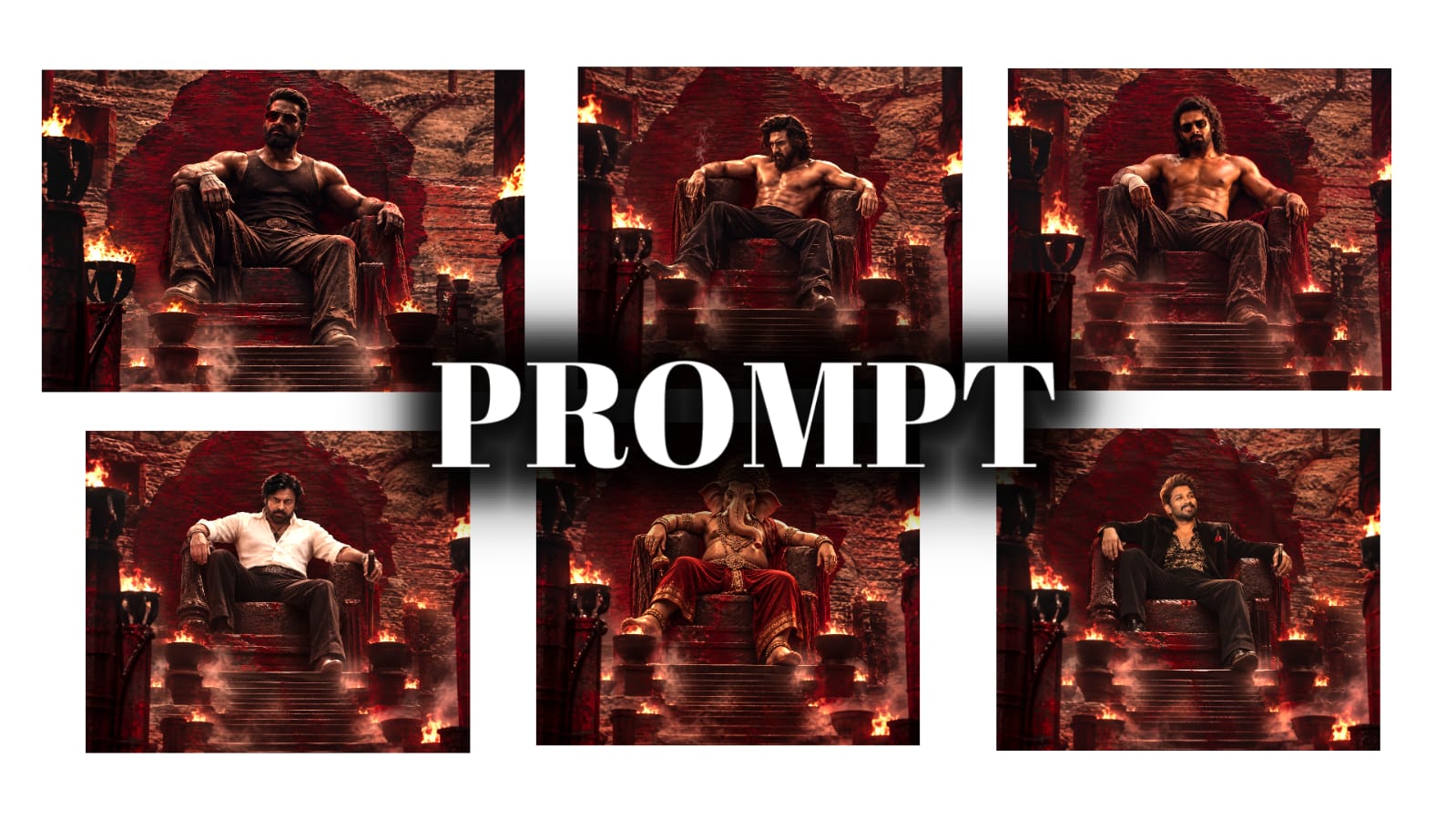
First of all, you will need the Alight Motion mobile app for this. Since you have to do this editing on your phone, if you don’t have the Alight Motion app, I will provide a link below in the description or Telegram where you can go directly to find and try the app. Secondly, if possible, I will also provide the prompt so you can check and use it. I will explain what that prompt is for. I have provided a single prompt below, so copy that prompt first and open ChatGPT. After doing that, many people might want to use Balakrishna sir’s old movies or, for example, the Shiva movie poster.
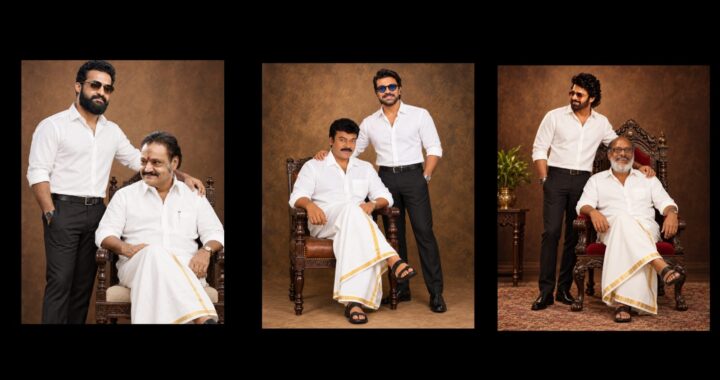
If you want to try it with any song of your choice instead, I have a small suggestion for you. For example, look here, I have placed a poster of the Muta Mestri movie, a photo of Ram Charan anna, and another Muta Mestri poster along with the prompt. After submitting the prompt, it generated a photo like this for us. The highlight here is that the poster appears in the background, and along with that, a photo of a person sitting is generated.
This specific photo didn’t fit Charan anna’s face perfectly, but it will work well for you. Sometimes, if you keep trying a couple of times, you can generate about two to three or four to five photos. These photos will be highly useful, so download them.
Now, since I want this photo as my background, I am downloading this photo first. After downloading, I need it as a background because the poster looks great. So, I will prompt the AI to ‘create background image’ because I want a background. This will remove the photo of Charan anna from the front because we only want the background. You can also place posters of your favorite stars in the background. It doesn’t matter if they are recent star heroes. For instance, if you like the song used here, continue with it; if you don’t like it, you can proceed with a different song.
First, let’s look here.
Okay, our background photo has been created. I will explain later why we need this photo, but first, I am downloading it. If you like it, you can download that photo too. After downloading, you can convert it into a PNG. I specifically use the PhotoRoom app to create PNGs, so you can try that out. After that, I will provide you with a project template file which we will open here. Let’s open it, and it looks like this. Now, let’s click on this box and turn on the camera first.
The font is provided in the description and it is very important, so download and add that font. If you don’t know how, just download the font first. After downloading, open Alight Motion, select text, go to ‘View All Fonts’, and use the ‘Import Font’ option to add it—you don’t even need to open this project file first to do this. Alternatively, if the font shows a missing error, you can change it to any other font you like from there. That is the first step. Now, for example, if you observe closely, the Gang Leader poster appears in the background. If you do not like that poster, you can select the background option at the bottom, go to ‘Color and Fill’, and replace it with the background generated in ChatGPT. Look, it has been replaced and looks amazing. You can similarly change it to a photo of any star you like. Keep that in mind.
Next, your photo will also be in the front, and you can generate as many photos as you want. Go to ‘Color and Fill’, and replace it with your photo. Since there are many photos, go ahead and replace each one of them; it will look truly amazing. If you don’t like the blur effect, select the background, go to effects, and find the blur effect. If you scroll it to the side, it will be removed, and the background will look completely clear. You can try it that way too. Change every single photo this way until the end of the video.
Finally, the text ‘Gang Leader’ will appear at the bottom. Can you see it here? Near this Gang Leader text, you need to place your photo. If you want to generate a photo in this exact style, I will provide a prompt related to Gang Leader, and if possible, a reference poster of Chiranjeevi sir as well. If you upload your photo along with that reference image and prompt, it will generate a high-quality photo in the exact same style. After that, you can easily finish creating it. That’s all. If you have any other doubts, please leave a comment. I hope everything is clear now. If you want to preview it with the song, check my Instagram or Telegram where I have posted it. Jai Hind!