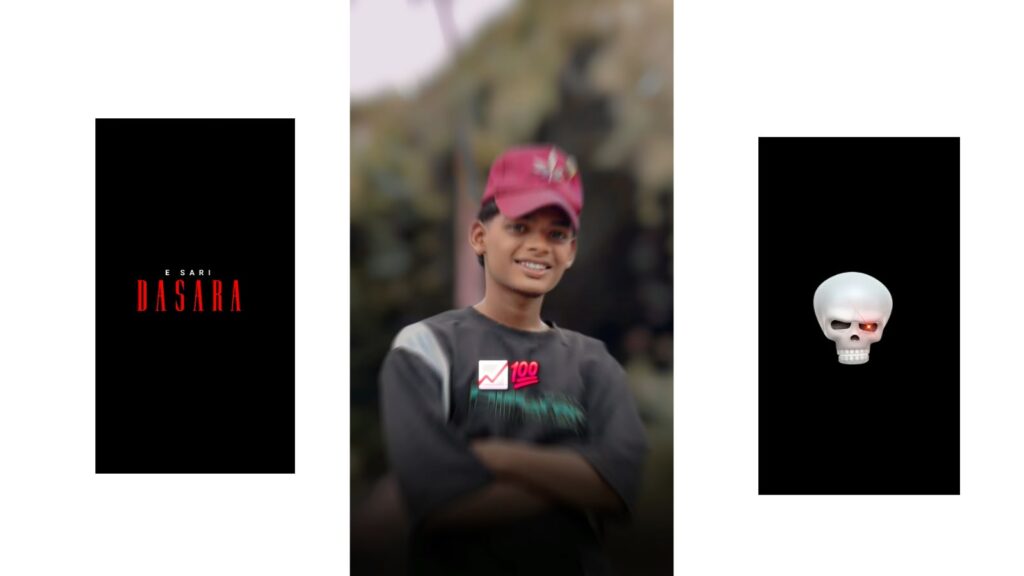
Recently, about an hour ago, one of our followers shared this video with me. I really liked it, so I recently spent over an hour editing it. Let’s take a look at the demo first, and if you like it, please hit the like button to show some support. The lyrics go: “It’s a wound, but carry on… I broke my heart… I gave you back to yourself… this punishment is until the end… it has become a void.” After seeing the demo, please comment on how you felt about it and show your support. Supporting means just hitting the like button to encourage me; I don’t expect anything more than that. Okay, first, let’s try this very simply. If possible, I have used a total of three or four prompts here, and another thing is that there is no rule saying you must use the prompts in this exact way. You can even use your normal photo. But what I did was, taking a few images as a reference from the movie Devara, I generated some photos. I will show those photos first, not in the chat, but in the gallery.
For me, the original photo was this one, and I recreated it with my photo like this, and I also generated the background. After that, there is another background photo, this one, and I separated this photo as a PNG. For the PNG, you can use the PhotoRoom app. You can find plenty of backgrounds in the Pinterest app, or else you can generate that photo background using ChatGPT. Okay, after that, I took a rain video, which I downloaded from YouTube. Since it was a bit fast, I turned it into slow motion. First, understand the materials, and then you will get an idea about the editing; that’s why I am telling you about the materials. The second photo reference image is this one of ours. When I gave this same image to ChatGPT and asked it to provide a prompt, it gave me a prompt. I will also share that prompt; it generated and gave this photo, and both look somewhat similar in terms of poses. If we blur this a bit and add it, it will give a much better look, and if you add a rain effect to it, it will look superb, so I tried that. This is also a separate PNG with a separate background using ChatGPT. If possible, you can get the background from the Pinterest app; I downloaded this from the Pinterest app, though it’s not strictly necessary.
These two photos on top were very useful to me. The first photo is this one—sorry, I generated this photo to make the quality better, and I made this photo into a separate PNG and also made a separate background. This is the PNG, and this is the background. After that, there is another photo, this one. I also generated this photo with a separate PNG like this using my photo; you can also generate it like this, and I will show you the prompt as well. After the separate PNG, this photo, and then after recreating this photo, the last and final one is this hand PNG. If you search for “couple hands” in the Pinterest app, you will get many varieties; I will show you here in the Pinterest app, look at these examples. Now let’s open ChatGPT. There is no rule that you must use the prompt I gave in ChatGPT; if you want me to give it, I will, I have no problem with that. First, you need to know the prompt.
This one photo didn’t turn out quite right, but okay. What I did with this photo is what you need to know first. First, I put a photo, and when I gave the prompt, it generated a photo and gave it to me. In that same photo, when I requested “person remove”, it removed the person and gave just the background. You can try this with any photo or anything like that. After that, there is another photo here as well, just a minute, not this one. You don’t need to worry about the prompt; I will give you the prompt, so try whatever feels comfortable for you. I will give this prompt too; I will give a total of three prompts for you to generate. Out of those three prompts, you can generate whichever one you like. If you want to change the shirt color or dress color, try doing it within that prompt, okay? Now, I will give you that project template, so no worries. If you want me to explain it, I will; I will make a separate video on this. This whole recording took something like 53 minutes. I haven’t uploaded it yet, but if you ask me to upload it, I will. First, understand this breakdown. I will give the project here. Many people face an import problem, but it’s nothing. First, if you open that link, you will find the import package option. You can directly click on the three dots in the Chrome browser, go into the Chrome browser, and copy that link from there somehow. After copying, go into this ‘About Info’ section and turn on our default setting, that’s all. Just turn it on, and if you send it on WhatsApp or anywhere else and open it, it will work. I have also made a video on that; I will put the link in the description, or else you can use XML, no problem. Next, the project I gave is quite large in MB because I added both the video and the song, so no problem. Let’s open it. After opening, I am turning on the camera—sorry, okay.
Turn it on and look here; from here, all the lyrics will be very perfect. I have given the font below this video, and even if the project file doesn’t import, I have given it right here. If you face any problem, manually and with a little patience, replace everything one by one. If you have any further doubts, please comment. If you want a tutorial video instead of a breakdown video, just leave a short comment saying “tutorial”. Jai Hind.



