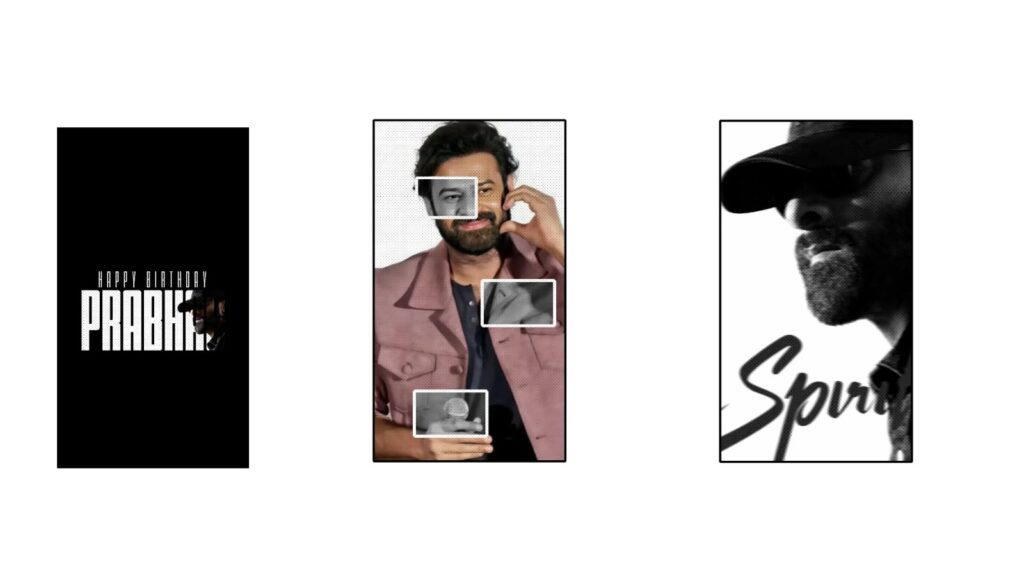
First, look at these two videos. A lot of people asked me to make a video on this. Many individuals sent me these videos. I’ve been seeing them since this morning. Specifically, I noticed about 20 to 25 people sending them, and there might be many more messages. Let’s try to make it simply. I will explain how to do it, and it will look very good.
First, what you need for this is a background photo. You can find plenty of background photos on the Pinterest app. If you want to generate AI photos, I will provide a prompt. I’ll tell you more about that as we go forward. First, I will give you a quick breakdown of the project I created, and then I’ll explain how to do it, okay? Because I didn’t use too many materials in this, the editing process is quite simple.
First, I am turning on the camera. Initially, the hands appear, matching the song. The animation looks really good because it was made according to that Tamil song, so it continues smoothly. After the hand animation finishes, this photo automatically appears. Sorry, okay. You might see a notification because we are generating AI photos, so it keeps popping up. You don’t need to worry about that. Okay, it will look like this.
Now, making this is very simple. There is another animation in this as well. I covered it using only one photo, but you can try something different. I will tell you a few things about it. First, I have shared the project link in the description. If possible, the prompt and font are also included in the description. The prompt and font set up really well. Please check it out if you can. If you don’t have the Alight Motion app, I have uploaded it to Telegram and WhatsApp. Check it out there, you won’t face any problems and can use it easily, okay?
First, we will set the background color to white. Then, click the plus icon below, go into media, and add the song. You can add the song this way, or if you have a video clip, you can easily extract the audio from that video clip. Okay, you can extract it from the video clip, no problem. First, I added a background photo image. I took this background from the reference video itself. There is no strict rule that you must add this exact image, so you can add whatever you like. First, I changed its Z-value to 2000 to zoom it in. I zoomed it as much as needed, and now I will take a hand photo.
If you want to create these hand photos on your own, use Gemini. Otherwise, if you want to try the same photos, I will put them in the description. I am not increasing or decreasing the Z-value of this; it will remain exactly as it is. However, we need lyrics in the middle. For the lyrics, I will click the plus icon below, go into media, and add a photo. You can add any photo, no problem. But as I mentioned before, we need it for the lyrics. By mistake, the topic changed, but I am taking the lyrics from the other hands here. I’ll take as much lyric text as needed, go into the text option, first change the other text, and place this here. Try your best to pick a matching color, like this.
Then duplicate it, cut the extra part from here, and let’s change the font. Let’s place it below. Nice, it looks very good. Now, place a beat mark up to where the lyric lasts and keep the text length the same. It looks great, okay? Now, let’s add the camera. Select the plus icon below, go into objects, and add the camera. Now, zoom in at the starting point, add a keyframe, and zoom in like this. Then add another keyframe here and reduce the zoom. Look at that, and add a curve. Now look, it looks super.
After that, we can also add a photo from here—any matching photo we like. Let’s increase its Z-value a bit into the minus range, and let’s zoom out like this. Right, it looks good up to that point. Let’s zoom it a bit. Now look, this isn’t matching properly, so go into effects, click add effect, and add saturation here. I’ll tell you, reduce it a little bit, and it will be set according to our photo. Cut the extra part of this hand PNG.
Now, decide whether you want to place the lyrics on the left side or the right side. This is very simple. I explained this in a video just yesterday. If you say I am repeating the same thing, you just tell me the starting position you want, and we will take care of the rest. Depending on that, you can decide whether the animation should move to the left side, move to the right side, or zoom out. Place the lyrics accordingly. Alternatively, I gave you the project link, right? You can look at that, check it correctly, and use it. Okay, that’s it. If you have any other doubts, please comment. I will provide the prompt and font, so check them out.



