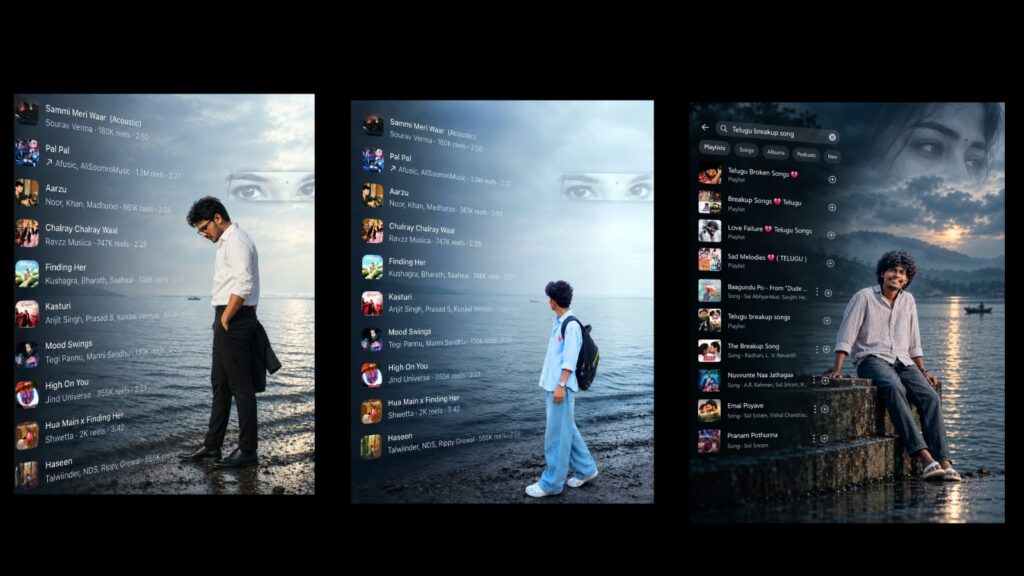
You can see that these videos have been highly trending recently. You can edit this either in After Effects or in Alight Motion; it turns out looking absolutely amazing. If you want to try it out, go ahead, and if you watch until the end, I will try to explain it to you in great detail. The only minor difference between After Effects and Alight Motion is that After Effects allows you to easily remove video backgrounds, whereas Alight Motion has some limitations. That is the only small distinction; everything else remains exactly the same and looks wonderful. Once you see the demo, you will get a clear idea; it looks exactly the same without requiring any extra changes. Now, I will explain how to create it. First, to do this editing, you must have the Alight Motion app installed. I will provide the link in the Telegram channel, where you can search for “Alight Motion” and download it. If possible, use the Alight Motion clone app as it will be very helpful for you. Another issue is that if a file is larger than the specified limit, it fails to import into Alight Motion. Because of this, try logging in, though sometimes logging in fails too, so please keep an eye on that. Try editing directly within
Alight Motion. First, let me show you the project I created and explain how I made it. Revealing every step from scratch is not strictly necessary and would take a long time, so I will explain it to you in a breakdown format. It is a very easy process. I have provided all the relevant project files, background videos, and elements used in the description below. As a bonus, I have also included the After Effects project file, so check that out if you use After Effects. Since we already have the app open, as I mentioned earlier, you can access the project file below. Explaining everything from the very beginning is a lengthy process, so without going into that depth, I will explain it quickly and concisely.
Once I walk you through it, you will automatically understand it without needing to watch any other tutorials. First, let’s look from the bottom up. At the start, you can pick any video clip or photo you like. A video clip is preferred because its natural motion delivers a much better look. Try to add a video clip for the best result. From there, you will find all the effects, along with a group that contains the video clip and an added PNG. To remove image backgrounds, you should use the PhotoRoom app. I have been using PhotoRoom for a long time, so you can search for it and give it a try. Simply upload your photo, and it will remove the background in a matter of moments. After that, you will see a photo or video clip placed in the middle. Go into the group, select “Edit Group,” navigate to “Color and Fill,” and you can easily change the video or photo. Next, you will see a subtle null movement effect along with hand and flower elements.
There was a minor issue with the color grading in this version, but you can correct it easily. You don’t need to worry about the text fonts either, as I used the built-in fonts available directly in Alight Motion. If you want to change the flower elements, you can do so after adding a PNG. This is where the trending effect takes place, and you can replace it using a normal photo or a background-removed photo. From this point until the end, it is entirely a video clip. Even if you place a photo here instead, it will still look
amazing. You can easily swap out photos or videos one by one. I originally thought about keeping photos for this effect, but since we already have a video clip, I decided to leave it as is. Once you check everything, save your video. I have provided all the project files, including the After Effects project file. Save the video, and if you liked this tutorial, please leave a like to support the channel. Jai Hind



