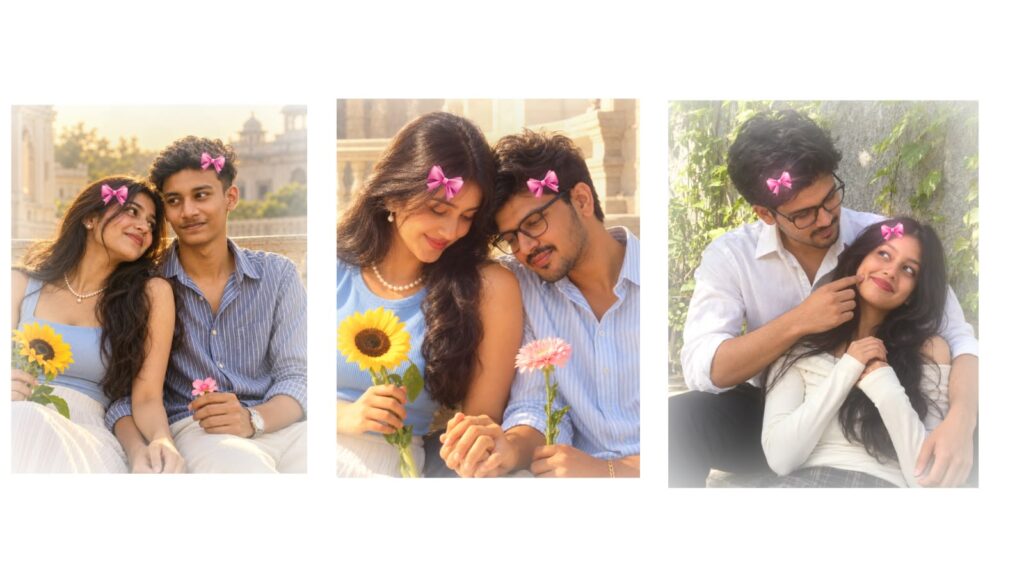
The trending song editing is next level and looks truly amazing; the lyrics appear exactly as they do in the movie. There is no doubt about it, and I will show you a demo. Please give it a like and show some support; if you watch until the end, you will learn a lot. First, check out the demo. As you can see, it looks absolutely amazing. Now, I will simply explain how to make it, so watch the video from the beginning to the end, and please give it a like first. For this editing, you will need backgrounds. You can easily search and download various backgrounds using the Pinterest app. Animating the background is very simple. For example, if you have generated an AI photo, you can upload that photo to Gemini AI and ask it to add movement, and it will automatically animate it. In this video, we will use a circular movement animation, which turns out really well. If possible, I will provide all the backgrounds and photos in the description, including Keerthy Suresh’s photos.
However, the quality of the project file I am sharing will be slightly reduced because it must be kept under 5 MB to prevent input errors, so please keep that in mind. Now, let’s open the project and break it down. I will share a few tips that will be very useful to you. First, click on this box and turn on the camera. Before you start, you must remove the background from your photos. You can use the PhotoRoom app to remove the background; I have shared it on Telegram, so check it out. I have also provided the font, and everything else is perfectly set up here. I will give you an idea of how to do this breakdown. Now, I will show you a simple way to create this. I am going back to clear up a small detail. Take a new project, set the background to a 16:9 ratio in black color, and click “Create Project”. Go into the audio settings and add the song, or if you have a video, you can just extract the audio from it. Next, rename it and mark the beat points where you want the song to start, where it should animate, and where the transitions should appear. Now, let’s add the background first. I have created many backgrounds using AI photos. This background looks great, so I will zoom in a bit and apply a slow-motion effect to it so that the rounded edges don’t show up. Now it looks good. Go into “Move & Transform” and set the Z-value between 500 and 600.
After that, click the plus icon below, go to media, and add our photo. Place it right up to this point to set it properly. To add the lyrics, go to Google and copy the text for your chosen song. Then, go to the text option and add it.
First, add the short text fragments. I have provided the font link below, so check it out. Place the text, zoom in a bit, go to color and fill, and select a matching color. Bring it down and position it here. Next, duplicate this text layer, change the wording to the next part of the lyrics, and place it properly. Now, add the camera. The first short lyrical part is successfully added. Go to “Move & Transform”, select the camera, add a keyframe at the starting point, move a bit forward, add another keyframe, and zoom in or shift it up, down, or sideways. I am moving it downwards so it appears from the top with a nice motion. If possible, keep the Z-value slightly negative to get a smooth movement.
From here, just cut the extra parts, copy these five layers, and paste them for the next section. Change the backgrounds and keep the animations varied, because using the exact same animation everywhere won’t look as good. If one transitions from the left side, make the next one move from the right side. This should give you a clear idea of how to do it. Alternatively, you can open the project file and try it out. If you have any doubts, leave a comment. I will provide the material project file link below, and I will also share a video guide if you face any import issues. Jai Hind.



