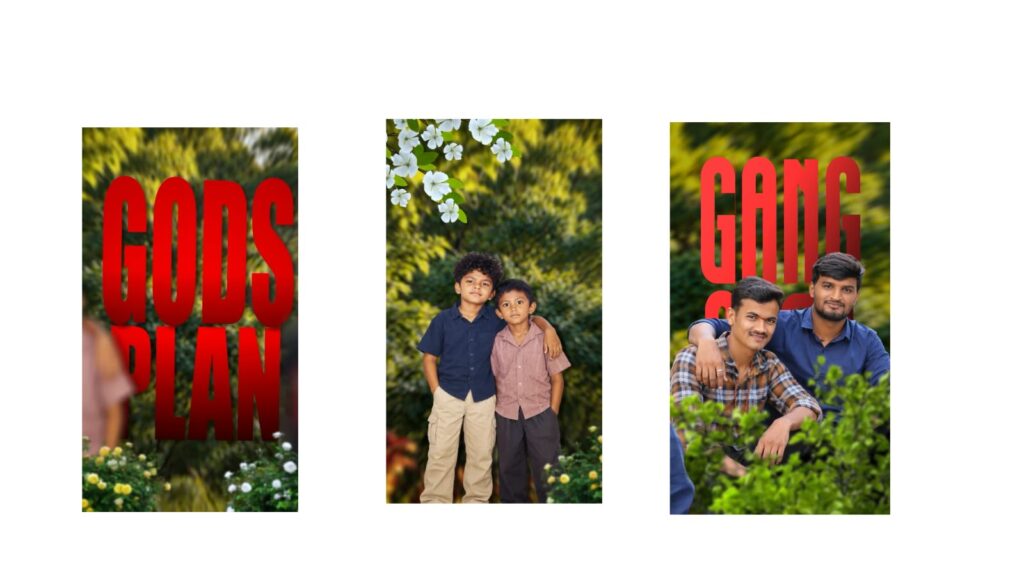
The videos of this type have been trending quite a lot recently. I have already made two or three videos about this style in the past, but this one features a brand new song. The animations in this look particularly good, and I will show you a quick demo. Before that, please click the like button; please give it a like. Let’s check out the demo. As you can see, it looks truly amazing and has been viral all over recently. If you browse through reels for even ten minutes right now, you will easily see around twenty videos using this exact template. As far as I know, these are originally Malayalam reels using a Malayalam song from Kerala. However, I am using a very good alternative song for this editing tutorial. If you don’t like this particular track, you can easily change it to match your preference. For instance, if you are using a boy’s photo, you can pick a song version that blends perfectly with those visuals.
To start, I have provided two custom fonts in the description, so go ahead and download them first. We are going to do the entire editing process inside the Alight Motion app. If you don’t have the app yet, I will provide a link on my Telegram channel, so you can get it from there. Using that version will be incredibly helpful because it works smoothly and completely eliminates any template import errors. You can just copy the link and import your project directly. I have also made separate dedicated videos on Alight Motion on our channel, so feel free to check those out if needed. Now, before opening the project file that I provided, make sure you have successfully added the fonts. I am turning on the screen view to show you how it works.
Creating this is exceptionally simple. Doing this with “Null” animation usually makes it look even better, and it works flawlessly with camera positioning. However, with a Null object, you have to manually link every single element to it. Managing the camera directly is much simpler and helps you adjust everything according to your custom animation style while saving a lot of time. If the Null method takes a minute, this direct camera method takes only about 30 seconds
Moving on to the actual editing, this is where our main video begins, and all the lyrics are aligned perfectly. If you want to insert your own pictures, scroll down to where the camera tracking layer is located. Select both camera layers, copy them, and then delete them. Come back to the very beginning and paste them back; you will immediately see the smooth animation layout applied like this.
The first thing you need to check is the typography. If you haven’t added my recommended font, you can pick any other font from the menu, but the one provided matches the aesthetic best, so I highly recommend downloading it via the link below. If you wish to swap out the song, find the audio layer located in the middle, delete it, and head over to your media library to add your preferred audio track. Alternatively, if you have a video clip with the audio you want, you can import that video and extract the audio layer from it.
To replace the placeholder images with your own photos, select a photo layer, go into the “Color & Fill” menu, and choose any photo you like from your gallery. Let me change this one as an example. Once selected, adjust its position carefully to fit the frame properly. Shift it to the left or right depending on what looks perfectly balanced to you. After positioning, go into “Border & Shadow,” select the option, and enable the shadow effect. You can adjust the shadow placement, lower its opacity slightly, and increase the feather effect a bit to give the photo a premium, clean look. You should apply this shadow adjustment to every photo you swap in.
I have applied a black-and-white filter by default; if you prefer vibrant colors instead, simply go into the “Effects” panel and hide or disable that specific effect layer. This makes it super easy to customize the look exactly how you want. Preview the project all the way to the end to ensure everything looks flawless. All the links for fonts and files are down below. If you want a more comprehensive, step-by-step breakdown of this editing style, please drop a comment, and I will upload a detailed tutorial video to guide you further.



