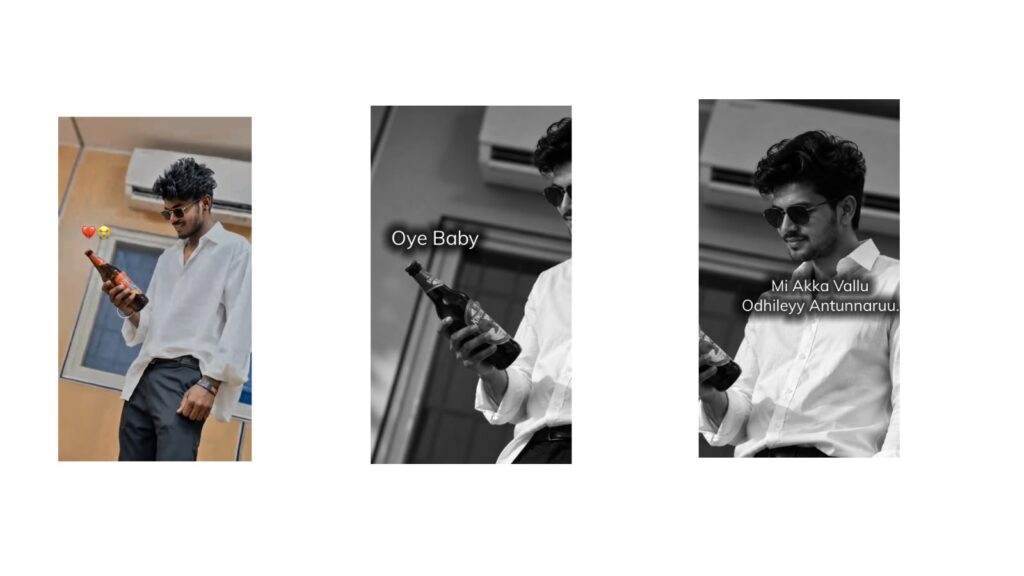
I will show it to you now, this editing is going to be very special. Once I show you the demo, you will get an idea about it. And please like the video. Everyone please like it and support me a bit, okay? First, let’s watch the demo. Alright, look at that… As you can see, it looks absolutely amazing and wonderful. I only showed you a small preview, but my quick suggestion is that while I created this video using just photos, it would look even better if made with video clips. I have the videos and everything ready with me, so I could have done that, but I didn’t. Since my initial plan was centered around photos, I went ahead and tried it with photos first. And if you want to make it look like a proper DC movie style, that’s simple too; it’s not a big deal for me. I mean, if we just recreate it exactly as it is, it feels a bit standard, even though it’s highly trending right now. We can do that sometimes.
But it always looks much better when we introduce some unique changes, right? Now, the materials required to make this video… the prompt is incredibly important for this video. I will provide two different prompts in the description, and I’ll show you what they look like now. The first one is a black and white eyeglasses prompt. The second one is a prompt meant for photos with a specific effect. For example, photos like these look great with that effect. Alright, so there are two prompts available: Prompt 1 and Prompt 2. The other prompt creates a black-and-white look where the entire body is styled. This means even if your original photo doesn’t feature glasses, the AI will automatically generate and add eyeglasses onto it. The eye glasses will be highlighted like this. It turns out really beautiful, keep that in mind, okay?
I’ve given the prompts in the description, and I’ve also linked the project file. If you run into any import issues, I will pin a video link in the comments explaining how to fix it, so go watch that. Alright, now let’s open the project. Once you open it, this is what it will look like. Even if you want me to explain it right from the beginning, it’s not a major issue since it’s quite simple. I’ll just share a quick breakdown here so you can catch the idea easily without having to build everything from scratch. First, I am opening the section where I initially generated the photos. I’ll give you the prompt as well, but let’s talk about it first so you have a clear picture. I placed a normal photo right here. That prompt will make the effect look absolutely stunning on the photo, so make sure to check it out. The other one is the black-and-white style. The black-and-white effect also looks incredible, and I will place that in the description too. Go ahead and take a look if you want to verify it, okay? Go ahead and upload your photo. Prompt 1 is for the black-and-white version, and Prompt 2 is for the other look.
For the black-and-white effect, go ahead and generate about six to seven different photos. Generate five or six photos for the other style too. Even if it takes a bit of extra time, it’s worth it because our final outfit look needs to turn out significantly better. Look at that, it looks superb! Right at the beginning, you can swap out those photos by going into the ‘Color and Fill’ option and hitting replace. You can replace as many photos as you managed to generate. From this point forward, the black-and-white photos will start playing in sequence. Also, make sure to add a name text here. I don’t think you strictly need this exact font link, as you can easily use an alternative font from the available options here. However, I will still provide it to you. If possible, I’ll share two fonts, focusing primarily on this main one. You don’t necessarily have to use it though, since it’s just the default Alight Motion font style—my bad, I accidentally said font prompt instead of just font style, sorry about that mistake!
Just check it out; there isn’t much to it. Simply select the photo layer, head into ‘Color and Fill’, and replace it with your own image. If you prefer to use video clips instead, that is perfectly fine too. You can drop them in one after the other, and it will look great. Just organize your videos or photos all the way through to the end of the timeline. Once that’s done, just export it and your video is completely ready! If you enjoyed this tutorial, please leave a like and show some support. If you’ve watched all the way to the end and know of any cool new trending video concepts, feel free to drop a link or leave a comment below. Like I always say, if there’s a fresh trending video concept out there, we will definitely try our hand at recreating it. Jai Hind!



