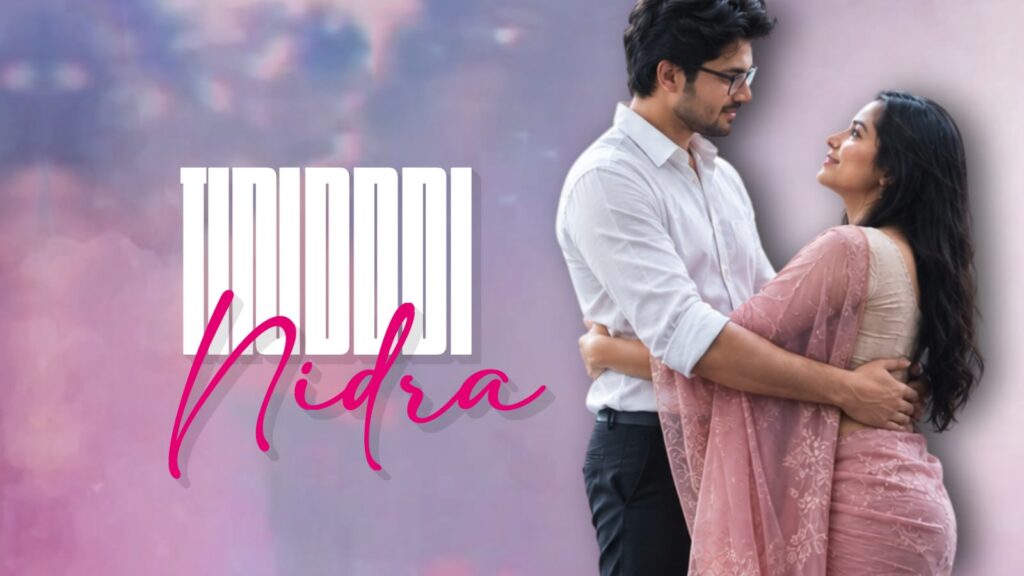
The lyrical video for the recently trending movie song “Kadhagalai Varigaiyudu” has been created. Both the original version and my edited version are available.
Take a look; it looks highly amazing. It belongs to a Malayalam movie titled something like Bethlehem Kudumba Unit, which is currently trending a lot. I really liked its lyrical concept and felt like trying it out, so I created this. I will guide you on how I made it to give you a clear idea, which will be helpful. Make sure to watch the video from the beginning until the end. If you just want the project file, you can directly download and use it—no problem at all.
We are going to perform this complete project inside the Alight Motion app. Whether it is called Alight Motion, Ultra Motion, or After Motion, they are essentially the same application. If you want to download this app to try it, I will provide the link below for you to install it.
To start editing, I will first give you an overview of what I did to help you understand the process. After that, I will explain how to replicate it step by step. First, you need to generate some photos. You might have noticed in the demo video how my photo is paired with a random girl. To generate similar couple images, first open ChatGPT.
As you can see here, I first uploaded a reference image. Once added, I typed a simple instruction: “This is a reference image”. Then, I attached my own photo. If you have a couple’s photo, you can add that directly. Following that, I provided a small prompt. I will share this prompt below so you can check it out.
I will directly provide the link to this ChatGPT shared page. When you open the link, you will arrive at the exact interface where you can replace my photo with yours or use a couple’s photo. To do this, click on the “Edit Message” option, remove my image, and upload up to two photos (whether male or female). Even uploading a single photo will work perfectly fine
Once done, it will generate photos like these, which look quite good. If you want to make further adjustments, you can. However, if you want different variations or poses using the same style—such as a hugging pose or standing slightly apart—you can easily prompt it. I generated a few variations, and you can try them too. Just type “change pose” in the chat box, and it will generate various poses for you to continue with. Keep this in mind.
Next, I will show you the pre-edited project timeline so you can grasp the structure easily. Afterward, I will break down how I constructed it. When I open this completed project, you can see all the layers. There are a total of 33 layers, which is actually quite low. Originally, it had more, but I removed about 8 unnecessary layers after making some modifications because they weren’t adding much value.
First, click on this box icon to turn on the camera. Make sure to watch until the end to see how this is done. Notice how the camera movement looks.
Now, let’s look at the simple steps to build this from scratch. First, we need the background music track. You can choose any song you prefer. As an example, I searched for this specific song on Google and copied a short segment of the lyrics that I needed. If you don’t want to spend time doing all of this manually, I am providing the project file for you. If you face any issues while importing, I have also provided a tutorial video in my highlights, so check that to clear your doubts.
Open the Alight Motion app, select a 16:9 aspect ratio, and create a project with a black background. Now, click the plus icon at the bottom. First, I will add an audio source by importing a video file and extracting its audio. I have the video right here. This is the original video; I will extract its audio track and then delete the video layer. Now the timeline looks clear.
Next, let’s mark the beats. Let me play it briefly for you. Placing beat markers at regular intervals helps significantly when creating animations. It gives you a clear idea of how and when to move elements. To add a beat marker, simply click on the timer/timestamp, and a red marker line will appear.
Now, tap the plus icon, go to media, and select a background image. You don’t need to look far for backgrounds; you can easily download them from the Pinterest app or the Google Play Store. For this project, I am selecting a photo of Prabhas. You can search for any type of background you want. I am looking for a white textured image because it matches this specific aesthetic well. Scroll through until you find a suitable image and download it. I already have a similar background image saved which looks great, so I will use that. It gives a better visual feel.
After adding it, I will extend its duration on the timeline. Then, go to the Move & Transform settings, select the third option (Z-axis parameter), and set its value to somewhere between 2300 and 2400. Use your fingers to zoom and scale the image so that it perfectly fits the screen preview.
Next, tap the plus icon again, go to media, and bring in the main subject image. Keep its Z-axis value at its default state. I will also extend this layer’s length. Now both layers align nicely.
Tap the plus icon, go to media, and add a floral overlay image to match the theme. I will provide these flower assets below, or you can find them inside the project file. Alternatively, searching for “flowers PNG” on Pinterest will give you plenty of options to download. Now, increase the Z-axis value of this flower layer slightly and position it over the subject. Adjust its length to match the subject PNG layer. Duplicate this flower layer and place it on the opposite side to balance the frame nicely. It looks visually clean now.
Since we need to place lyrics in between these elements, tap the plus icon, choose the text tool, and paste the lyrics we copied earlier. Cut the text to keep only the starting line. I am using a clean, simple default font available within Alight Motion. Set the text layer duration and zoom it up. Let’s change its text color to a light pink shade for a better look. It looks good, but a slightly darker shade might look even better. Perfect. Everything is properly set up up to this point.
Now, tap the plus icon, navigate to the Object/Element section, and add a Camera. Make sure to enable the camera view from the toggle switch. Go into the Move & Transform options for the camera, add a starting keyframe, and move it back slightly to create distance. Move forward a bit on the timeline and add another keyframe to zoom in. Now you can see the depth effect.
The reason I suggested using beat markers is that they allow you to align transitions precisely. Selecting the marker snap option brings the playback indicator right to the beat marker, making it easy to zoom and adjust camera coordinates to the side. Add another keyframe shortly after to zoom all the way in until the transition completes.
At this point, we can introduce a second photograph. Add your preferred second image. To maintain depth separation between the two scenes, set the Z-axis value of this new image layer higher, around 600. Now you can see it positioned further back in 3D space. As the first line of lyrics fades out, the next scene and its lyrics will naturally come into view.
To enhance the visual smoothness, add a Fade In & Fade Out animation effect to the text layers. It elevates the transition quality. Once the first lyric text disappears, the second one seamlessly takes its place. You can scale its size down slightly.
To build upon this layer, add another beautiful flower asset on top of it. Adjust its Z-axis coordinates so that it aligns close to the second photo plane. Extend its layer length to where the second lyric sequence plays out. Keep adding gentle camera zoom keyframes across the timeline.
If you want text elements running behind the subject in 3D space, copy a lyric text layer and paste it here. Increase its Z-axis distance to about 1200 and change the text content to match the next line of the song. Now the second lyrical sequence is active.
To add subsequent sections, repeat the exact same workflow: apply camera zoom, add the next image asset, and push its Z-axis depth to around 1300 or 1400. As you can see, this scene is properly configured too.
You just need to continue this repetitive process sequentially across the length of your edit. The overall flow depends entirely on your creative thoughts and how you want the movement to feel. The process continues automatically once you get the hang of it. Taking reference from existing edited videos can be highly helpful. Since I had this song as a base, it served as an excellent reference layout
When working with a different song, take a small snippet to practice. Do not look at it as copying; rather, approach it with a mindset of learning something new. Creating completely original content using your own editing style and unique camera paths is highly recommended. I broke down this example simply to give you a foundational workflow, and I hope it clarifies things for you.
If you still run into any issues, I have linked the editable project file below. If there’s an import glitch, check the troubleshooting video guide available in my profile highlights. Once you complete all your layer arrangements, export your final render in either 1080p or 4K resolution. If you have any further questions, drop a comment below. Jai Hind!



