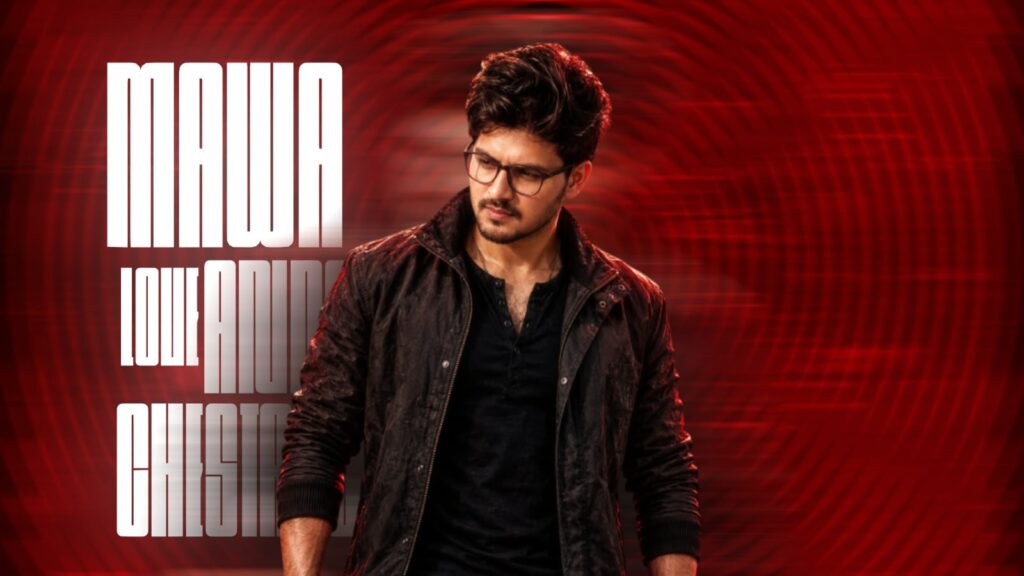
The original video is at the top, and the video we created is at the bottom. This is a song from the Jailer 2 movie called “One Name”. Many people asked me to try it, and the animation in it looks really good and amazing. You might not get that exact feel here, so I will upload this video to Telegram as well as Instagram. You can go there and check it out; it definitely has a next-level feel.
First, I will explain a few things you need to do, and then you can create it. Usually, if you ask for a full tutorial, I will provide it, but for now, I am breaking it down for you. If possible, I will also provide the project file below for you to check out, but keep a few things in mind. We did this entirely in Alight Motion, so if you don’t have the Alight Motion app on your mobile, check our Telegram channel below to get it. If possible, use the latest version of Alight Motion as it will be very helpful for you. If you face an issue opening the link, open it in Chrome browser, copy that link, and then open it through WhatsApp; it will work. Otherwise, check the video where I showed how to fix the import problem.
Now, first I will tell you how many layers are there. There are 100 layers in total. One layer is extra and useless. So there are 100 layers. I deleted a few extra layers because they seemed like a waste. Look, it will look like this. If you are thinking of generating a photo, go ahead, I have no problem with that. It will look even better if you use normal photos. You can generate photos like sitting on a chair or walking. I will show you what I generated. If you saw my demo, you can generate photos in the same style by typing in Telugu.
I have created a total of 100 layers. As I mentioned earlier, if you do just the starting portion, the rest will follow automatically because we will apply the same effect to the rest. After applying it, making small changes will be enough. I will explain that to you. I will also show you how easily I did it, so don’t worry. First, look here, it will appear like this. Doing this is very simple, and now I will show you how I did it. If you want the project file, it is available below, go check it.
First, I am taking a new project with a 16:9 ratio. Then go to Audio and add the audio, or you can extract the audio from a video. After adding it, rename it. Listen to the song and add a beat mark around the 2-second mark because that is where the lyrics start. For example, if you click on the beat mark timing like this, the beat mark will be placed, making editing much simpler. Now, press the plus icon at the bottom and select a shape. Zoom in on this shape as much as you want. You can choose any color you like, but I am setting a specific color here. This looks good, so I have set it.
Next, click the plus icon to add the star effect. Add the star, zoom in on it, and place it here. Set the star to the same color. After that, duplicate it. First, hide the background shape we added earlier. Set the top color to black and reduce its size slightly. This creates the star outline. Now, long-press both star layers, select them, and click the option next to the delete button to create a single star. After that, unhide the background. I will make it a bit darker; now it looks much better. Adjust it according to your preference.
Now, duplicate this same star and zoom it in. Duplicate it again and zoom it in further. Repeat this duplication and zooming process 5 to 6 times. Since I made the star border a bit thick, it looks like this, so adjust yours carefully. Now, select all these grouped items together and click this option to combine them into one group. We can zoom this group and place it anywhere.
On top of this, add the lyrics of the song you want. I have provided the link for this font in the description, so check it out. Apply the font, position it, and set it to a matching color. Now, let’s add an image on top of this. Position the image here. You can use either a camera or a null layer for the animation. Click the plus icon, go to object elements, and add a null layer. Select the background and link it to the null layer at the top. Link every single element to the null layer
After linking to the null layer, select the background, go to ‘Move & Transform’, and change its Z value to around 50 to push it back slightly. Next, push the star back a little bit as well. Keep the text as it is, no problem. Bring the photo forward by adjusting it in the negative value. Now it looks good. Click the plus icon, go to media, and add a halftone effect image. This effect is very useful for the video, so you can download a halftone effect of your choice from the Pinterest app by searching for ‘halftone’. Add it and zoom in. Go to effects, select ‘Add Effect’, and search for ‘Chroma Key’. Select pure white color to remove the background, and the halftone effect will be set. You can increase the value slightly if needed.
Now, let’s add an effect to this. Select it, go to ‘Move & Transform’, and add the ‘Random’ effect. Adjust the size slightly and link it to the null layer. Now you can move the animation wherever you want. Add a keyframe at the start, add another keyframe further along, and zoom in. You can move it to one side to add lyrics, or move it to the other side, zoom in, and add lyrics. Now a lyric-style animation is created, and you can add movement to it. Long-press and select all these elements together, copy them, and paste them further down the timeline. Now you can change the lyrics, photos, and animation to continue the video. It is very simple, so give it a try. If you like it, please drop a like and support the channel. Jai Hind.



