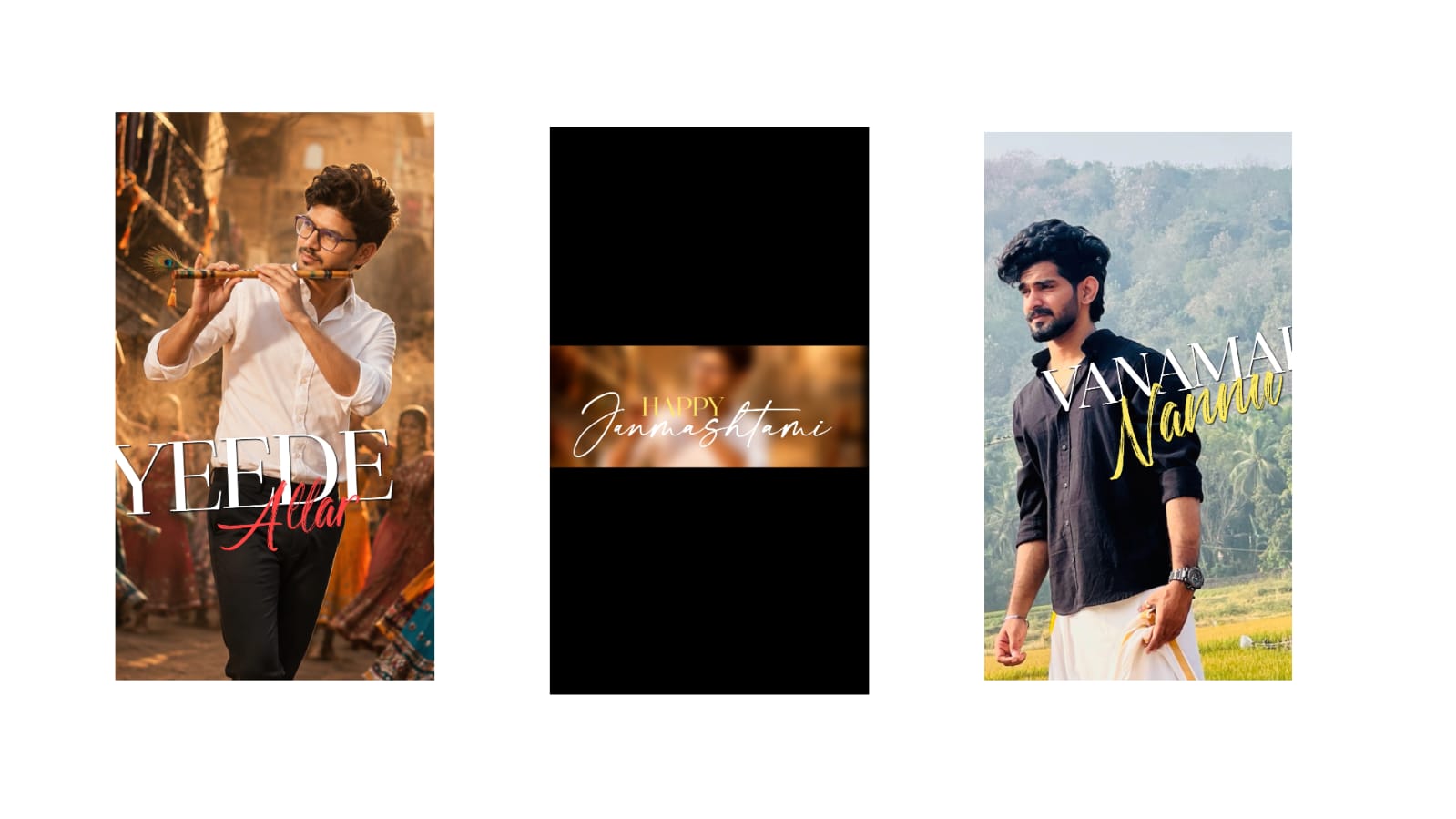
Lately, this “Aane Waala Saal” lyrical video is very trendy and looks amazing. Let me show you a quick demo. If you like it, please drop a like. Watch from the very beginning to the end, and I will explain how to make it easily. I will also show you how to generate these photos. You can use your normal photos too, no problem, but my inner feeling is that these specific types of generated photos fit the video much better. So, first, let’s generate those photos. Let me show you the photos first to clear any doubts so you get a good idea. This is a photo I generated myself using ChatGPT. It looks amazing. First, open your ChatGPT. I have provided the prompt right below this video, so check it out. Copy that prompt, and if you want to modify something in it, feel free to make changes. It will generate an amazing image based on what you upload or prompt. Just generate it using that.
Another thing: if you want to use the background of the generated photo separately, don’t worry about it. It looks best if you use a clean backdrop. In my case, I got a photo with this specific style and background. Your photos might have subtle variations or background shifts, so you can tweak them accordingly. For example, I took my original photo and gave a prompt saying “remove this man”. It completely removed the person from the background and generated just the background for me, so you can do the same. The prompt is right below the video, go check it out. If you don’t want to go through all that hassle, I have also provided the project file. Let me break down the project and give you an idea of how to use it.
Turning on the camera. This is how it looks right at the start; it is very simple and looks great. First, click the plus icon below, select a 9:16 aspect ratio, and set the background color to black if we are starting a fresh project. Go to audio and add your song from there. Since I have a video clip instead, I will add it, click the three dots at the top, and select “Extract Audio” to isolate the track. Now, I’m deleting the video clip. Listen to the song; the main lyrics start from here, so this initial part will work as an intro. Mark that spot as a beat mark. Clicking on the timeline timer creates a beat mark. Now, come to the beginning and add the background we generated. Let’s extend it all the way to the end. Go to Move & Transform and select the Z-axis. Click on the Z timing and increase the Z value to around 2000. Zoom it in as much as you need. To cover the edges neatly, add the Tiles effect and turn on “Mirror” inside it. Now it looks perfectly set.
Next, click the plus icon, go to media, and add your photo which should be converted into a PNG transparent layer. You can use the PhotoRoom app from the Play Store for this, or check our Telegram and WhatsApp channels where it’s available. I am placing the photo here and extending it to the end. Go to effects and select Add Effect. Since this photo has a bit too much darkness, go to Color & Light and add the “Exposure/Gamma” effect. Increase the exposure slightly to bring out a nice brightness. I am adjusting the photo size accordingly and changing the Z-axis value to around 800 to realign it.
The photo looks good now, but we need a shadow. You can do this in many ways, even by flipping the same photo. But instead, I will take a shape, place it down here, and extend it to the end of the video. Change its color to black and lower the opacity a bit. Go to effects, choose Add Effect, navigate to Blur, add “Gaussian Blur”, and increase it. Place it right below the photo layer. I’ll duplicate this layer, but before moving it underneath, make sure to increase its Z value. Match the Z value to the photo’s value, which is 700. This ensures you won’t face any scaling alignment issues when zooming in. Keep an eye on this while setting it up. A subtle shadow is now created. It won’t look too prominent, which is perfect.
Now, click the plus icon, go to media, and add a smoke video overlay. It looks beautiful; try to add it if you can. Rotate it 90 degrees and zoom it in to fit. Let’s trim out any extra starting portion. Go to Blending & Opacity, select Lighten, and choose “Screen”. I’ll guide you on how to color-match it as well. First, trim the excess part and align it up to this point. It looks really nice. Set its Z value around 400. Now, click the plus icon below, go to Object/Element, and add a Camera. Turn the camera on. Add a keyframe at the start and another keyframe at the beat mark, then zoom in closely like this. Pull it in near so it creates a smooth zooming transition. At the very end, add a fade animation. Go to the smoke video effects, select “Fade In/Out”, and reduce the “Out” timing to zero. This ensures the face clears up perfectly at the end of the transition.
From this point onwards, we can start placing the lyrics. For the lyrics, I searched Google for “Aane Waala Saal” to use as an example. I’ll add the text layer here. I will only add a couple of lyric lines to demonstrate. Type the text, change its font style to “American Captain”, and scale it up. Go to Move & Transform, pick the skew/bend option, and bend the text slightly. I am setting the text color to white. If you want the text to appear behind the subject rather than in front, simply increase its Z-axis value to push it to the back. Duplicate this text layer, clear the old text, type the next word “Aane Waala”, and place it here. Duplicate it once more, clear it, and put a star element here. Let’s align it with the audio up to this point. Now adjust the keyframes to zoom in or shift sides depending on which direction you want the lyrics to animate. Change the lyrical positioning accordingly; it is that simple.
I will provide the smoke video link below this video, or you can just use the project file, so check it out. Let me show you the project I already finished; it won’t have anything more complex than this. Look here, it is the exact same style with just a few basic structural tweaks like shifting layers left or right or adding subtle rotations. That will be more than enough. Take a look. If you have any other doubts, leave a comment. Jai Hind!
Full Project
XML file
Song link



