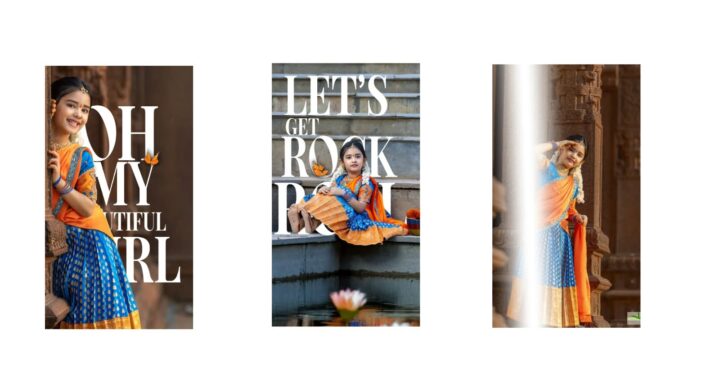
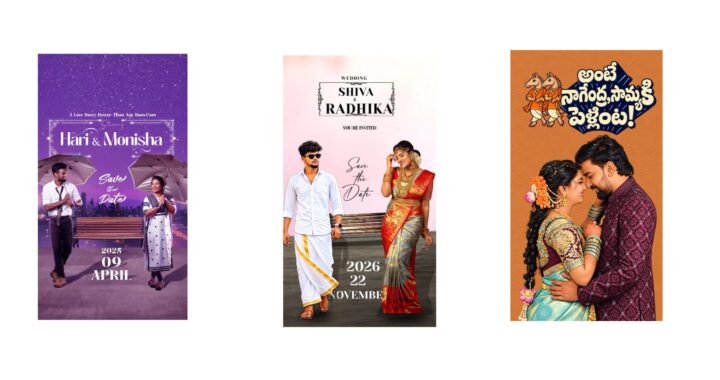
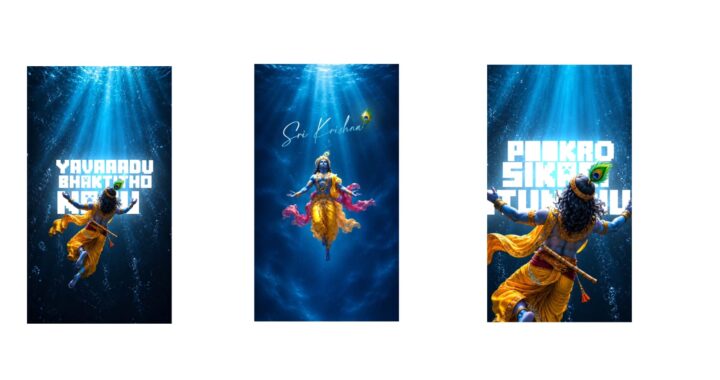
When I was looking through Instagram reels, I came across a video that I really liked. I thought it would look even better if I added a move animation to it, so I tried making this video. Take a look, and if you like it, please give it a like. Watch until the end, and I will explain the solution in this video even if you face any problem.
“Forgive me, boy. I am leaving after giving you hope. Don’t ask me why, I cannot tell you. Don’t even think about where I am going. I won’t ask for anything else. I lost one place in my life, but I thought I found it in another place.” You watched the video, right? Please comment on how you felt about it. And please support me a little bit. Supporting means giving a like, or if you have a next song in mind, or if you have some new ideas, please let me know. If you have new ideas, definitely share them; this is my request. I will absolutely encourage them because I am talking about new ideas and new editing styles. Comment whether you want it on mobile, or in software like After Effects or Premiere Pro. Let’s do it, or we can even create a new channel for After Effects, Premiere Pro, or DaVinci Resolve—there are many options, including the CapCut PC version. Just make sure to comment.
Right now, I will provide something for you in the description: I will give you a font and a project file. This project file works only in the Alight Motion app. If you don’t have the Alight Motion app, there’s no need to worry. I will provide it in Telegram; the Telegram link is down below, so check it out. Otherwise, comment “app link” on my Instagram, and I will send it to you directly so you don’t have to worry at all.
What is very important is the font and the fact that many people are saying the project is not importing. If it doesn’t import, open that link. For example, I have explained this in many videos, but let’s select one video—we will select our own video from here. Okay, for example, we have this recent video. I am selecting the arrow and opening that link from here. When I open it, I get this screen. I have already explained this in two or three videos, so keep it as it is. Here, we open the Alight Motion app, go to app info—meaning long press and go to app info—and here, I have turned the default setting on. Even though it’s turned on, it still appears like this to me. If it is turned off, sorry, please turn it on. My health is a bit not good, so please take care. If it is turned off, make sure to turn it on 100%.
Let’s assume you still faced the same issue. There’s no need to worry here. Click on the three dots, and there will be an option called “open in Chrome browser” or something similar—it doesn’t have to be just the Chrome browser. Here, we click on the three dots again, go into history, and copy that link. Okay, the link is copied. After that, open WhatsApp and paste the link you copied here. Okay, after pasting it, let’s open that link from here. Okay, from here it will open 200%. It will open 100%.
Even if it doesn’t open from here, you don’t need to worry at all. There will be an XML file in the Alight Motion app. You can upload the XML from here and use it. I will also give you a PNG link—I will give the bubble PNG that is there, and you can just replace it, which will be enough. And since I provided the font in the description, it’s a Telugu font. If you open the project file and don’t add the font, you will keep getting a “missing” error, so please understand that.
Now, keep it as it is and first turn off the camera. Turn off the camera because it’s not needed now; it will be needed later. Now, select whatever photo you have. It could be any photo, your photo. I will add a different photo to show you instead of that one, because many people have various kinds of doubts. Let’s take a photo. Okay, I am taking this photo. And I am making the correct adjustments to this white area and zooming in like this, and dragging it to the very end. Since I dragged it, go into “Move and Transform” here, and then go into “Z”. It says X, Y, Z, and if you click on Z, it turns green like this. Now, use your hand to move it up like this, and as you move it up, it goes to the back side. Keep it low, don’t make it too high. I will also tell you how much to set it—keep it around 1060 or 70. Look here, 1060 or 70. And use your finger to zoom in like this. Zoom in and place it in the center; it sets very well. Okay? Now, I have placed the photo until the end. Remove the hide option from the camera, click on this box, and if you turn on the camera, it sets very well for us. Now, the camera will automatically reveal the animation; see, it set perfectly.
If the photo quality is a bit low, there’s no need to worry here either. Just open ChatGPT directly. Open ChatGPT and you don’t need to worry too much. Just give a small prompt. Actually, you don’t even need a prompt; we don’t need a prompt at all. Upload whatever your photo is from here—just a moment, for example, if you have this photo, after uploading it, just write “more better quality”. You don’t even need to write “cinematic”. If you just write “more better quality”, that will be enough. After that, you can use it easily, that’s it. Then save it. If you have any other doubts, please comment. Jai Hind.