Introduction and Demo Breakdown
I will show you a demo video now; if you like it, please give it a thumbs up. This video was created based on a request in the comment section of yesterday’s video. It turned out to be very amazing. If you like it, please hit the like button to show some support. First, let’s watch the demo. Today’s video looks excellent.
You have watched it, right? Please comment on how you felt about it. It looks really amazing. I only played a little bit of the audio for you, but definitely try it out if you can. I am suggesting it because the video editing is truly good. First, I will explain a few things you need to do, and then you can go ahead and try it.
Choosing the Right Editing App
For this, use the Ultra Motion app—meaning, use the Ultra Clone app. I have provided the link below in the Telegram channel. If you go directly there, you will find it right where it is supposed to be, and you can use it. I won’t say too much about it, please understand; otherwise, it might cause an issue again. I won’t mention the name explicitly, you have to understand.
Okay, now look at what you are seeing; I am opening it. The project file I provided to you is also inside this, and I will give you an idea of how I made it so that your doubts are cleared. Okay, first, I will provide two projects, but try to use this one as much as possible. This is because it includes effects like the glow effect, animations, what do you call it—the halftone effect, and everything else. It looks very amazing and gives a great look to the editing, so please continue with this one. Okay? It will be very helpful to you.
Photo Setup and AI Prompt Engineering
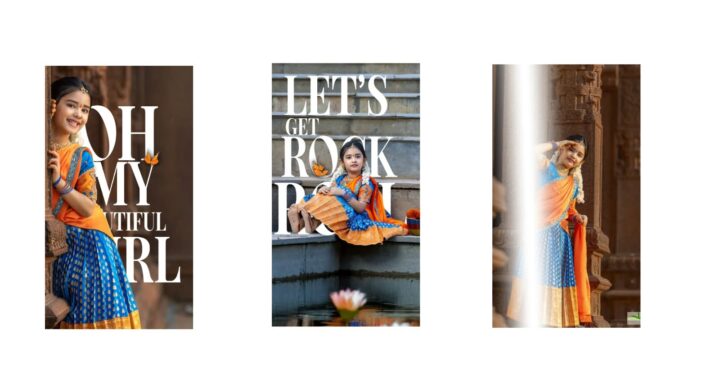
First, I will open the one I edited and show it to you. By clicking on this box, I am turning on the camera. Look here—sorry, this text part is unnecessary. Okay, look here; it looks like this. First, if you want to generate a photo like this, I have taken a photo as an example. I will show you the photo I used first to give you an idea. This is the original photo. Okay, for this, you might have a girl or a boy you like; you can take their photo here.
As an example, I will provide a short prompt; just use that prompt. It will generate a nice photo like this for us. You can also place the photo of the girl you like in it. Look here, next to my photo, I placed another girl’s photo—meaning, I put my photo. I will provide this prompt, please check it out. Okay, you can make adjustments based on that.
Replacing Assets and Adjusting Layouts
Now, select this photo, go into ‘Color and Fill’, and at the bottom, you will find the ‘Replace’ option. Use that. And see this flower? Set this flower exactly where you want to place it near the girl. I will also provide this font below, please check it out. This is a very important font and gives a very nice look.
Okay, from here, our video editing actually starts. From this point, it will have a shake effect, and also a slow-motion type of look with a—what do you call it—a book effect type of animation. It looks very good.
To tell you the truth, if you use this for a video, it will look super—I mean, for a video clip. For example, if you use a slow-motion video clip, you can go into ‘Color and Fill’ and change the photo or whatever is there.
Applying Dynamic Motion and Project Importing
After changing it, if you want to make it slow motion, look here—there is a speed option. You can go into that and make it slow motion like this. Look here, you can make it slow motion this way. It will look super, and you can cut out the extra part. Then, that slow-motion effect will give a very amazing look. Try this only if you are planning to add a video clip; otherwise, leave it. Okay, even if you don’t have a video clip and just continue with the photo, it’s no problem. You can make adjustments based on that. There could be photos or something else here; adjust it properly accordingly. I will provide this project file below.
The good thing about Ultra Motion within Alight Motion is that it will import files even if they have a large file size. I will explain how to do that. Okay, if you face an import problem, I will provide the link below, so please copy the link—copy it somehow
After copying it, go back. I will explain. Go back, click on the home page, and you will find the option inside. Paste the link you copied here, click on import, and you will see the import option. You can import it from here. Since I will put the link below, you can copy it from there. That’s it. After that, save it. If you have any other doubts, please comment. If you like it, please support by giving a like.