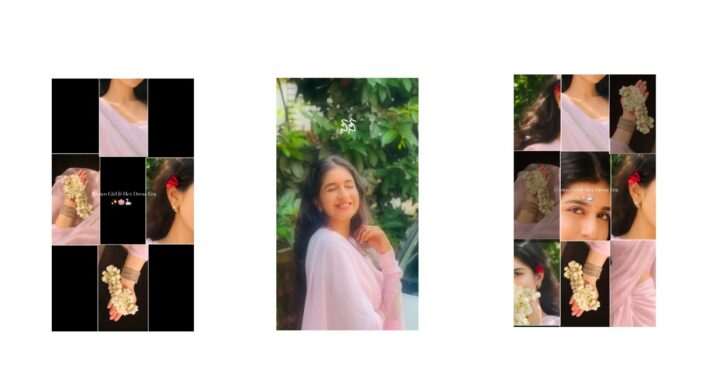
This video’s movement is going to be very amazing. I will show you a demo, and please like it as it gives me some support. If there is any specific video you want next, please comment and I will make it. Since I am only making the videos you ask for, please like it. Let’s see the demo video. As you can see, the whole video will look even better. I will post the video on Instagram, so please check it out if you get a chance. It looks very amazing. Now, I will tell you how to make this. First, I will explain a few things to you. Since we made this in Alight Motion, you can use Alight Motion or Ultra Motion; whichever app you have is no problem. I will provide a link in the Telegram below, and you can use your preferred app from there. Let me tell you, there is a cloned version of Alight Motion called Ultra Motion. Both Alight Motion and Ultra Motion are the same, but this one has more effects. You can use and install both, so you don’t need to worry about it. Keep that in mind.
Another thing I want to tell you in detail is that recently many people have been asking for a full tutorial on two or three videos. We will definitely do that, so don’t worry. I will explain it in the next video or the one after that. But even in this video, it will be like a tutorial, though it won’t have that much movement. Explaining the movement from the very beginning is not a big deal, but it takes 30 to 35 minutes because explaining everything manually increases the duration. If you support me, I will definitely do it, okay? Now, in the project I’m giving you, hide these two videos. This is how we have it right now. First, let’s come to the ending. The plan is to create a feeling like sitting near a balcony, or maybe a train balcony. I even watched a video like that and created this based on it. So first, if you want to generate a photo like this, or even if you have a normal photo, it’s no problem. First, open ChatGPT. I will give you a small prompt, or actually, you don’t even need a prompt.
For example, I will provide a photo below, check the photo. I will provide my photo, meaning a couple photo generated using my image. Take this photo and input it there as a reference image. Look at it and send it. After sending, click the plus icon to go into photos, and first, add your own photo. After that, you can also add a photo of the other person you like. I will add a photo, just a minute. It can be anyone’s photo. Add these two photos, and now I will type “recreate this image”, that’s all. Let’s see how it turns out. Okay, see, the photo has been recreated. I stopped the video for a moment, look. It came out very amazing. Look at the photo and you will get an idea. This is how you can generate the photo. Now, download this same photo, and I will tell you what to do next. Download it and open the PhotoRoom app. If you don’t have the PhotoRoom app, it is available on the Play Store, check it out. Upload the photo. After uploading the photo, first download it. Click on this option, go to export, and save it. After saving, come back. Similarly, come back and click on that photo. Click on “transform”, click on the photo, and select the edit cutout option. Go into it and first, click on the erase option over the girl.
Rub it like this. If you rub only over the girl, the girl will be removed, and you can download it with only the boy’s photo. Click on “done” and export it. Then come back again, select the same option, click on that photo, go into edit cutout, and now keep the girl as she is and rub over the boy. The boy will be removed, and then save it. Both have now been saved separately. I have given you the project, and if there is an import problem, I will provide a video link below, so watch that video. Now open the project, click on this box, turn on the camera, and first, go into color and fill at the place of this girl’s photo to replace it, or it will fit even if you place it normally, so don’t worry. Now I will add this photo here and it will change. Sometimes the camera doesn’t change properly, and at that time, you have to add the first photo from the top. It will display on top, I will show you in a minute. The photo has been added, so select that photo, copy the layer using the top plus icon, and delete the photo.
Now, if you want to replace it in that same photo’s place, click on the photo, turn all of these off, and paste it. It will easily change this way too, just like that. Last and final, you can replace it either with the photo where the background was removed at the start, or with the separate photos you made. It will fit perfectly like this, just look at it. After that, you can save it. If you have any doubts, please comment. If you like it, please support by liking the video. Jai Hind
Font
Telugu Song Lyrics
Tamil Song Lyrics